Category
- Building Smart Apps
Creating a Dashboard
Dashboards represent the different screens of your app. You can create as many widgets as you like and combine multiple widgets into a dashboard through tabs.
A widget can hold a chart, file, spreadsheet, grid, web form, HTML card, or a datalist.
Each widget can hold one element.
- Open the app you have created. The following page is displayed.
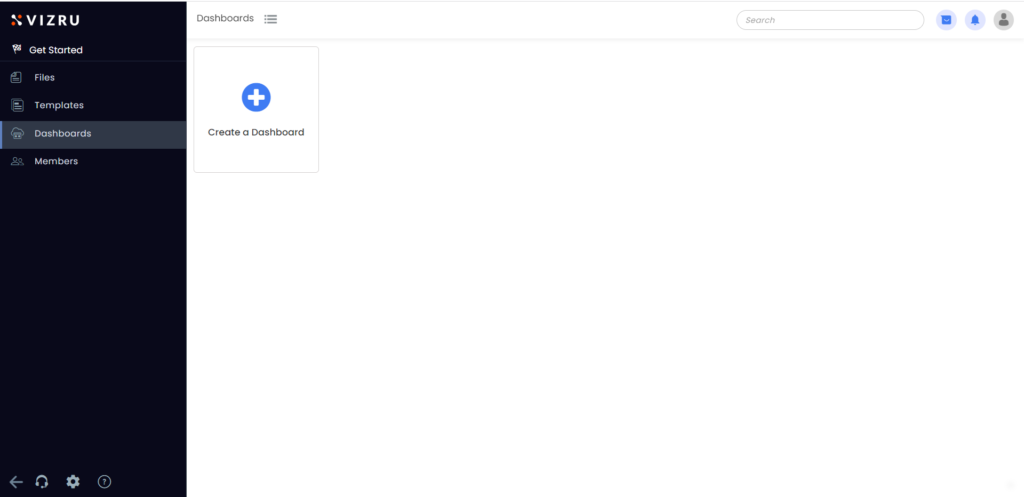
- Click the “+” icon to create a new dashboard. The following page is displayed.
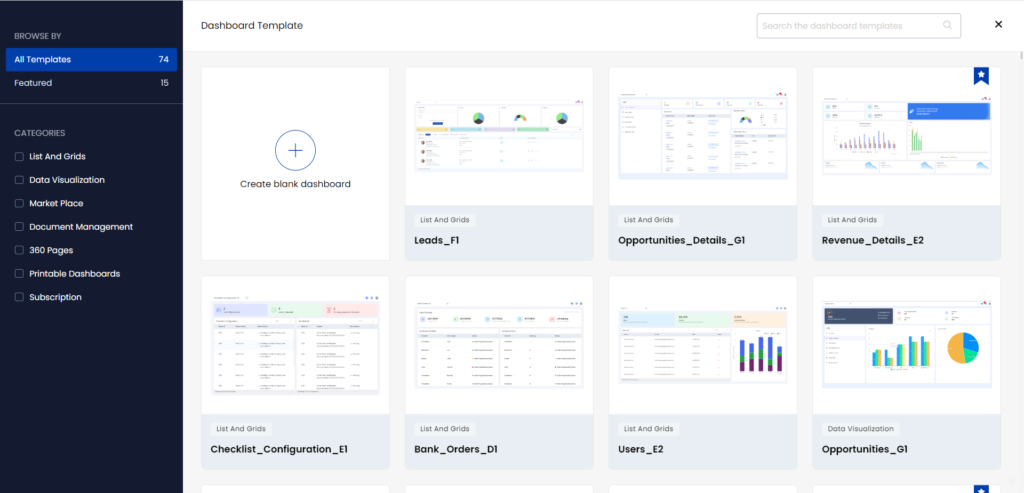
- You can either create a new blank dashboard or use a template. To import a dashboard template, click the template. The preview page is displayed.
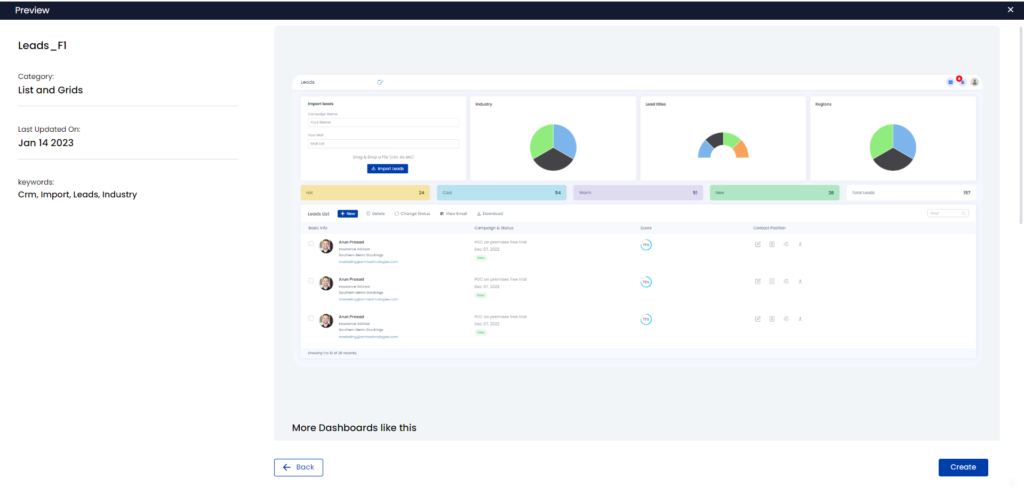
- Click Create. The dashboard template gets imported to your app.
- If you click Create blank dashboard, the following page is displayed.
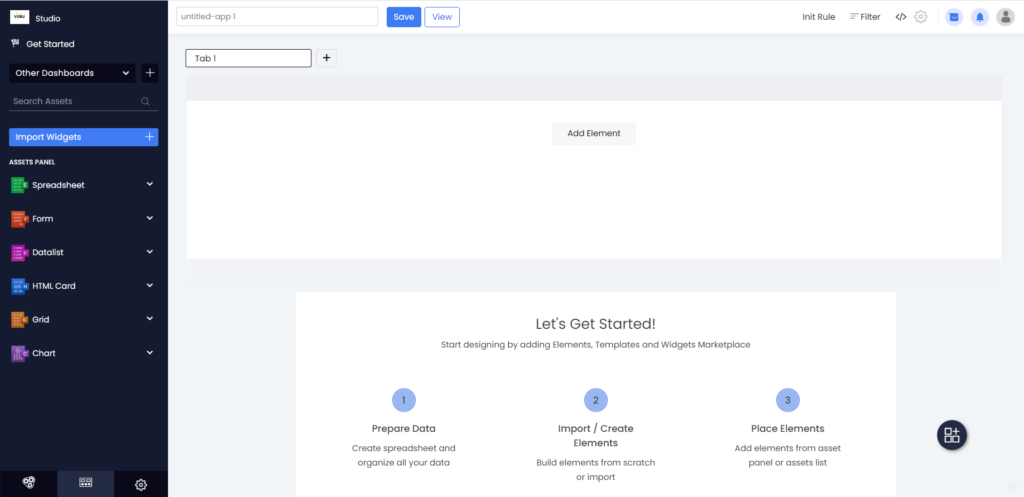
- Enter a suitable name for your dashboard and click Save.
- You can now create different app elements from the left panel.

- Click the “+” icon next to Tab 1 to create a new tab within the same dashboard.
- All the app elements you create will be listed in the left panel. To add each of them to the canvas, click Add Element. The following page is displayed.
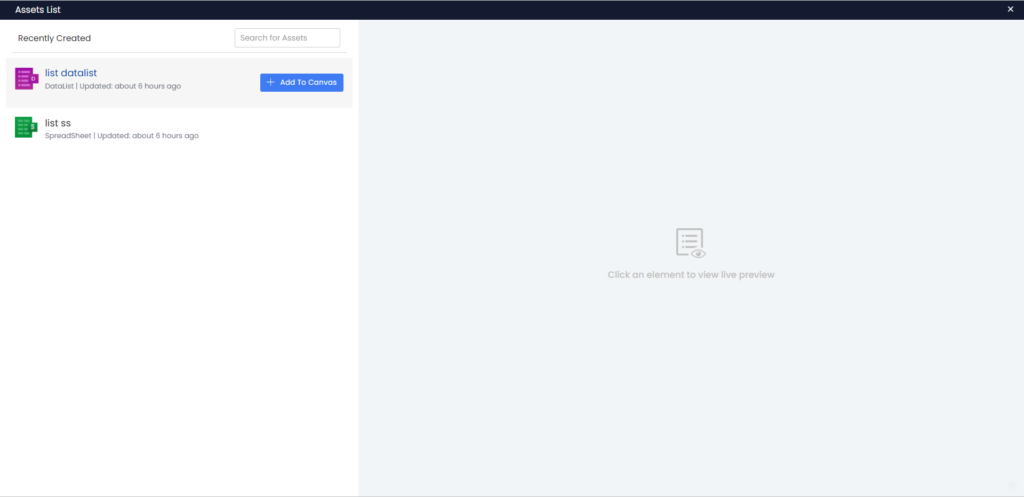
- Hover your mouse over the element you want to add and click Add to Canvas. The selected element gets added to the canvas.
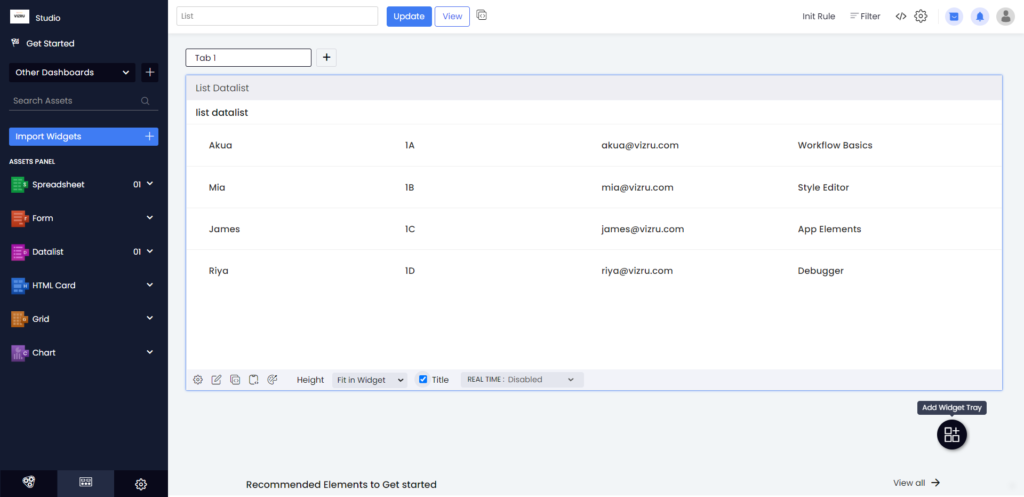
- Click Add Widget Tray on the bottom right of your page to insert a new widget and add the next element to the canvas.
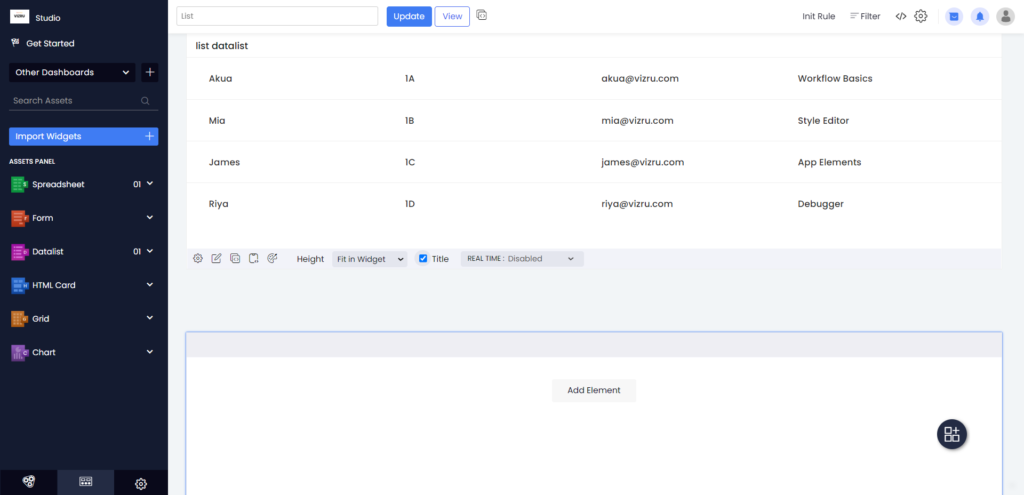
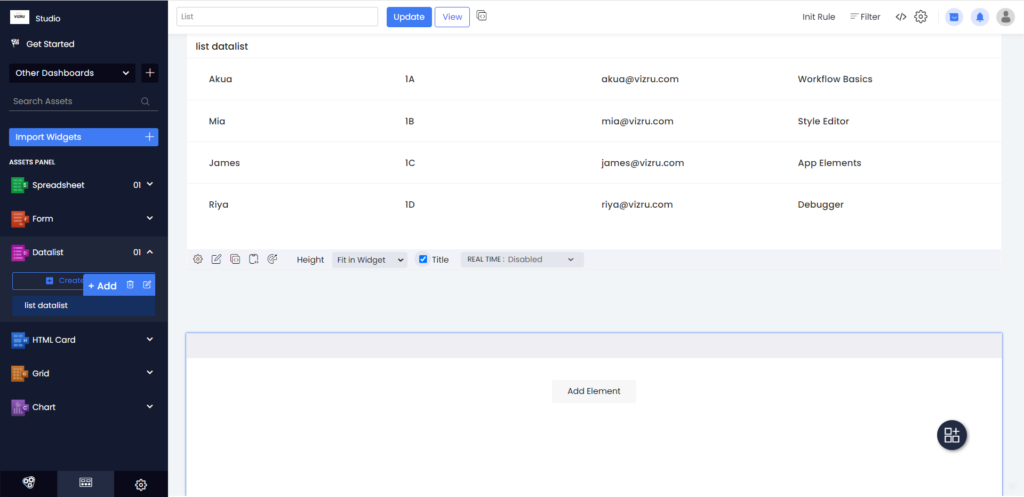
- You can also add the element to the canvas directly from the left panel.
- Hover your mouse over the element you want to add and click + Add. The element gets added to the canvas.
Note: Widget titles must be distinct. The same widget cannot be added multiple times from the Assets Panel to the dashboard. This ensures that widget title does not duplicate and is unique in the dashboard.
- Click Update to update the dashboard.