Category
- Working with Workflows
- Workflow Blocks
Foundational Blocks
Workflow Studio has several blocks that help execute basic functions such as receive input data, push data to an external service, relay messages to users, internally or externally, parameter check, decision-making, customize output data, and more.
Get Parameter Block
Use the Get Parameter Block at the entry point of a workflow to receive input data. This block defines the starting point when the workflow is triggered.
Generic POST Block
Use the Generic POST Block to run a workflow with a POST request. If form data is sent via POST to the url https://tenant.vizru.com/workflow.trigger/workflowId, where “tenant” is the business’s sub-domain and “workflowId” is the workflow to be run, the workflow will take the form posted and use that as the input for the next block.
Generic GET Block
Use the Generic GET Block to run a workflow with a GET request. If a GET request such as https://tenant.vizru.com/workflow.trigger/workflowId?user=lucas&email=lucas@vizru.com is sent, two variables will be passed into the workflow, user=lucas and email=lucas@vizru.com.
Conditional Block
Use the Conditional Block to make decisions within a workflow. The conditional block supports the following operands: “==”, “!=”, “<”, “>”, “<=”, “>=”. An “and” statement can be achieved by using more than one conditional block off of the true side, and “and or” statement can be achieved in a similar manner. When using functions inside of this block, it is important to put the function on the left.
Send Mail
Use the Send Mail block to send mails from a workflow to a number of recipients. Multiple recipients can be set in the To, CC, and BCC so long as they are separated by commas. This block supports aliasing so that you can make it look like the email is coming from a system other than Vizru, as well as directing replies to another email address rather than Vizru. There is no way for customers to correlate incoming mail to any of the emails workflow uses to send.
Notification Block
Use the Notification Block to relay messages to users, internally or externally. Notifications will disappear after a few moments once the notification has been triggered.
Set Variable Block
Use the Set Variable block to set a variable or multiple variables and assign static or dynamic values to these variables.
Custom Output Block
Use the Custom Output block to prepare JSON data, which can be fetched by a third party or pushed to a third party using cloud blocks. To know more about the Custom Output block, click here.
Clear Output Block
Use the Clear Output block to control the data exposed when triggering a workflow externally. It is also used to get around situations where you want to have a literal that shares a name with a variable in the current output. This block returns nothing and that’s what makes it useful.
Set Variable block
Use the Set Variable block to set a variable or multiple variables and assign static or dynamic values to these variables.
Using the Set Variable block in a workflow
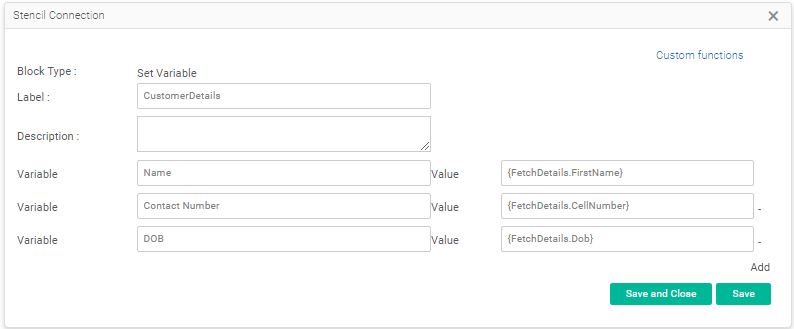
- Enter a suitable name to the function block in the field Label.
- Add a description to the function block, if any.
- Enter the name of an entity you want to set as a variable in the field Variable.
- Enter the value (static or dynamic) in the field Value.
- Click Add to add multiple variables and their corresponding values.
Note: Find below a list of dynamic values that can be assigned to a variable using the Set Variable block.
- {viz-uuid} : Generates a UUID that is globally unique
- {logid} : Gives the log id of the current workflow
- {loginuserid} : Gives the numeric id of the user running the workflow
- {loginuseremail} : Gives the email id of the user running the workflow
- {filter-count} : Gives the count of the Filter block output.
- {tenantid} : Gives the id of the current tenant
- {viz-timestamp} : Gives the current timestamp
- {%global abc eq 0%} : Assigns the global variable “abc” the value “0”
- {%global abc%} : Calls the global variable “abc”
- {%global abc inc 1%} : Increments the value of the global variable “abc” by 1
- {%global abc concat entry.name ,%} : Connects the value in the global variable “abc” and the value in {entry.name} with a “,”
- {%clean_json Data.Value %} : Cleans (encodes) the JSON value (Data.Value) prepared
Find below a set of commands used to handle global variables using the Set Variable block.
- {%global varName eq value%} to assign a value to a global variable
{%global Age eq 25%} assigns the value “25” to the global variable “Age”
- {%global varName%} to call the global variable “varName” in a workflow
- {%global varName inc value%} to increment the value of a global variable
{%global Age inc 1%} increments the value in the global variable “Age” by “1”
- {%global varName concat value ‘,’%} to add a value to the existing value in a global variable.
If a global variable “Country” has the value USA, {%global Country concat India ‘,’%} gives the output “USA,India” with “,” as the separator
If a global variable has an array of values, the following commands are used to insert, retrieve, or remove elements from the array.
- {%global varName push value%} to insert a new element in the beginning of the array
- {%global varName fetch value%} to retrieve an element at a given index position from the array
- {%global varName pop%}to remove the last element from the array
The set variable block can be used to set custom commands for a responsive and simplified chat journey.
IMAGE
- To tag users in a chat response, enter “refCommands” as the variable and user names, as in the example “[“Edison james”,”Eldrin thomas”,”Thomas Muller”]”, as the value. On the chat panel, you can search for a user using the “@” sign.
- To display suggested user actions in a chat response, enter “slashCommands” as the variable and desired commands, as in the example “[“abc”,”swicth_bot”]”, as the value. On the chat panel, you can choose an action using the “/” sign.
- Enter “hashCommands” as the variable and desired commands with descriptions as the value (static or dynamic) to classify chat responses based on the different domains such as tutorial, troubleshooting, or FAQ.
- To set tooltip content for an icon, enter “menuConf” as the variable and the text as in the example “{“mainIcon”: “icon-help”, “title”: “Hi, I’m Zoey, your virtual assistant.”} as the value.
The set variable block can also be used to customize responses of an externally triggered workflow.
IMAGE
- Enter “Body” as the variable and the desired text to be displayed with HTML codes as the value.
- Enter “datatype” as the variable and “html” as the value.
You can now set the layout of workflow responses by adding appropriate HTML codes.