Category
- Working with Workflows
Utility Blocks
Array Extract Block
Use the Array Extract Block to extract an array of data based on a regular expression. If you have unstructured data, you can define a regular expression to extract elements from that data.
Using the Array Extract Block in a workflow

- Enter a suitable name to the function block in the field Label.
- Add a description to the function block, if any.
- Enter the regex pattern to extract elements from the input data.
- Enter the input in the field Data Selector. The input can be static or dynamic.
If the input is “John,Adams,James” and the pattern is “/\w+/”, the Array Extract block gives the following output.
- {ArrayExtract.data} [] : Gives the output as an array [“John”,”Adams”,”James”]
- {ArrayExtract.data} : Gives the first match “John”
- If the output of the Array Extract block is passed to a child as a loop, the first loop receives the output “John”, the second loop receives the output “Adams”, and the third loop receives the output “James”.
5. You can enter a keyword for the output of the Array Extract block in the field Output Key.
6. You can select the Sort Order as ascending or descending to sort the output data.

Date Processor
Date Processor block helps you to add or subtract a day/month/year to or from a given input date. It helps you to find the difference between two dates in terms of years, months, or days. If time is also specified, it gives you the difference in hours, minutes, or seconds, as desired. It also helps you compare date logs. By comparing, you can find the earliest or latest date log. In addition, the Date Processor block enables date-to-timestamp/timestamp-to-date conversion.
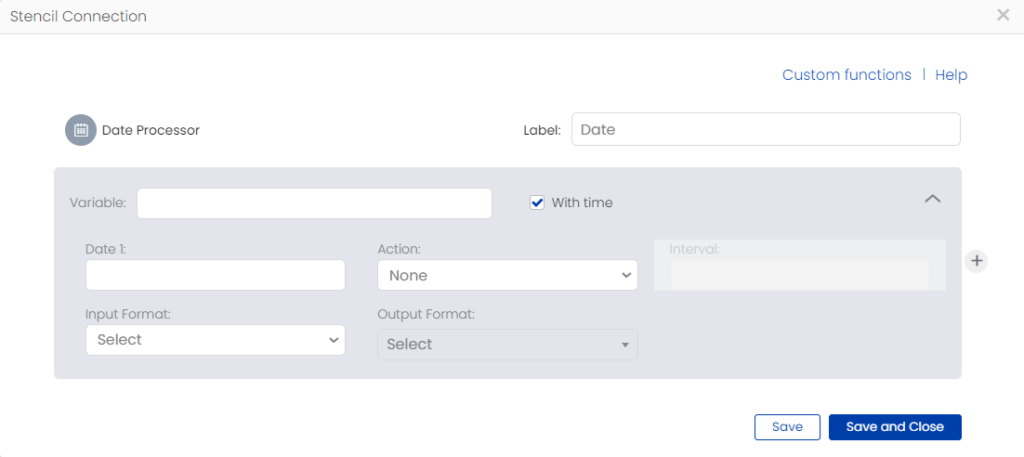
- Give a suitable name to the function block in the field Label.
- Enter the input date in the field Date 1. The data for this field can also be fetched from an external object, which could be a spreadsheet, a workflow, or any other external source.
- Select the checkbox for With time if time is specified.
- Choose the Action as Addition, Subtraction, Difference, or Compare from the dropdown menu.
- Enter the time interval in terms of days, months, or years in the field Interval. For example, “2 days”; if there are consecutive entries separate them using a comma followed by a space, for example, 2 days, 3 months, 4 years.
- Select the Input Format and Output Format from the dropdown menu. For more output formats, check https://www.php.net/manual/en/function.date.php#refsect1-function.date-parameters
- Click
 to add a new function block. You can get multiple actions executed at a time using multiple function blocks.
 - Click Save.
Examples
Addition
Add a day/month/year to a given input date and get the output in the desired format.
Key : Test 1
Date 1 : 10/15/2019 09:30:52
Action : Addition
Interval : 1 day
Input Format : m/d/Y
Output Format : m/d/Y

Result : 10/16/2019
Subtraction
Subtract a day/month/year from a given input date and get the output in the desired format.
Key : Test 2
Date 1 : 10/18/2019 07:40:55
Action : Subtraction
Interval : 3 days
Input Format : m/d/Y
Output Format : m/d/Y

Result : 10/15/2019
Difference
Find the difference between two given input dates in terms of years, months, or days.
Key : Test 3
Date 1 : 10/18/2019
Action : Difference
Date 2 : 10/18/2018
Input Format : m/d/Y
Output Format : Y

Result : 01
Compare
Compare two date logs to find the earliest or latest one.
.png)
Date-to-Timestamp Conversion
Convert a given input date to its timestamp.
Key : Test 4
Date 1 : 06/30/2019
Action : None
Input Format : m/d/Y
Output Format : Timestamp

Result : 1561852800
Math Function
Math function helps you to perform mathematical operations on static as well as dynamic values. It supports addition, subtraction, multiplication, division, mod, parentheses, nested parentheses, average, and round off operations.
Using Math Function in a Workflow
- Give a suitable name to the function block in the field Key.
- Enter the expression for the mathematical operation in the space provided.
- Click IMAGE to add a new function block. You can get multiple actions executed at a time using multiple function blocks.
- Click Save.
Examples
Basic Operations
Expression : (20+30-40)/2
Result : 5
Mod
Expression : 11%2
Result : 1
Average
Expression : avg(10,20,30)
Result : 20
Round off
Expression : round(100/3,2)
The value after comma indicates the number of decimal places to be shown in the result figure.
Result : 33.33
If the Math Block fails to perform the requested operation, it returns the output value as ‘0’. If you pass a non-numeric value to the math block, it fails to perform the requested action. In this case, you get the output as 0, which indicates that your input value is non-numeric.
.png)
.png)
String Processor
Use the String Processor block to perform basic string functions without giving syntax, and to perform regex functions.
Using String Processor Block in a Workflow
regexE
The action regexE helps you to retrieve a subset of a string.
- Enter a suitable name to the function block in the field Key.
- Choose Action as regexE(Extract).
- Enter the Pattern and the Input. The Input can be static or dynamic.
- Choose the Offset as 1.0, 2.0, 3.0, etc. to select a specific match.
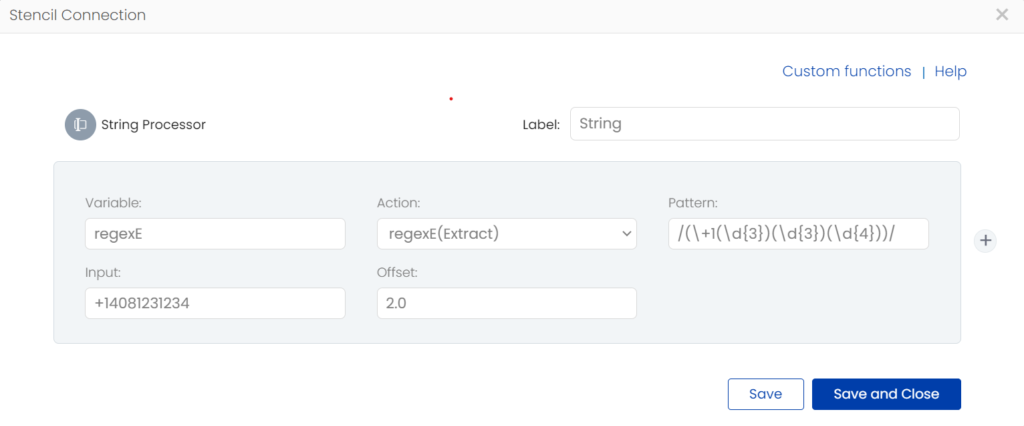
This pattern returns +1 408 123 1234. That is, it extracts (+1), the next three digits (408), next three digits (123), and the last four digits (1234). Since the offset is set as 2.0, the action returns the second match “408” as the output.
This action can be used to extract specific fields in a phone number.
Output : 408
- Click to add a new function block. You can get multiple actions executed at a time using multiple function blocks.
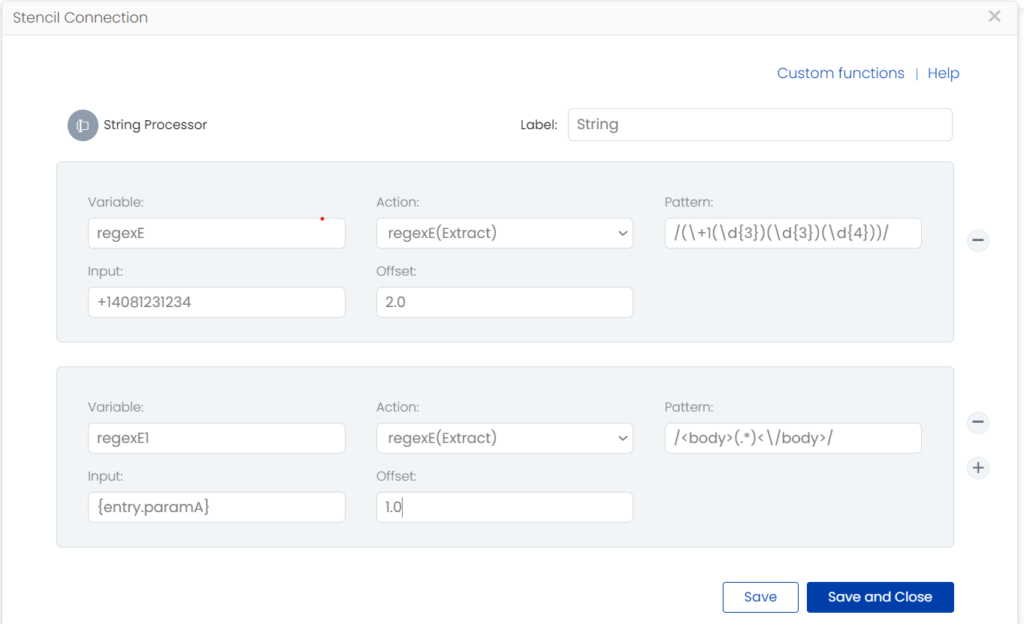
The second pattern returns everything within the body tags of the variable “paramA”.
If the input is <body>Hello! How are you?</body>
Output : Hello! How are you?
regexM
The action regexM helps you to check if a pattern matches a piece of data. It returns an integer of “1” or “0” depending on the result.
- Enter a suitable name to the function block in the field Key.
- Choose Action as regexM(Match).
- Enter the Pattern and the Input.
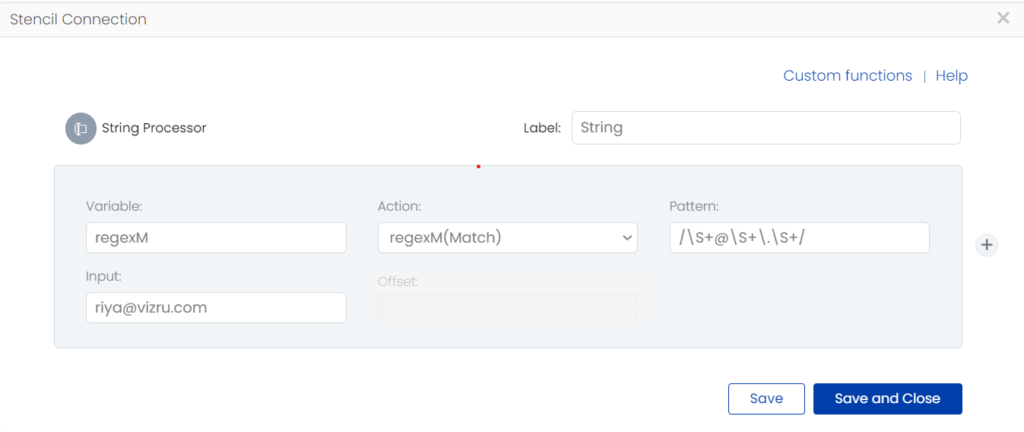
This pattern checks if an input string has “@” and “.” signs in it.
Output : 1
This action can be used to validate email ids.
regexR
The action regexR helps you to perform a regular expression replace on the data passed into it.
- Enter a suitable name to the function block in the field Key.
- Choose Action as regexR(Replace).
- Enter the Pattern and the
- Enter the desired output pattern in New String.

Output : (408) 123-1234
This action can be used to convert a string into standard patterns such as phone numbers or credit card numbers.
String to Upper
The action String to Upper converts its input into upper case.
- Enter a suitable name to the function block in the field Key.
- Choose Action as String To Upper.
- Enter the Input.

Output : THIS IS TEST
This action can be used to ensure uppercase data in forms or credit card details.
String to Lower
The action String to Lower converts its input into lower case.
- Enter a suitable name to the function block in the field Key.
- Choose Action as String To Lower.
- Enter the Input.
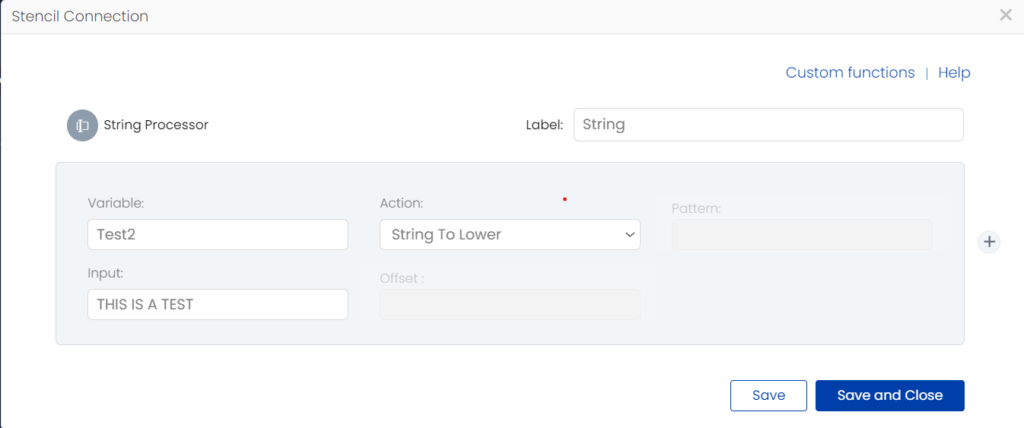
Output : this is a test
String Length
The action String Length gives the length of your input string.
- Enter a suitable name to the function block in the field Key.
- Choose Action as String Length.
- Enter the Input.
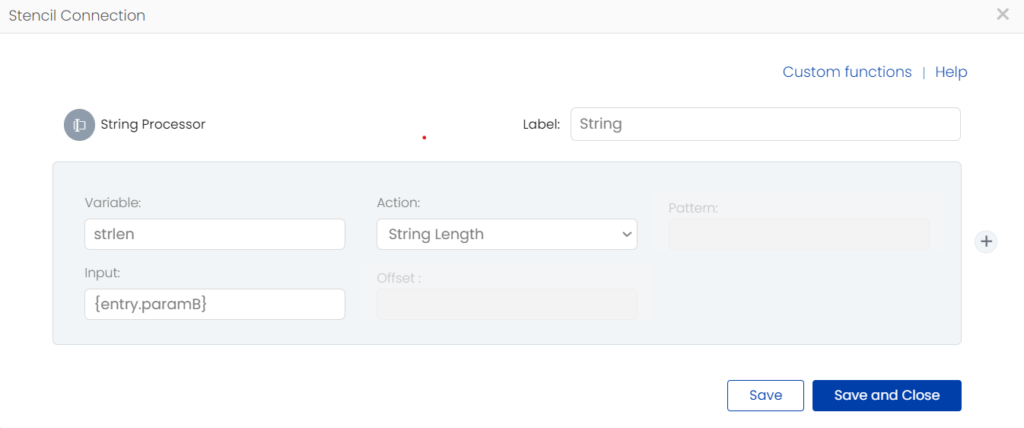
If the input string is “Hello World!” which is fetched from the block “entry” stored in the variable “paramB”, the action gives the output as “12”.
Implode
The action Implode is used to pull a variable out of an array of data and combine many such variables into a string based on a defined pattern.
- Enter a suitable name to the function block in the field Key.
- Choose Action as Implode.
- Enter the Pattern and the Input.
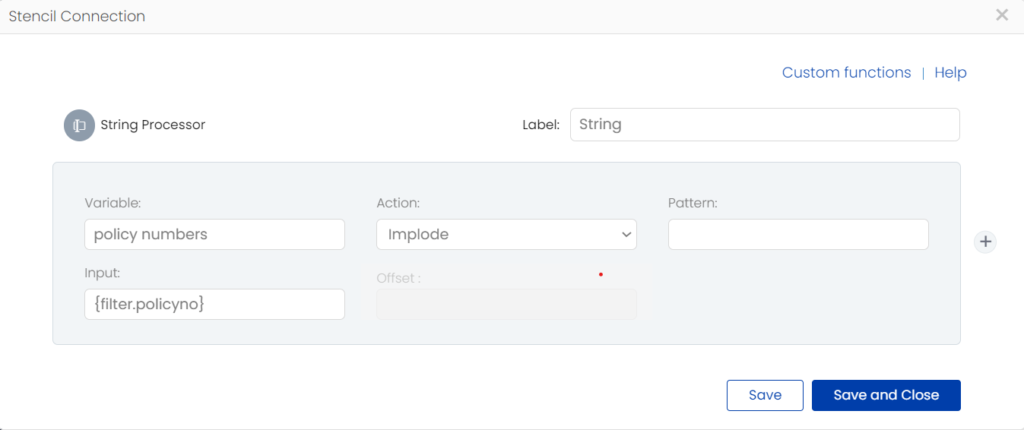
If the input is a set of policy numbers from a column in a spreadsheet, the action returns values with comma separator as per the pattern specified.
Output : 001,002,003
Explode
The action Explode breaks a string into an array based on a particular character or delimiter.
- Enter a suitable name to the function block in the field Key.
- Choose Action as Explode.
- Enter the Pattern and the Input.
- Set Offset as 1, 2, 3, etc. to obtain the required number of array elements.

If the input string is (A,E,I,O,U), the action Explode returns the output:
[0] => A
[1] => E,I,O,U
urlencode
The action urlencode is used to encode the URL. This action returns a string in which all non-alphanumeric characters except “_” are replaced with “%” sign followed by two hex digits and spaces encoded as “+” signs.
- Enter a suitable name to the function block in the field Key.
- Choose Action as urlencode.
- Enter the Input

If the dynamic input leads to https://vizru.com/press, the action returns the output https%3A%2F%2Fvizru.com%2Fpress.
Compare String
The action Compare String helps you to compare the similarity between two strings. The different types supported are:
- Simple: It returns the sum of the lengths of the common substrings.
- Percentage: It returns the percentage match.
- Levenshtein: It returns the number of minimal number of characters you need to replace, insert, or delete to transform string 1 to string 2.
If Input a : chucknorris
Input b : jrchuckmnorris
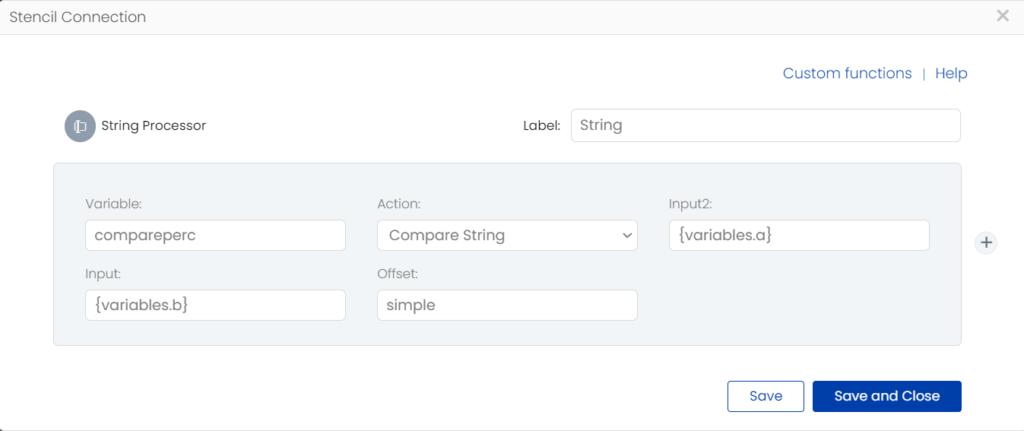
Output : 11
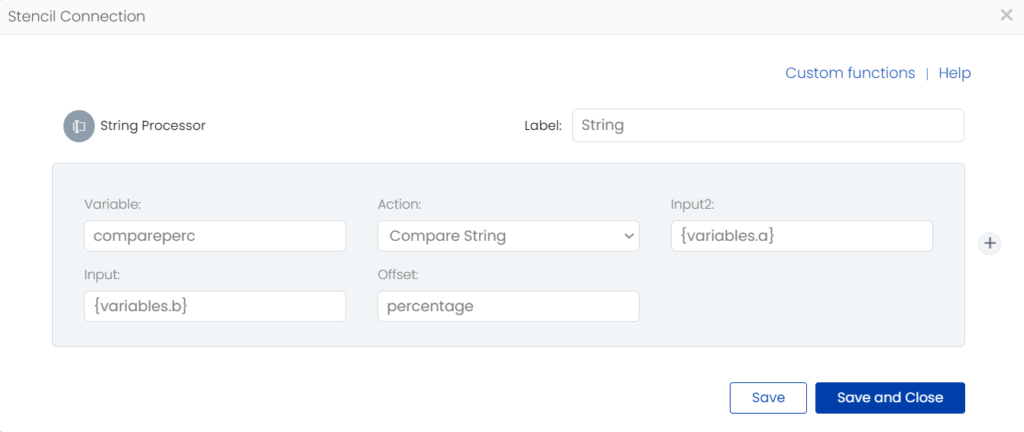
Output : 88
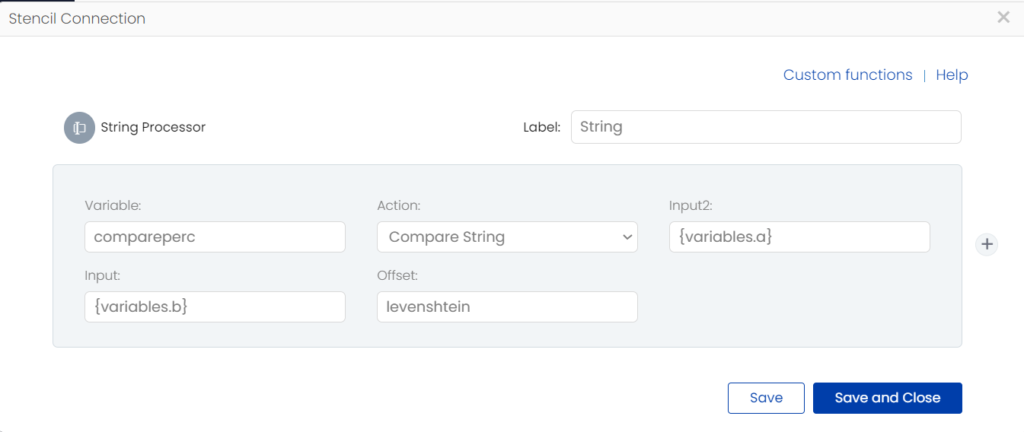
Output : 3
Substring
The action Substr helps you to extract a part of a string or a set of characters of a specified length from a string. This action returns a substring as defined by the start and length parameters. The “start” parameter refers to the position of the original string from where the part needs to be extracted. It can be positive or negative. If positive, the position is determined from the beginning of a string and if negative, the position is determined from the end of the input string. The “length” parameter defines the number of characters the output substring needs to contain.
- Enter a suitable name to the function block in the field Key.
- Choose Action as Substr.
- Enter the Input, Start, and Length
Note: Use “/s” to denote the whitespace character.
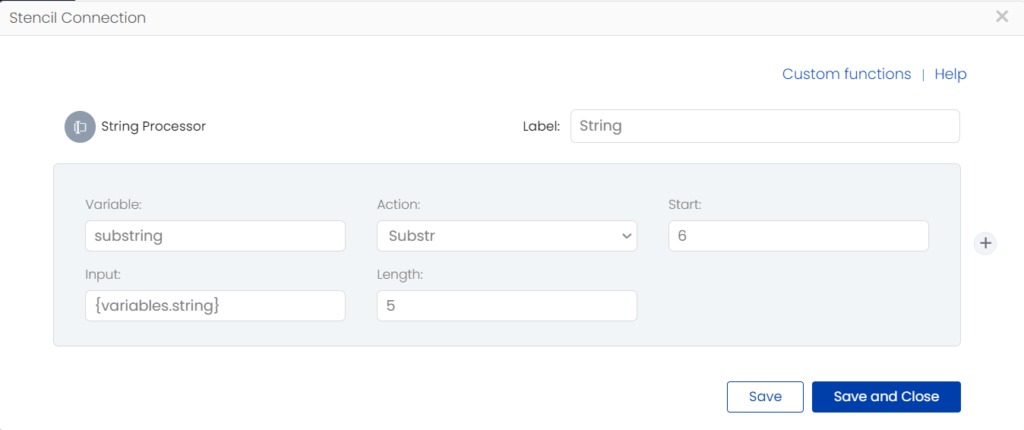
If the input string is “Hello World!” the action extracts the substring after 6 positions from the beginning of the string and returns the output World which is of length 5.
Substring Count
The action Substring Count gives the count of number of substring occurrences.
- Enter a suitable name to the function block in the field Key.
- Choose Action as Substring Count.
- Enter the substring in Pattern.
- Enter the Input.
- Enter the “start” and “length” parameters in Offset.
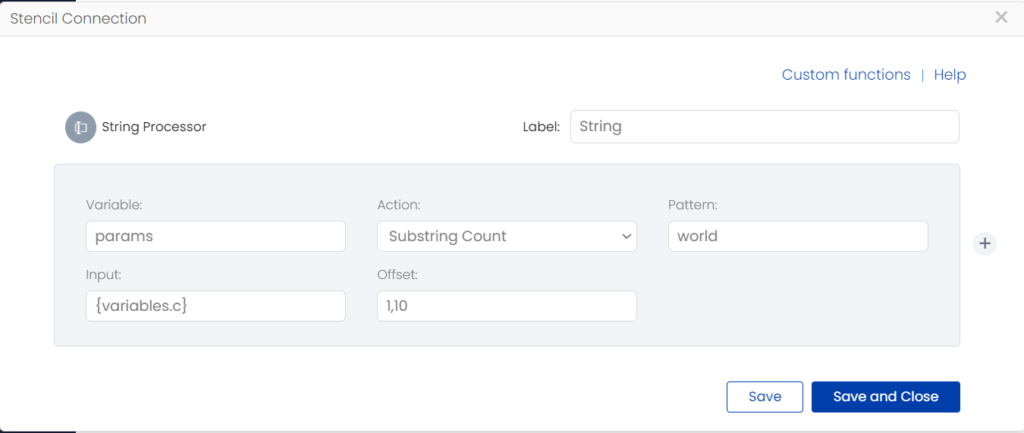
If the input is “Hello world. The world is nice” the action returns the output 1. If the Offset field is empty, the action takes the total string length and returns the output 2.
String Replace
The action String Replace is used to replace all occurrences of a search string with the replacement string.
- Enter a suitable name to the function block in the field Key.
- Choose Action as String Replace.
- Enter the string you need to search for and replace in Find.
- Enter the Input.
- Enter the replacement string in Replace.
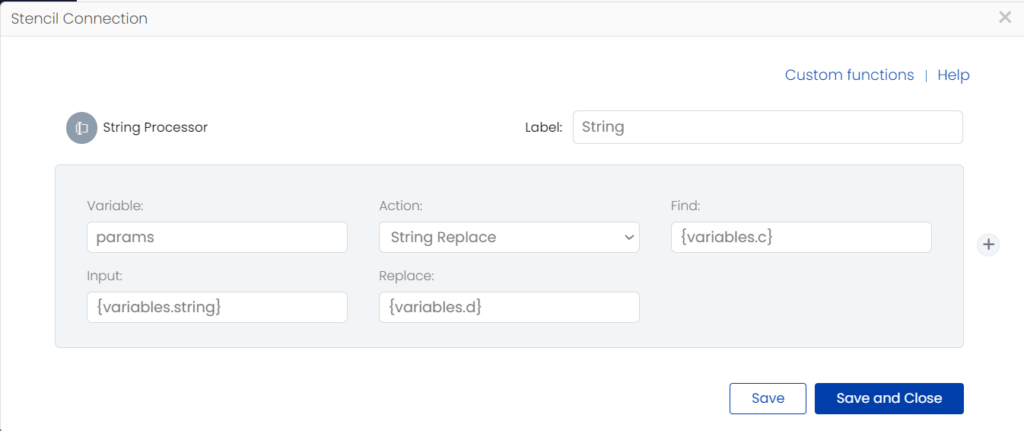
Input : Hello\tworld. The\tworld\tis\tnice.
c : \t
d : \s
Output : Hello world. The world is nice.
Ltrim
The action Ltrim is used to remove white spaces or other predefined characters from the beginning of a string.
- Enter a suitable name to the function block in the field Key.
- Choose Action as Ltrim.
- Enter the character that needs to be removed from the input string in Pattern.
- Enter the Input.
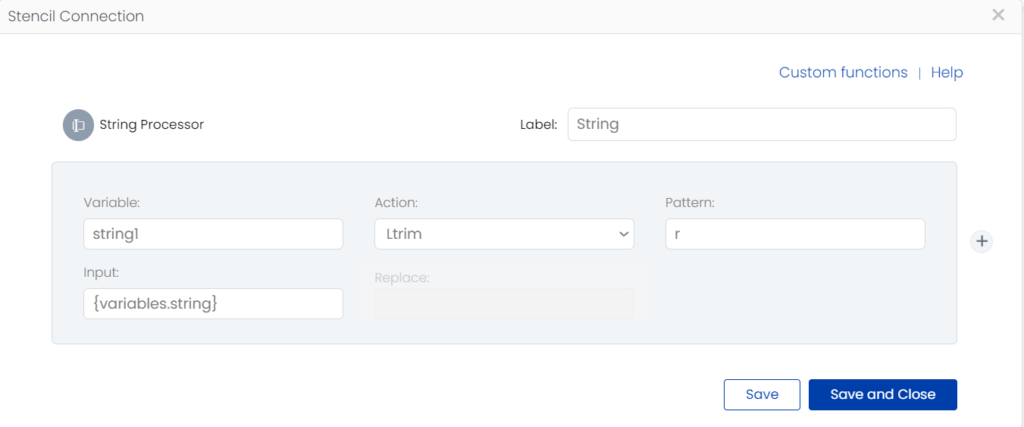
Input : rrrHello World!
Output : Hello World!
Rtrim
The action Rtrim is used to remove white spaces or other predefined characters from the end of a string.
- Enter a suitable name to the function block in the field Key.
- Choose Action as Rtrim.
- Enter the character that needs to be removed from the input string in Pattern.
- Enter the Input.
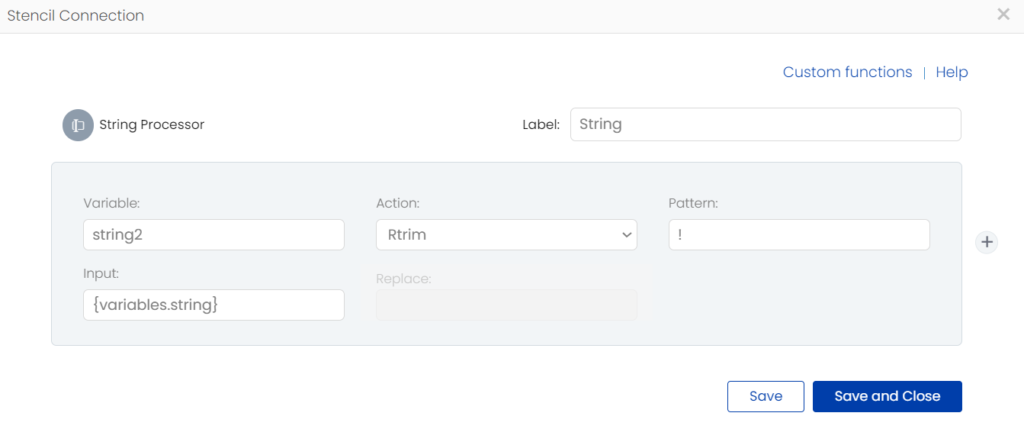
Input : Hello World!!!
Output : Hello World
Unicode escape, Unicode Un-escape, URL encode, URL decode
Unicode Un-escape
Input: \ud83e\udd74
Output ::
Unicode Escape
Input : :
Output :\\ud83e\\udd74
URL Encode
Input: https://www.amazon.com/
Result: https%3A%2F%2Fwww.amazon.com%2F
URL Decode
Input: https%3A%2F%2Fwww.amazon.com%2F
Result: https://www.amazon.com/