Category
- Working with Workflows
Spreadsheet Blocks
Spreadsheet Filter
Use the Spreadsheet Filter block to extract specific data from a spreadsheet.
Using the Spreadsheet Filter Block in a Workflow

- Enter a suitable name to the function block in the field Label.
- Add a description to the function block, if any.
- Select the livespace from the dropdown list that has the spreadsheet from which data need to be extracted.
- Select the spreadsheet from the dropdown list from which data need to be extracted.
- Use Filter Key and Filter Value to extract the specific rows from the spreadsheet. The input to the field Filter value can be static or dynamic.
In the example shown, the Spreadsheet Filter block returns all rows with the “task count” column value greater than “8”, as its output.
The following operators or functions can be used to extract data from the spreadsheet:
“=”, “<”, “>”, “<=”, “>=”, “!=”, “IN”, “! IN”, “=(i)” , “In Btwn”, “Like”, and “Not Like”.
Note:
- Select “=(i)” to extract an entity irrespective of its case.
- Select “In Btwn” to extract rows between two given entities. If the Filter Value is set as “04/03/2020,04/05/2020”, the Spreadsheet Filter block returns all the rows between the values “04/03/2020” and “04/05/2020” as its output.
- Select “Like” to extract entities that begin or end with the same elements. If the Filter Value is set as “^abc”, the Spreadsheet Filter block returns all entities that begin with the elements “abc” as its output. If the Filter Value is set as “abc$”, the block returns all entities that end with the elements “abc” as its output.
- Use Limit From and Limit To to specify the required number of rows in the Spreadsheet Filter block output. The inputs to these fields can be static or dynamic.
- Use Column Alias to change the name of a column in the output. In the example shown “Status as Task Status” changes the spreadsheet column name “Status” to “Task Status” in the output.
- Enter column name in Distinct Column if you need only a single column in the spreadsheet as the output.
- Use Sort Order to set the elements in a column of the Spreadsheet Filter block output in ascending or descending order.
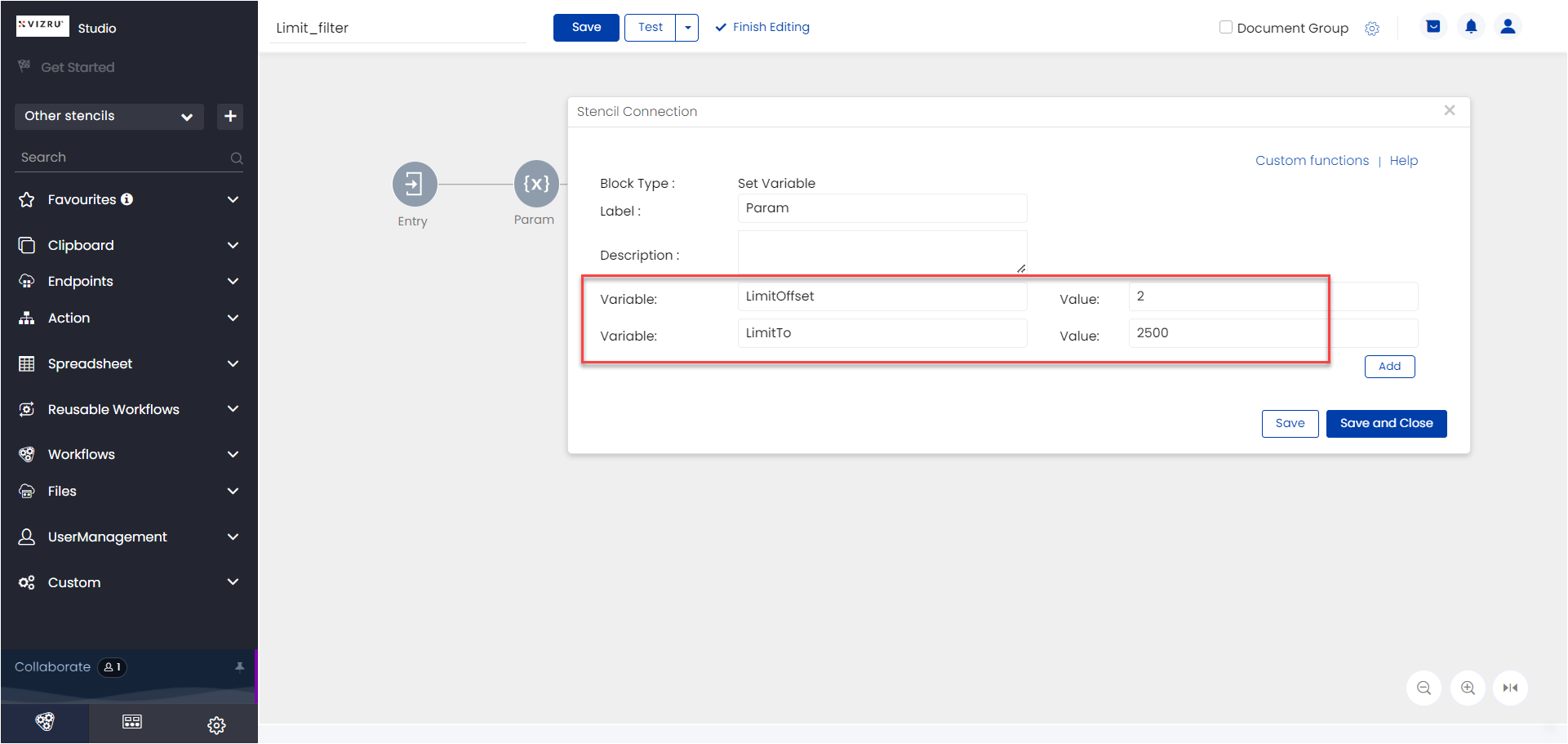
To pass values to the “Limit From” and “Limit To” fields dynamically, the two offsets are first defined using two variables “limitoffset” and “limitTo” in a set variable block and these variables are called in the filter block as shown in the screenshots below. Note that the variables can take any names and not necessarily the names shown in this example.

Spreadsheet Insert
Inserts data into a spreadsheet.
Spreadsheet Insert or Update
Will take a filter key and filter value. If nothing is found then a new insert will be performed. However, if a record is found then that record will be updated instead.
Spreadsheet Delete
Deletes specific rows in a spreadsheet.
Spreadsheet Update
Updates to your spreadsheets can be made with this block. Multiple updates can be performed on a single record.
Spreadsheet Increment Column
Use the Spreadsheet Increment Column block to increment a spreadsheet column value by 1.
Using the Spreadsheet Increment Column block in a workflow
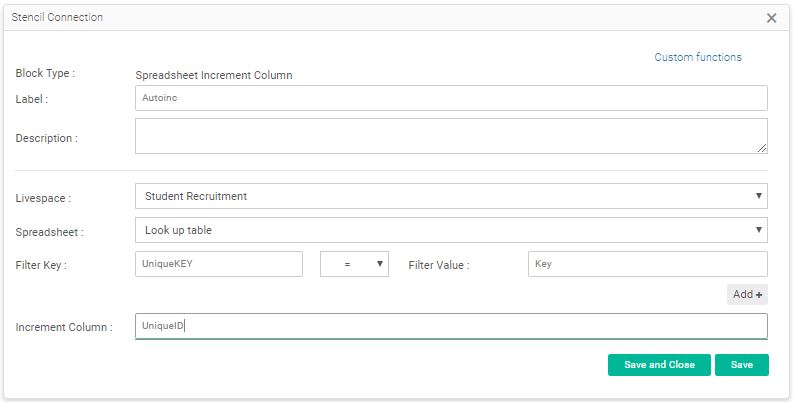
- Enter a suitable name to the function block in the field Label.
- Add a description to the function block, if any.
- Select the livespace from the dropdown list that has the spreadsheet whose column value needs to be incremented.
- Select the spreadsheet from the dropdown list whose column value needs to be incremented.
- Use Filter Key and Filter Value to extract the specific row in the spreadsheet that has the value to be incremented. The input to the field Filter Value can be static or dynamic.
- Enter the name of the column whose value needs to be incremented in the field Increment Column.
Option to disable real time updates in ss – You have the option to disable real-time updates in ss insert, ss update, and ss insert or update blocks. Inside these blocks you have a checkbox to select if you want to disable real-time update in ss.

If the checkbox is selected, ss data will not be updated in real time but only on refresh.