Category
- Onboarding onto ZEOS Platform
Roles and Access
As a tenant admin, you can add new users to the platform and assign user roles specific to the tenant or specific to an app. Tenant-specific roles or global roles include admin functions such as managing storage, creating new apps, cloning apps, inviting users, or managing users. App roles include all the functions specific to an app the user has access to, such as editing an app, deleting an app, uploading files, or managing members.
Configuring Global Roles
- Log in to the tenant you have created in Vizru. The following page is displayed.
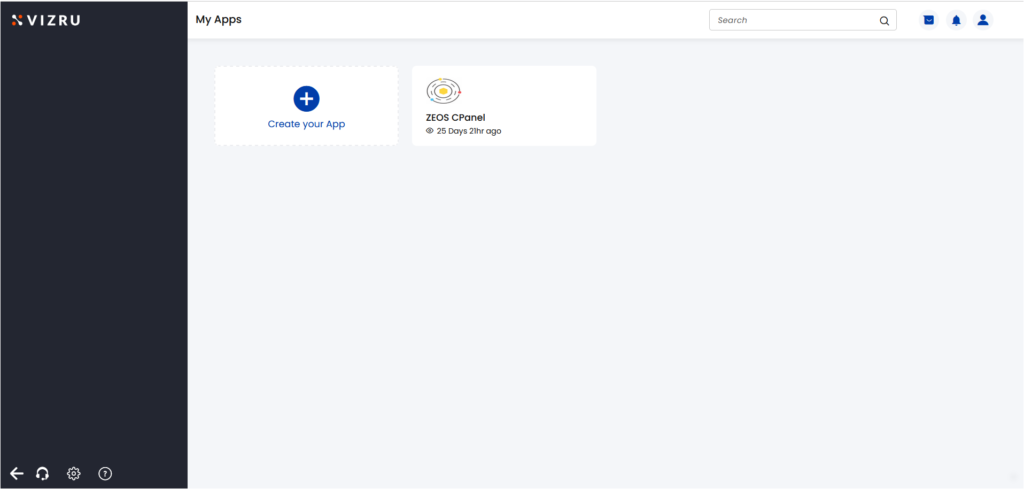
- Click the Settings
icon on the bottom left of your page.

- Click Configure Policies. The following page is displayed listing all the members of the tenant and their global roles.
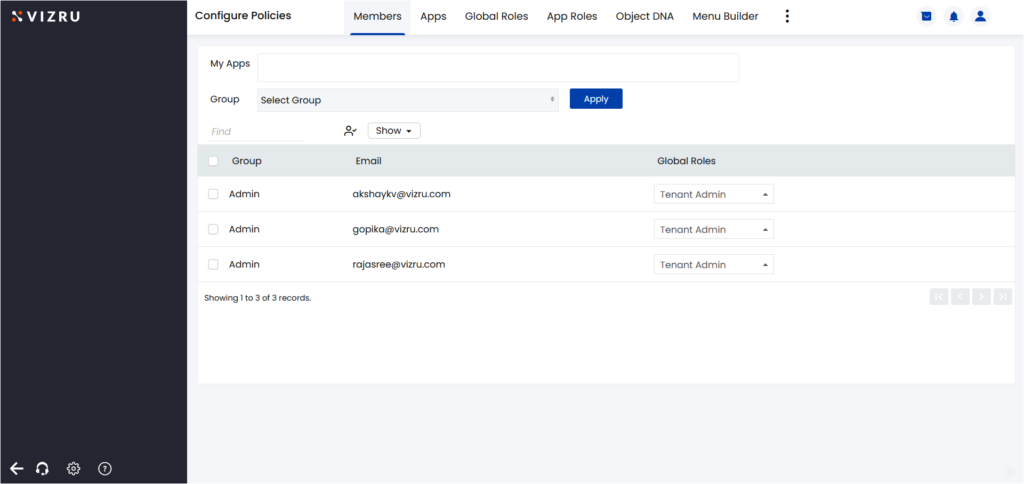
- Click the tab Global Roles to view or add global roles.

- Click the
icon to add a new global role. The following pop-up window is displayed.

- Enter the name of the role and description. Click Save. The new role gets added.
- Click on a role to view or add permissions specific to the role.

- Click the

- Select one or more permissions you want to add from the list, and click the
 icon to save.
Global Roles
- Invite user to tenant
- Manage Tenant users
- Manage Storage
- Create New Livespace
- Manage Analytics
- Impersonate User
- Manage Livespace
- View Workflows – A user can only view workflows and not edit/delete workflows
- Manage LiveClouds – A user can create and manage LiveClouds
- View LiveClouds – A user can only view LiveClouds and not create/manage LiveClouds
- Manage settings
- Manage App roles
- Guardrailing Apps
- Manage Global roles
- Manage Workflows
|
Global Roles |
Permissions |
| Tenant Super Administrator | Has all the following permissions |
| Manage Settings | Can add and manage DNA, Object DNA, menu builder, and other settings from Configure Policies |
| Manage Settings + Manage tenant users + Invite user to tenant | Can manage member users of the tenant from the section Invite People and from Settings > Configure Policies > Members |
| Manage tenant users + Invite user to tenant | Can add new users to the tenant |
| Manage settings + Manage global roles | Can add or delete global roles and permissions from Settings > Configure Policies > Global Roles |
| Manage Storage | Can add, edit, or delete storage and add media from Settings > Manage Storage |
| Create new livespace | Can create a new livespace or app |
| Manage Livespace | Can edit, delete, or update a livespace or an app |
| View Workflows | Can view workflows and workflow logs but cannot edit |
| View Workflows + Manage Workflows | Can add, edit, execute, and delete workflows from Settings > Manage Stencils |
| Manage Analytics | Can build all app elements – grids, datalists, forms, charts, and HTML cards, add them to the dashboard, edit or delete them |
| Impersonate User | Can impersonate as any other member user from Profile > Impersonate user |
| Manage Livespace + Guardrailing app | Can publish a livespace or app |
| View LiveClouds | Can view LiveCloud services from Settings > Cloud Services but cannot edit |
| View LiveClouds + Manage LiveClouds | Can create, edit, delete, and update LiveCloud services |
| Manage Settings + Manage App Roles | Can add new app roles, edit and delete existing app roles |
Configuring App Roles
- On the Configure Policies page, click the tab App Roles. The following page is displayed listing the available app roles.

- Click the

- Enter the name of the role, and select one or more permissions you want to add from the dropdown list. Click Save.