Category
- Onboarding onto ZEOS Platform
Importing an App
Before importing an app, you have to set the app publish storage location, that is, select the storage location that holds the published app, in the tenant to which you want to import the app.
- Log in to the tenant where you want to import the app.
- Go to Settings > Configure Policies.
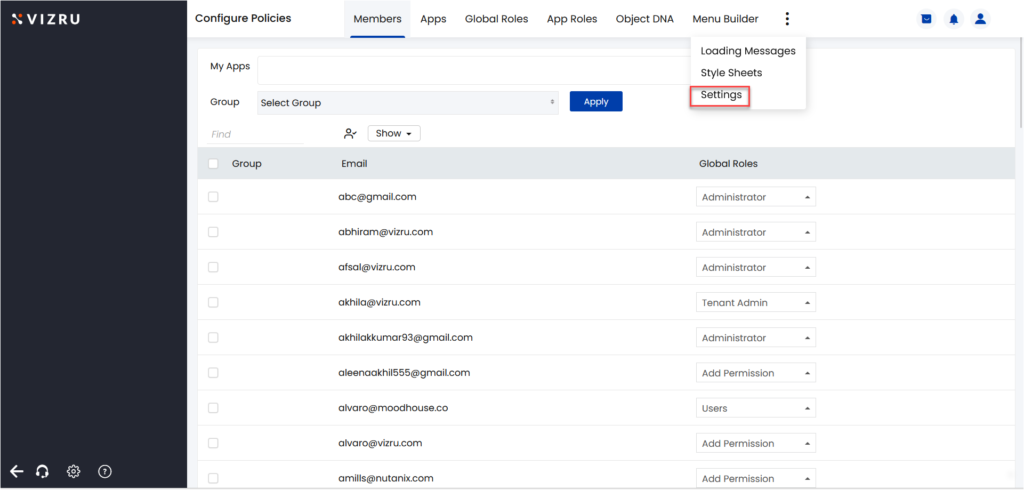
- Click Settings from the menu option. The following page is displayed.

- Under App Publish Storage location, select the storage location of the published app or click Add to add the storage location.

- Enter the URL of the tenant that has the published app, Username, and Password, and click Validate. The new tenant gets added.
Note: If this username and password is changed, and you are trying to update an app, you get an error message. This can be rectified by updating the credentials.
Importing an App
- Go to My Apps page and click Create an App. The following page is displayed.
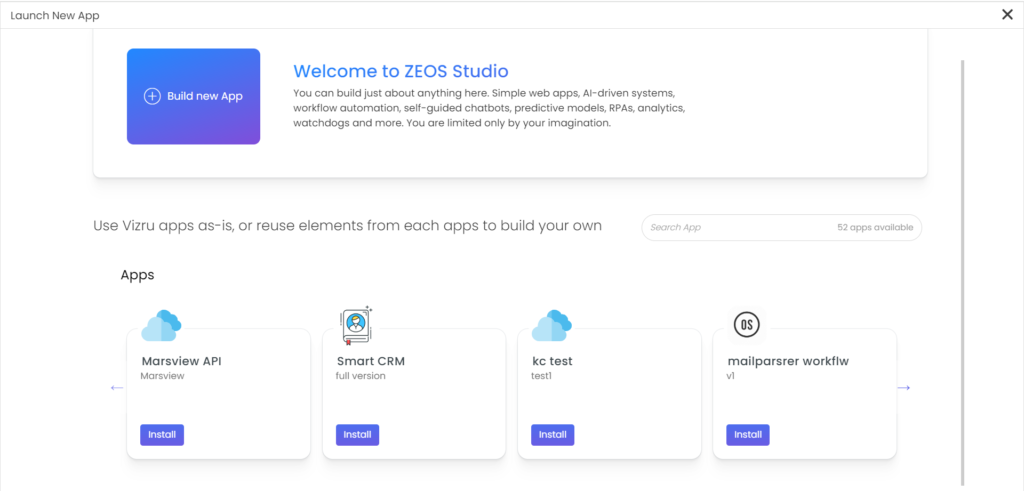
- Click Install for the app you want to import and install. The following page is displayed.
