Category
- Onboarding onto ZEOS Platform
Publishing an App
- Log in to the tenant that has the app you have created and want to publish to a library.
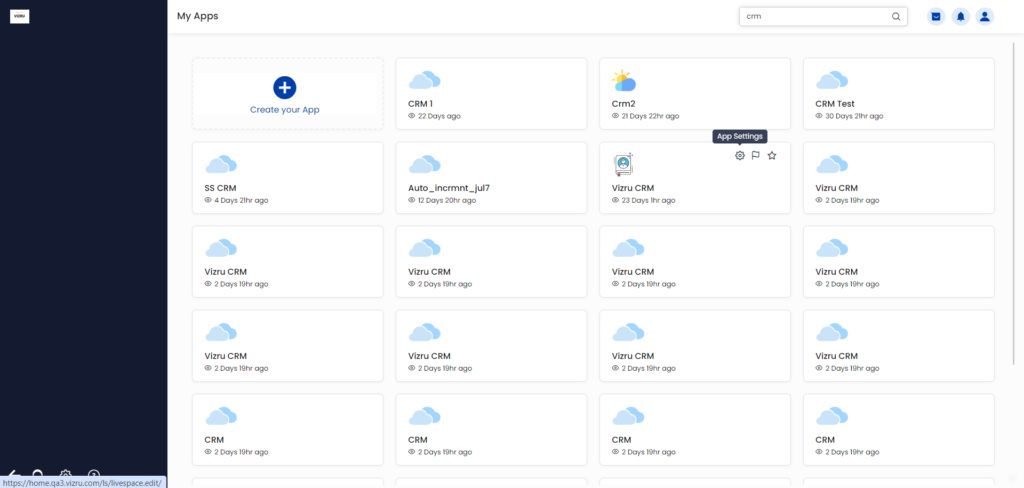
- Hover your mouse over the app and click the App Settings icon. The following page is displayed.

- Click the next tab Publish & Update. The following page is displayed.
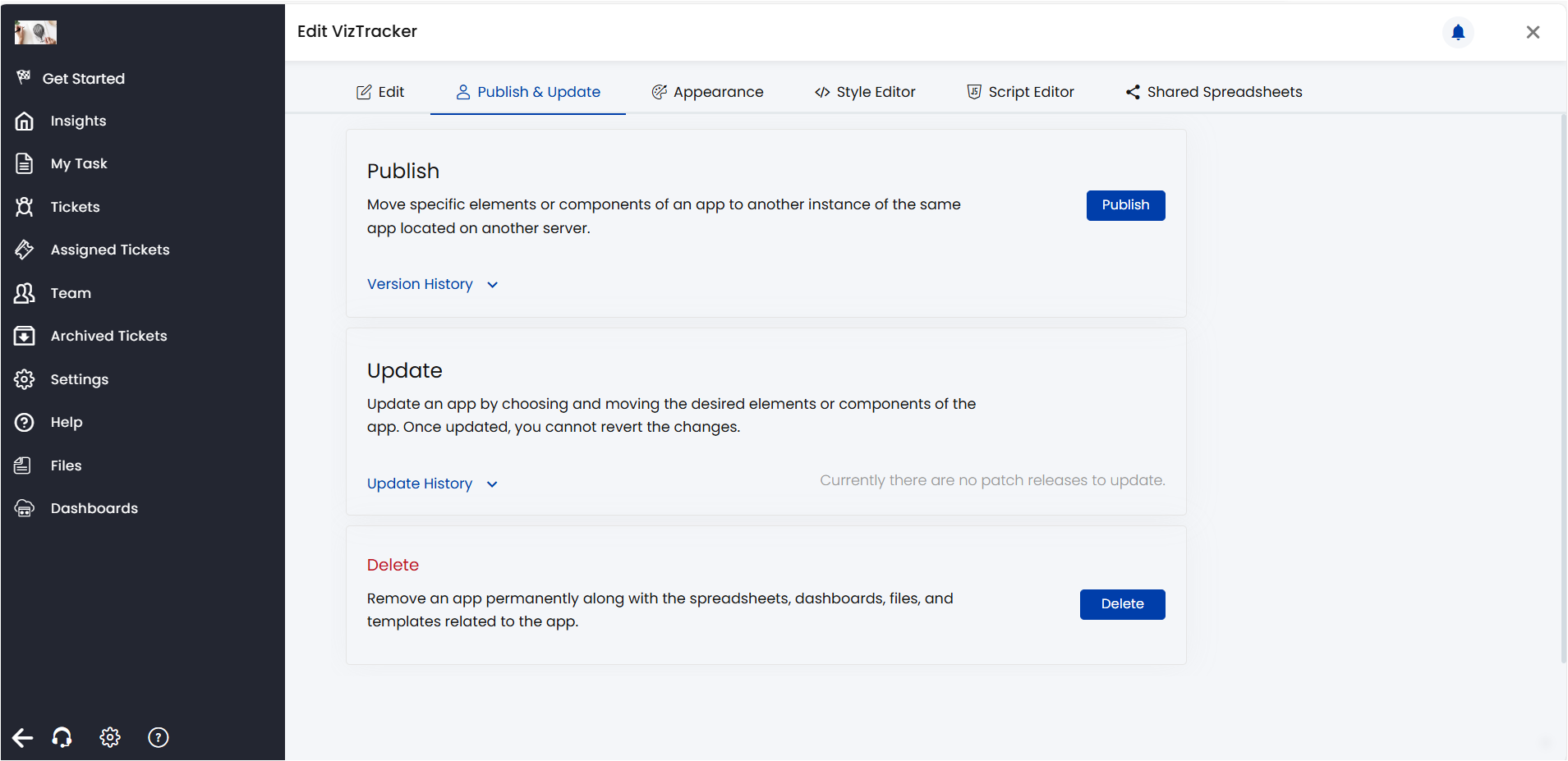
- Click Publish. The following page is displayed. If you want to publish a full release or a patch release with all the components, click Advanced Release. If you want to publish a set of patches, opt for Rapid Release.

- On clicking Advanced Release, the following page is displayed.
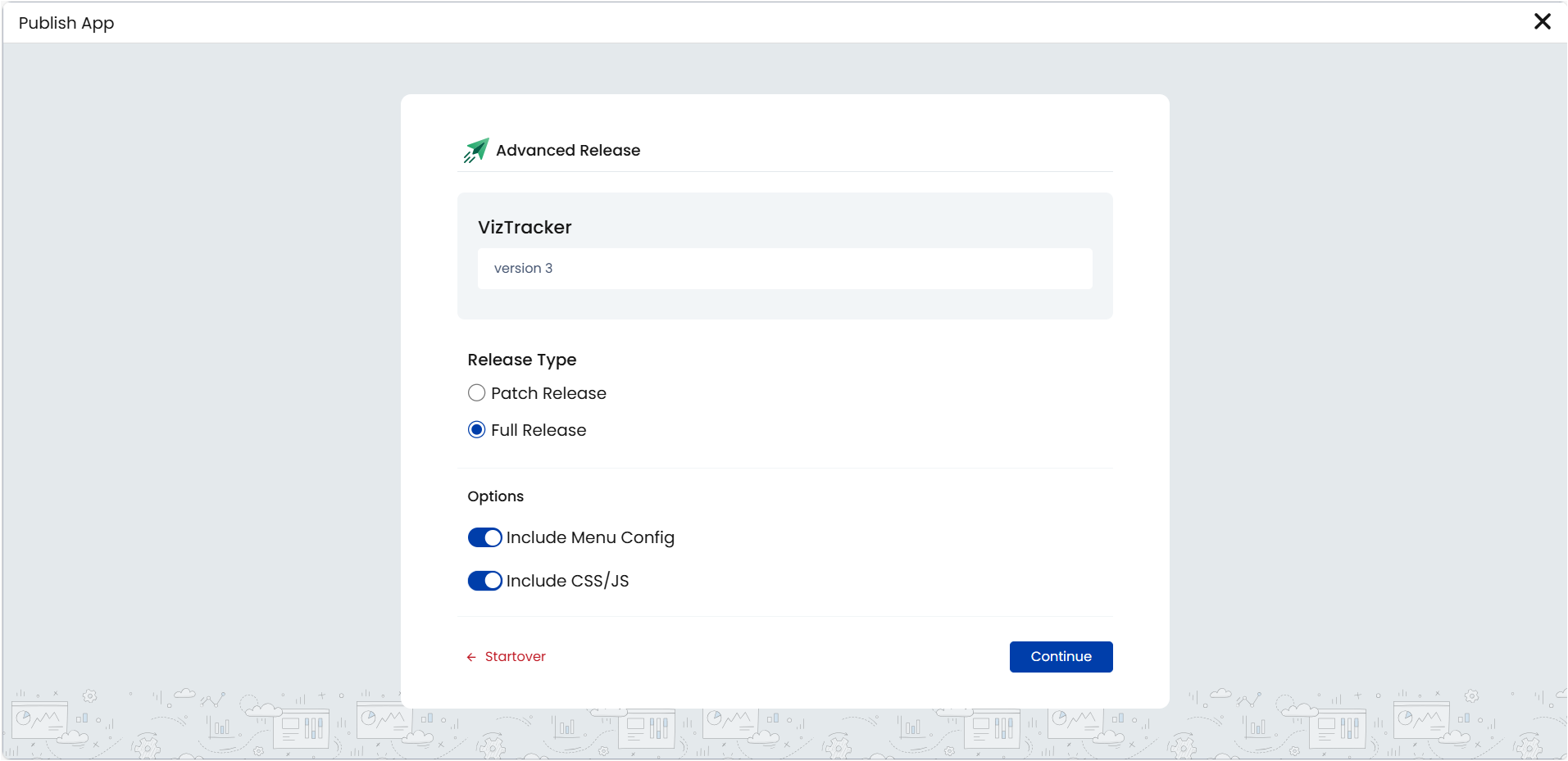
- Give the version number, select the release type as Full Release or Patch Release, select the options to include menus and CSS/JS if required, and click Continue.
Note: If you choose to include CSS/JS and Menu Config all the CSS/Java script codes and all the newly created left menus in the app, in addition to the default left menus, will be moved to the new tenant.
- On clicking Continue the following page is displayed where you can select the spreadsheets that need to be exported.
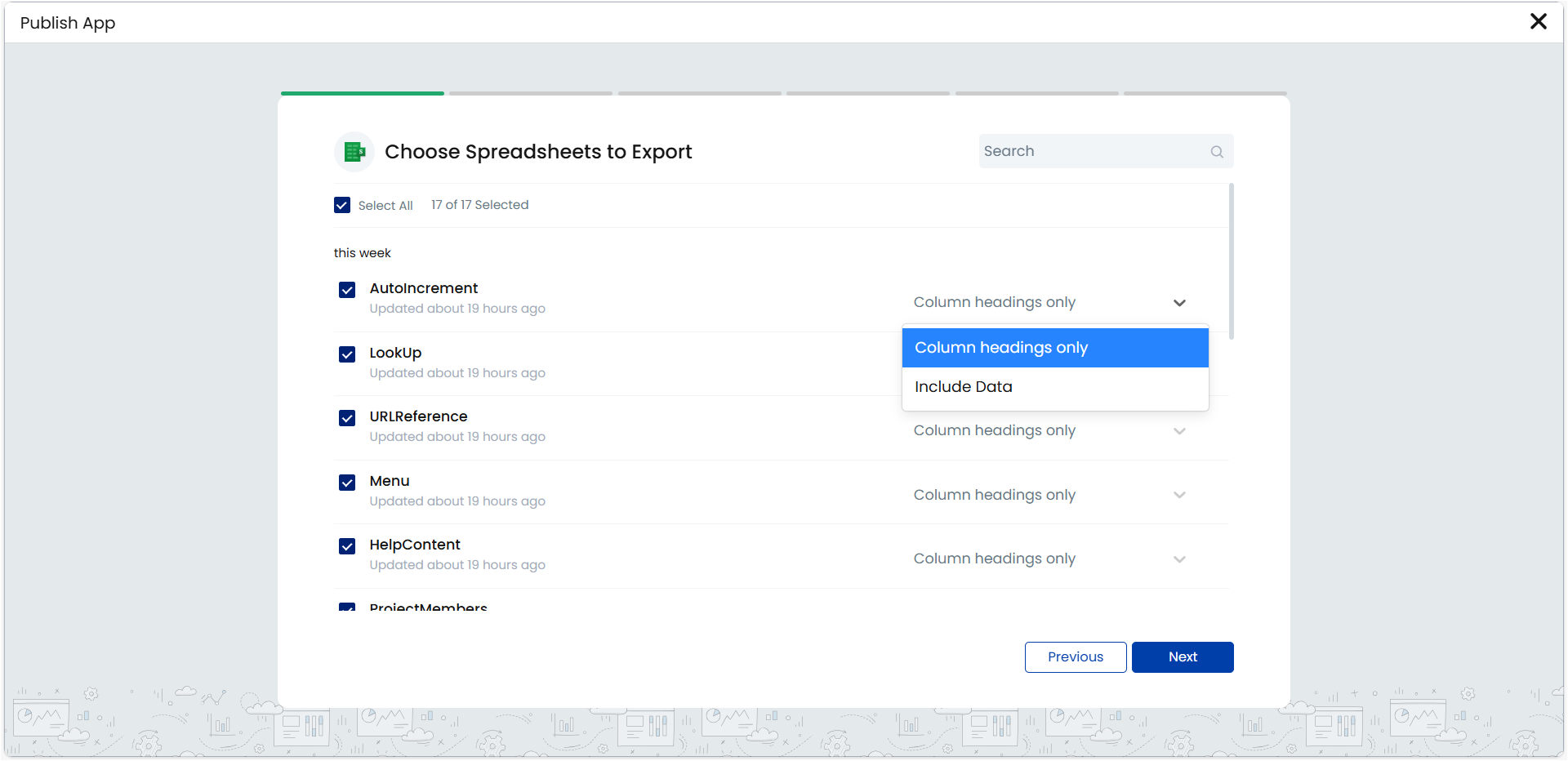
Note: You can choose to export spreadsheet column headings alone or include data also.
- On clicking Next, the following page is displayed that lists all the forms and the associated reflexive workflows.
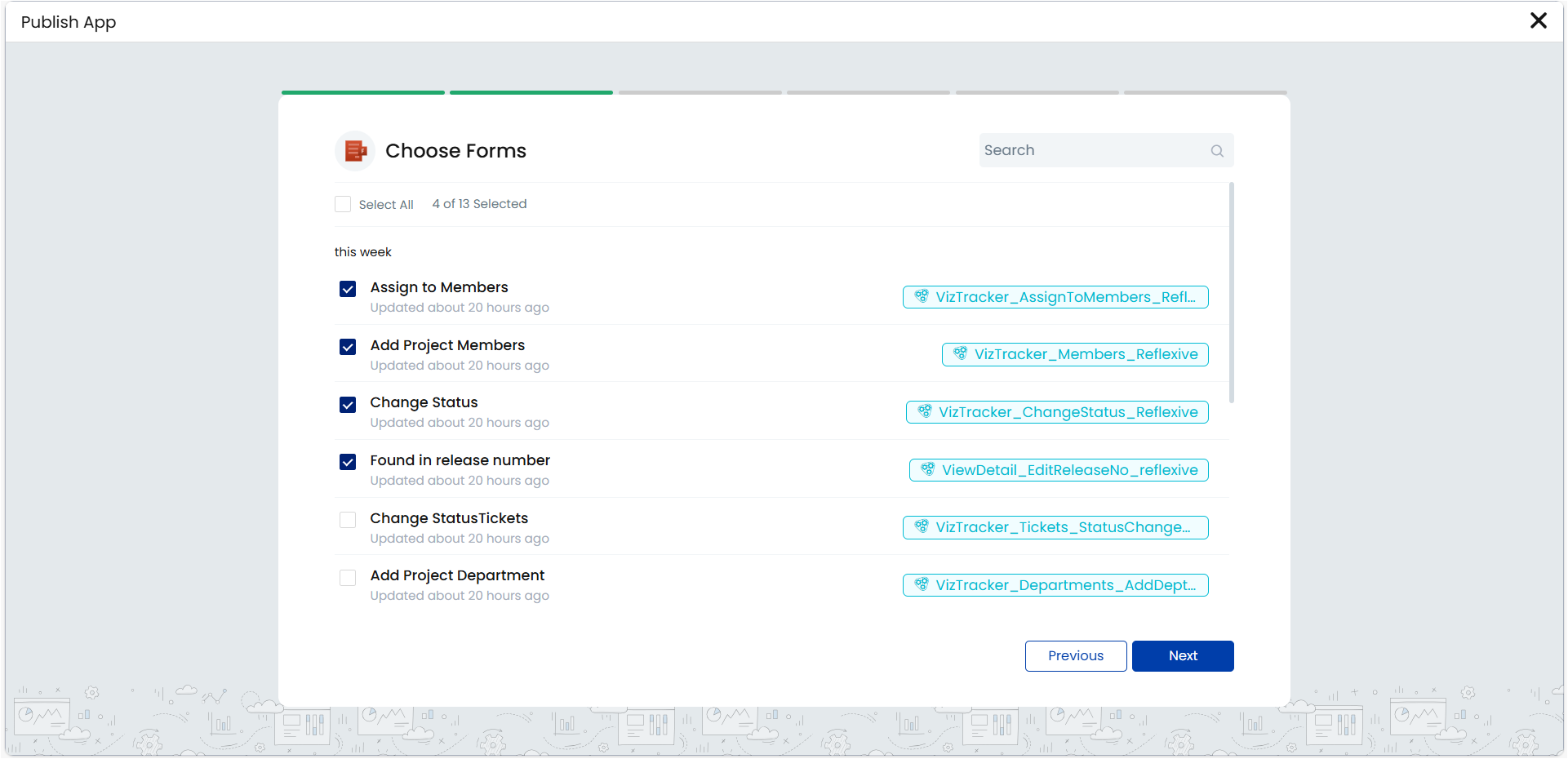
- Select the required forms and click Next.
- The following page is displayed that lists all the dashboards of your app and the associated init workflows.
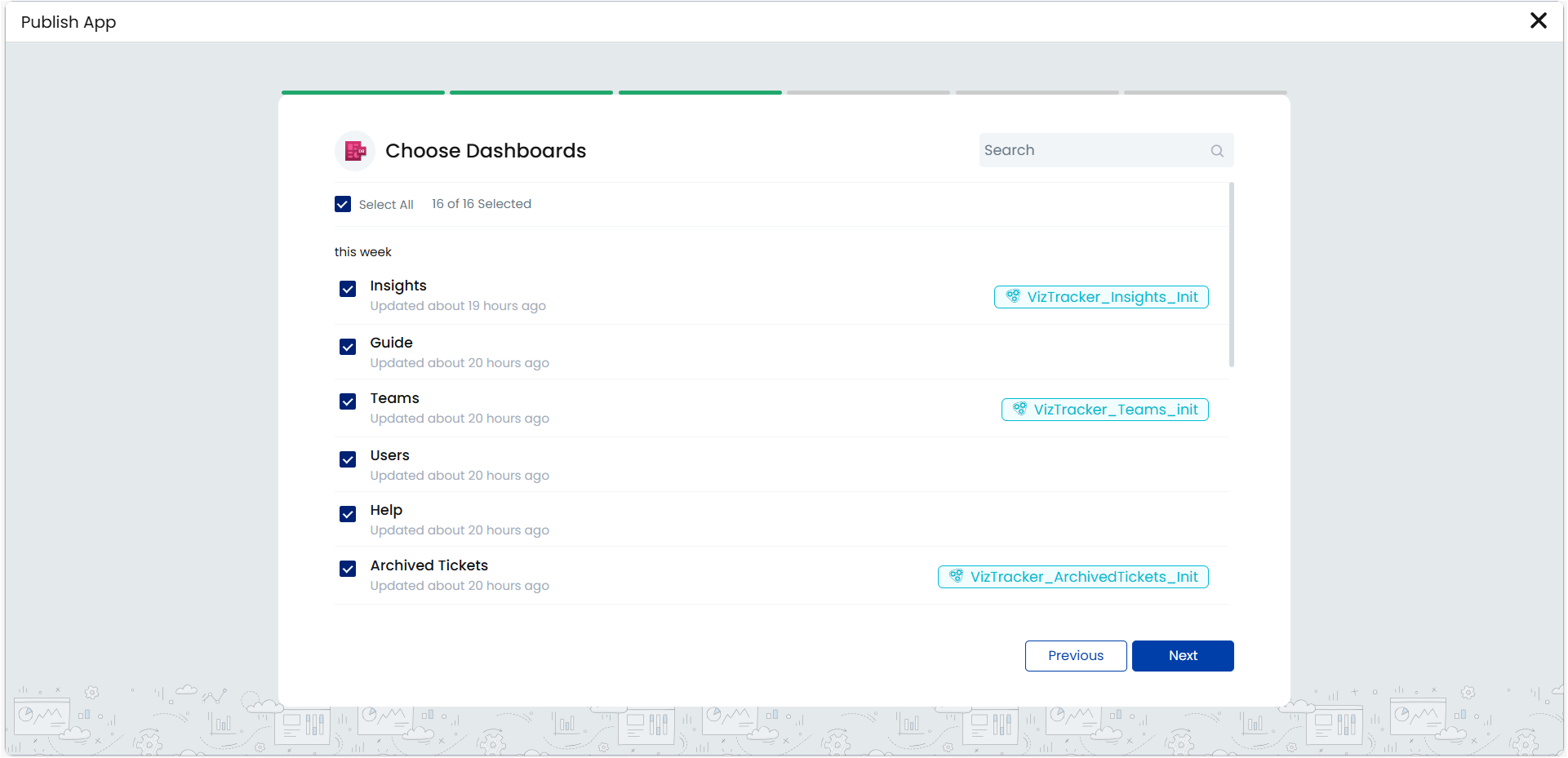
- Select the required dashboards and click Next. The following page to select workflows is displayed.

Note: Select the checkbox for Show All Workflows if you want to view the entire list of workflows in addition to those specifically related to your app.
- Select the required workflows and click Next. The following page is displayed that lists all the LiveCloud services connected to the app.
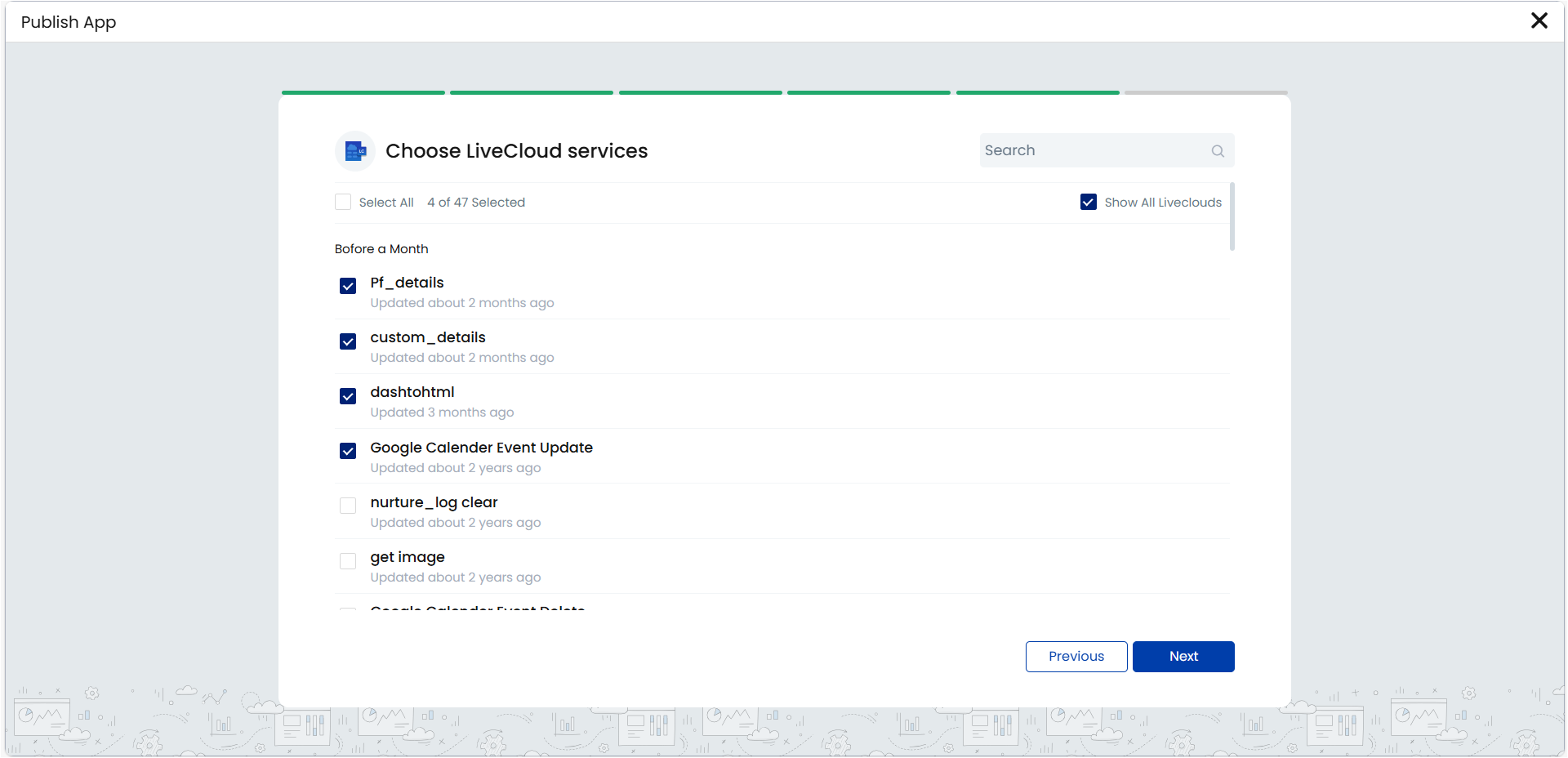
- Select the required LiveCloud services and click Next.
- You enter the Review & Publish page where you can review all the selections and proceed to publishing the app.


- Click Publish. The app will be successfully published.
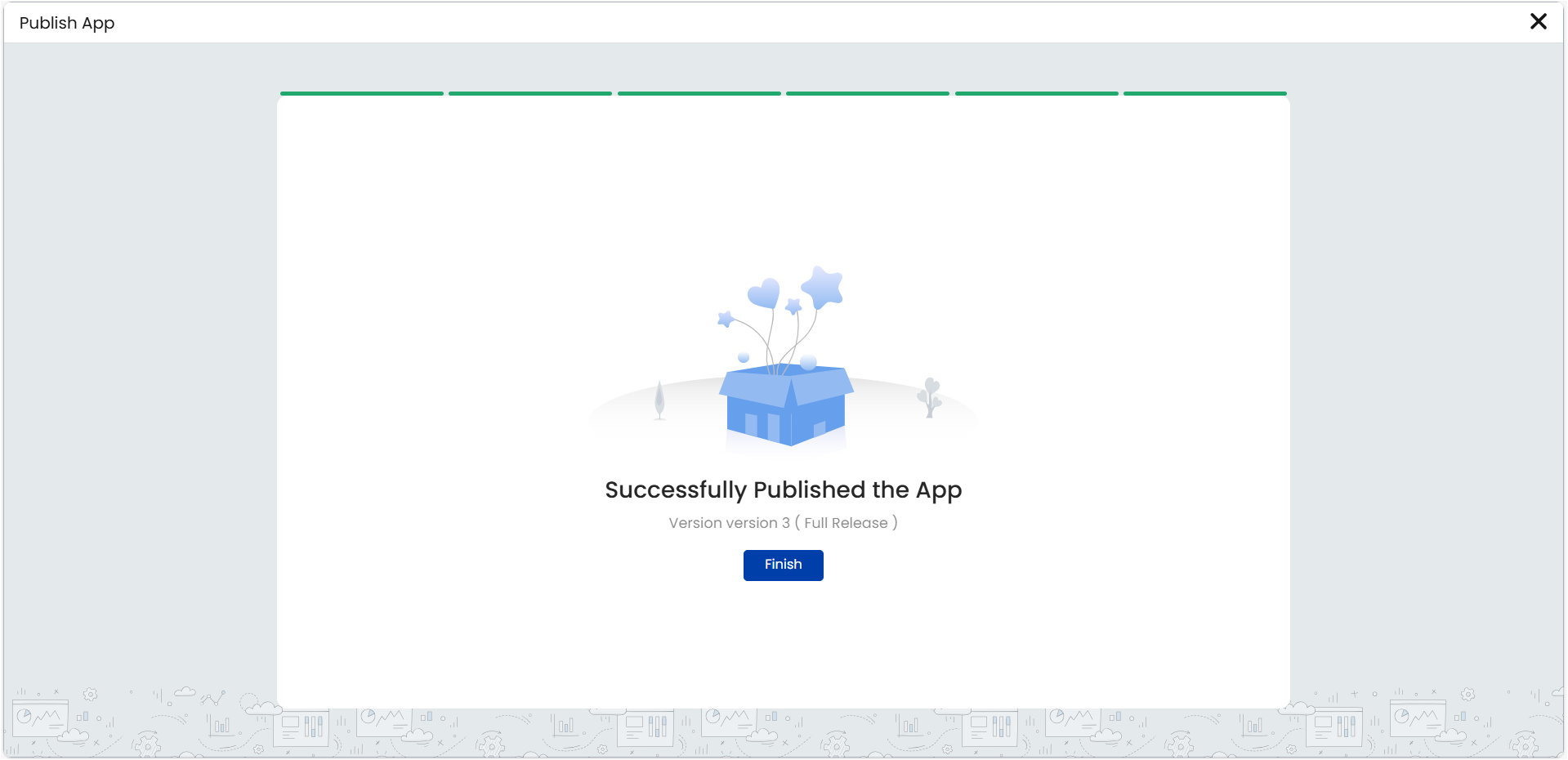
- Click Finish to exit.
- On selecting Rapid Release, the following page is displayed.
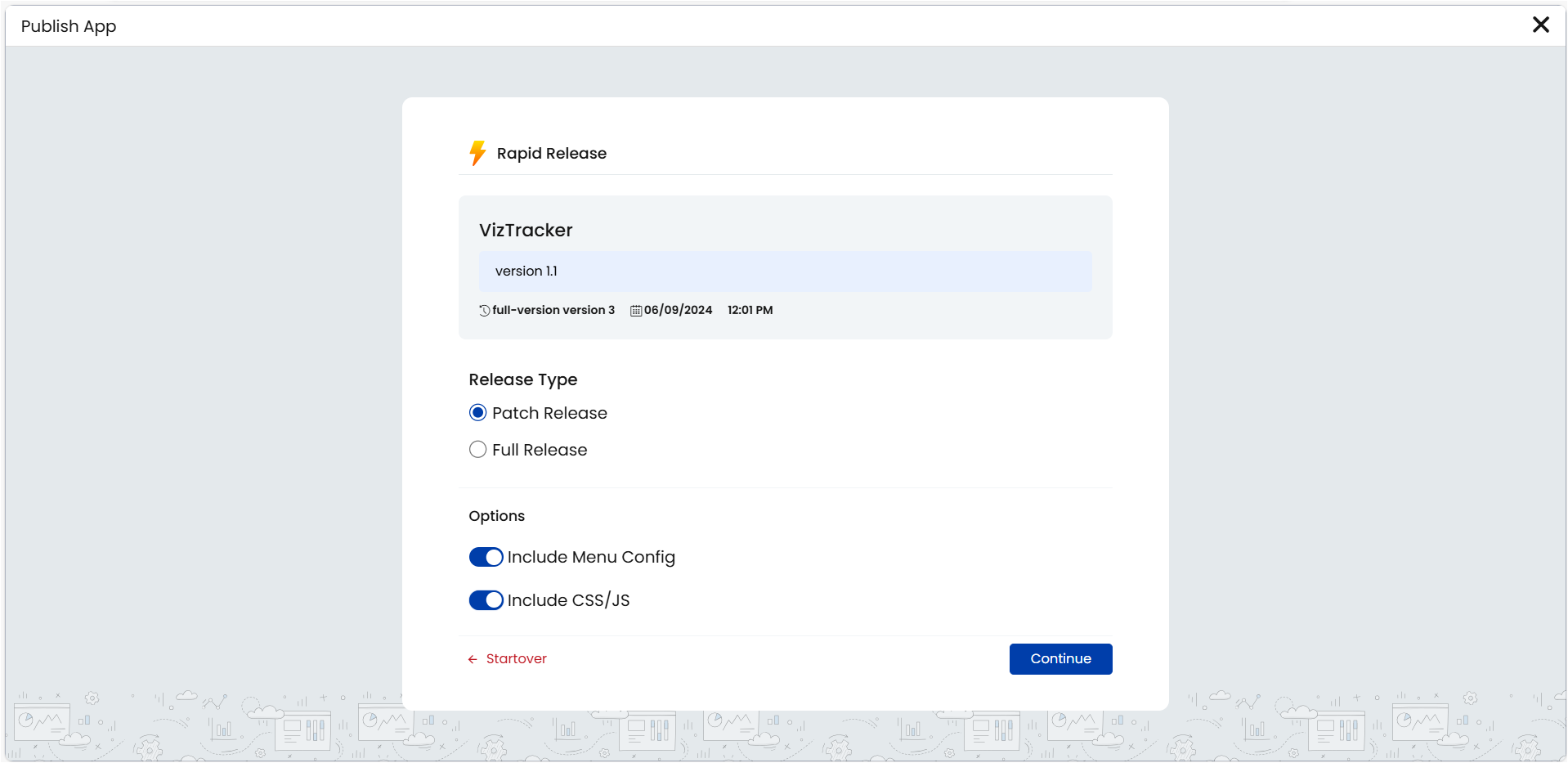
- You can give the version number, select the release type as Full Release or Patch Release, select the options to include menus and CSS/JS if required, and click Continue. The following page is displayed that lists all the patches.
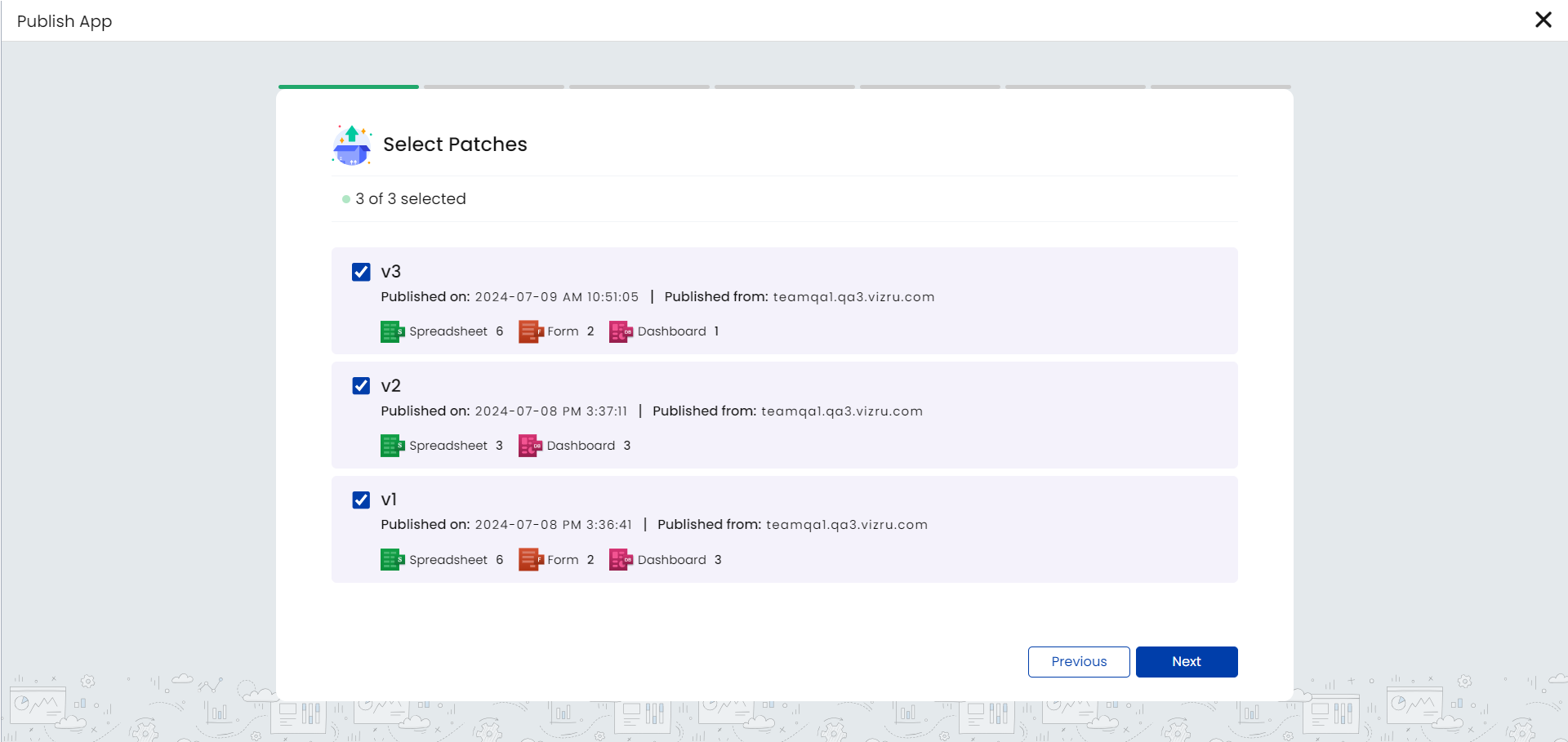
- From here, you can select the required patches to move. On clicking Next, you are guided to review all the components in the selected patches and finally publish the app.