Category
- Release Notes
ZEOS, Version 32.1.0
Release Date: 17/09/2024
About this Release
This release brings enhanced UI for guardrailing apps. It brings functionality enhancements to developer tools, spreadsheet filter block, HTML cards and datalists. It also fixes bugs related to file upload, HTML cards, sorting issues in workflow blocks, scroll bar issues and form dropdowns.
Features / Enhancements
1. Distinct widget titles on the dashboard: now you get a validation while adding the same widget multiple times from the Assets Panel to the dashboard, so that widget title does not duplicate and is unique in the dashboard. Also in the Dashboard Rule block, in the select dropdown for components, widget titles will be listed instead of alias names.
2. Limit option made dynamic in spreadsheet filter block: Earlier only static values could be given in the fields “Limit From” and “Limit To” in the spreadsheet filter block. Also while downloading the filtered data, only 1000 records could be downloaded. Now values to the “Limit From” and “Limit To” fields can be passed dynamically. Also, as many records filtered can be downloaded as an Excel file.
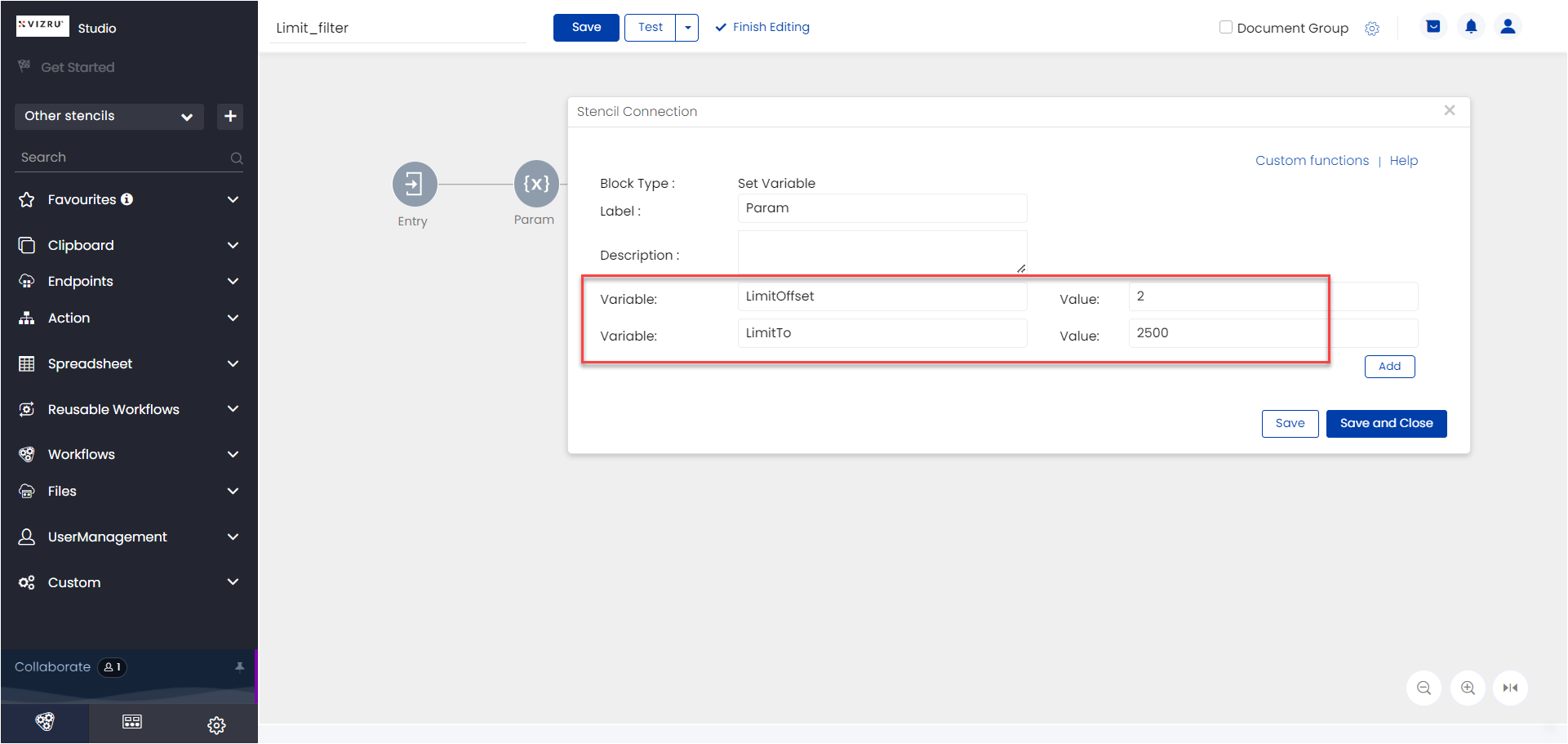
The “limit from” and “limit to” offsets are first defined using two variables “limitoffset” and “limitTo” in a set variable block and these variables are called in the filter block as shown in the screenshots below. Note that the variables can take any names and not necessarily the names shown in this example.

3. New feature added to Developer Tools: A new feature has been added to Developer Tools which helps you to view a list of workflows along with the total number of blocks in each workflow. You can provide a min count and a max count of workflow blocks and you get the list of the workflows and the count of the workflow blocks in each workflow. In addition, an enhancement has been made to retrieve the parameters “Notification Type” and “Message” in all the notification blocks.
4. Numeric input field formatting in HTML cards and datalists: Earlier it was not possible to display numeric fields with commas or decimal points in HTML cards and datalists. This can now be done by inserting the following code:
class="viz-numeric-input" data-format="0,0.00" name="<name>" value="{field}"

5. New attribute to expand and collapse content in HTML cards: A new attribute “viz-stripheight” has been introduced in HTML cards to expand and collapse content (Read More/Read Less). It has the following syntax:
<viz-stripheight height="190px" btntext="Read more|Read less">
[data]{description}[/data]
</viz-stripheight>

6. Storage path authentication: For updating an app in the guardrail process, we need to set a storage location with a valid username and password from Configure Policies > Settings > App Publish Storage Location. If this username and password is changed, and you are trying to update an app, you get an error message. This can be rectified by updating the credentials.
7. Enhancement to file security: User access for file preview is now managed through a secure file path. The file path will have a parameter “?signature” which is unique for a user. This parameter will also expire after a certain time period.
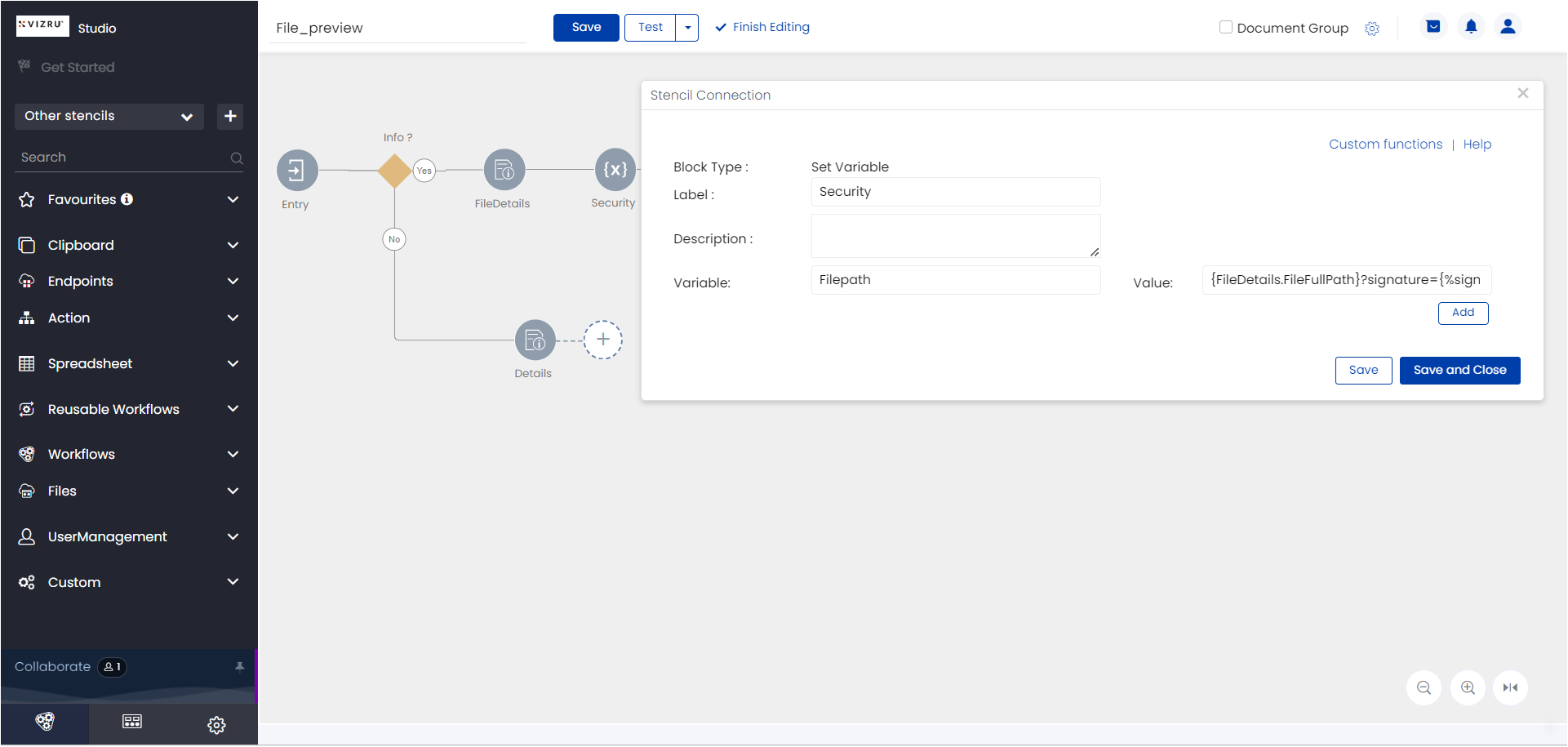
In the file preview workflow, you get the FileFullPath from the Get File Details block labeled “FileDetails” as shown in the screenshot below. This is then passed to a Set Variable Block labeled “Security”. In the Set Variable Block, define a variable “filepath” that will have the value “{FileDetails.FileFullPath}?signature={%sign FileDetails.FileFullPath%}”.
Note: Instead of the parameter “?signature”, user-token, which is generated when a user logs in to a tenant, can also be used to identify the user. Inside the Set Variable block, value for the variable “Filepath” can be passed as
{File.FileFullPath}?user_token={user-token}
8. New and improved UI for guardrailing apps: You now have an enhanced UI for publishing full releases and patch releases.
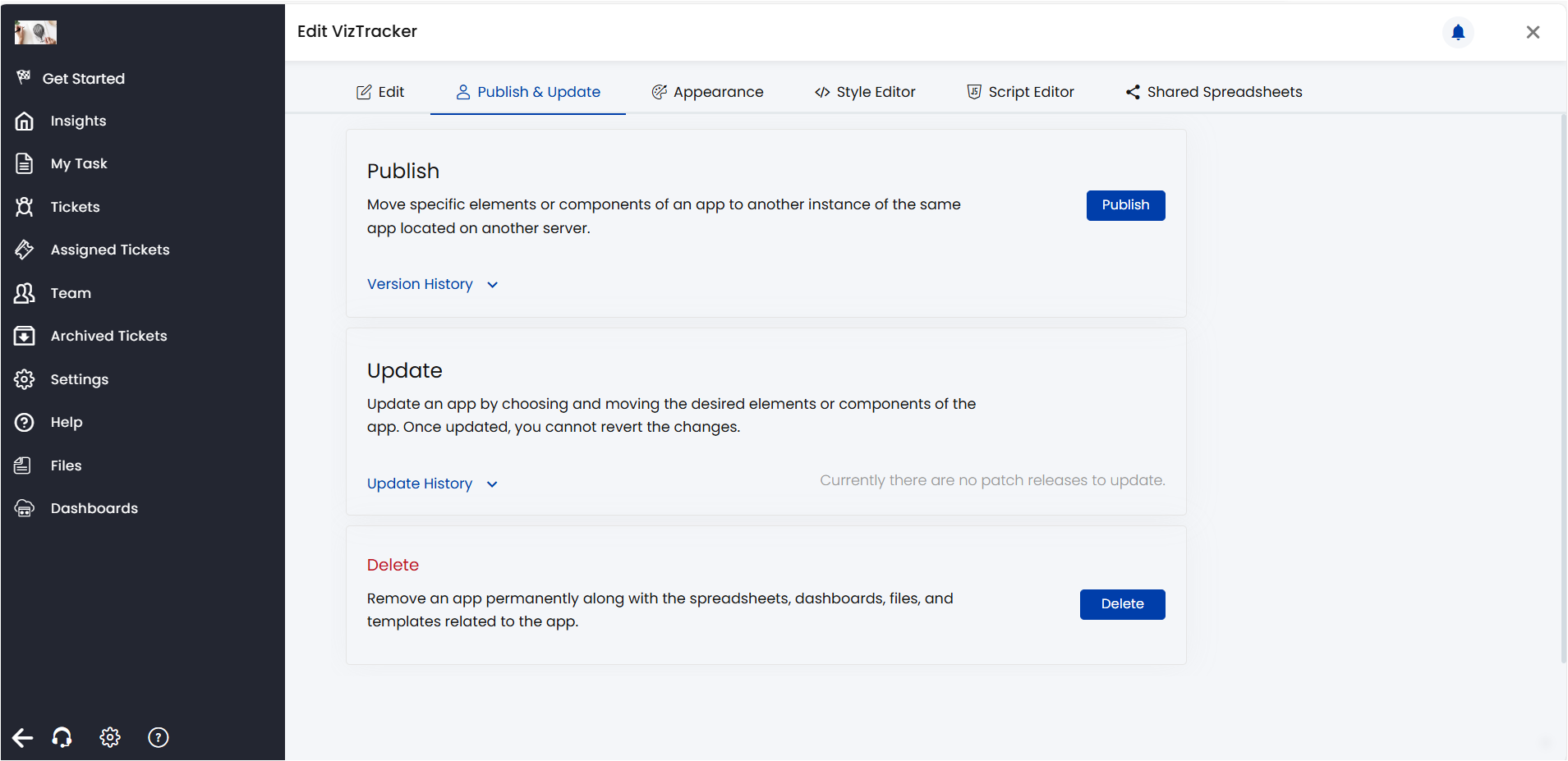
On clicking Publish for an app from the App Settings, the following page is displayed. If you want to publish a full release or a patch release with all the components, click Advanced Release. If you want to publish a set of patches, opt for Rapid Release.

On clicking Advanced Release, the following page is displayed.
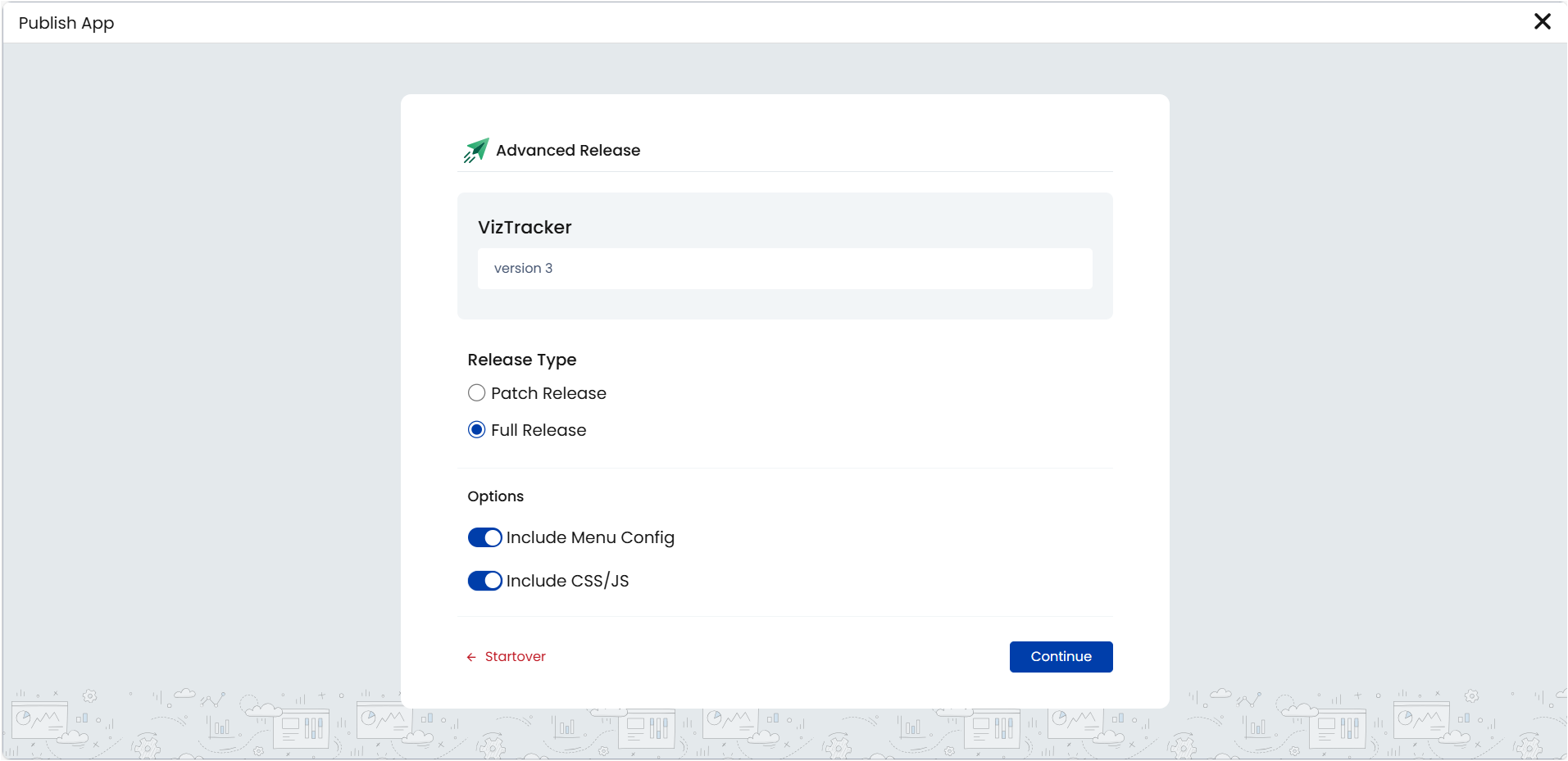
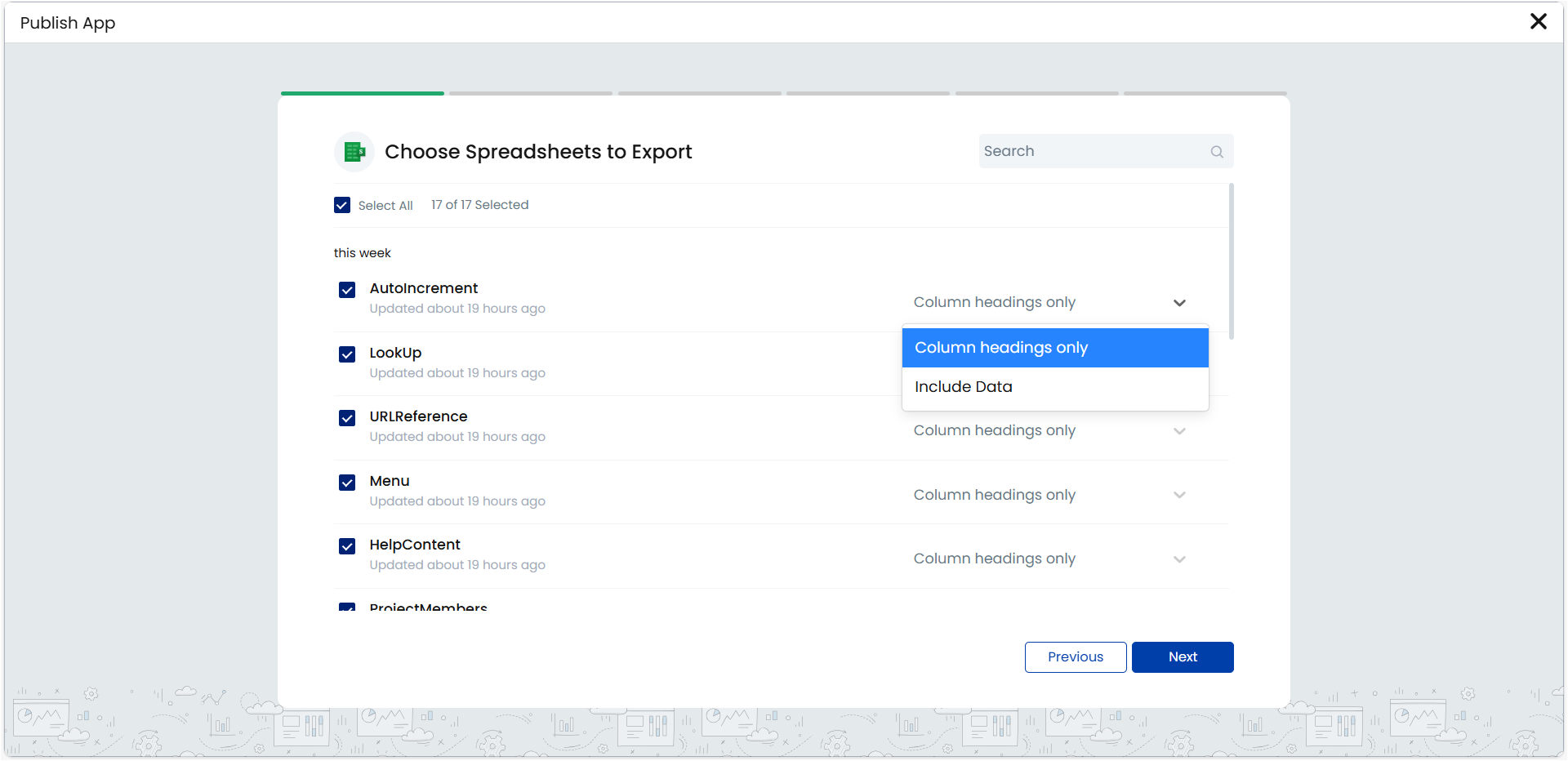
Give the version number, select the release type as Full Release or Patch Release, select the options to include menus and CSS/JS if required, and click Continue. The following page is displayed where you can select the spreadsheets that need to be exported.
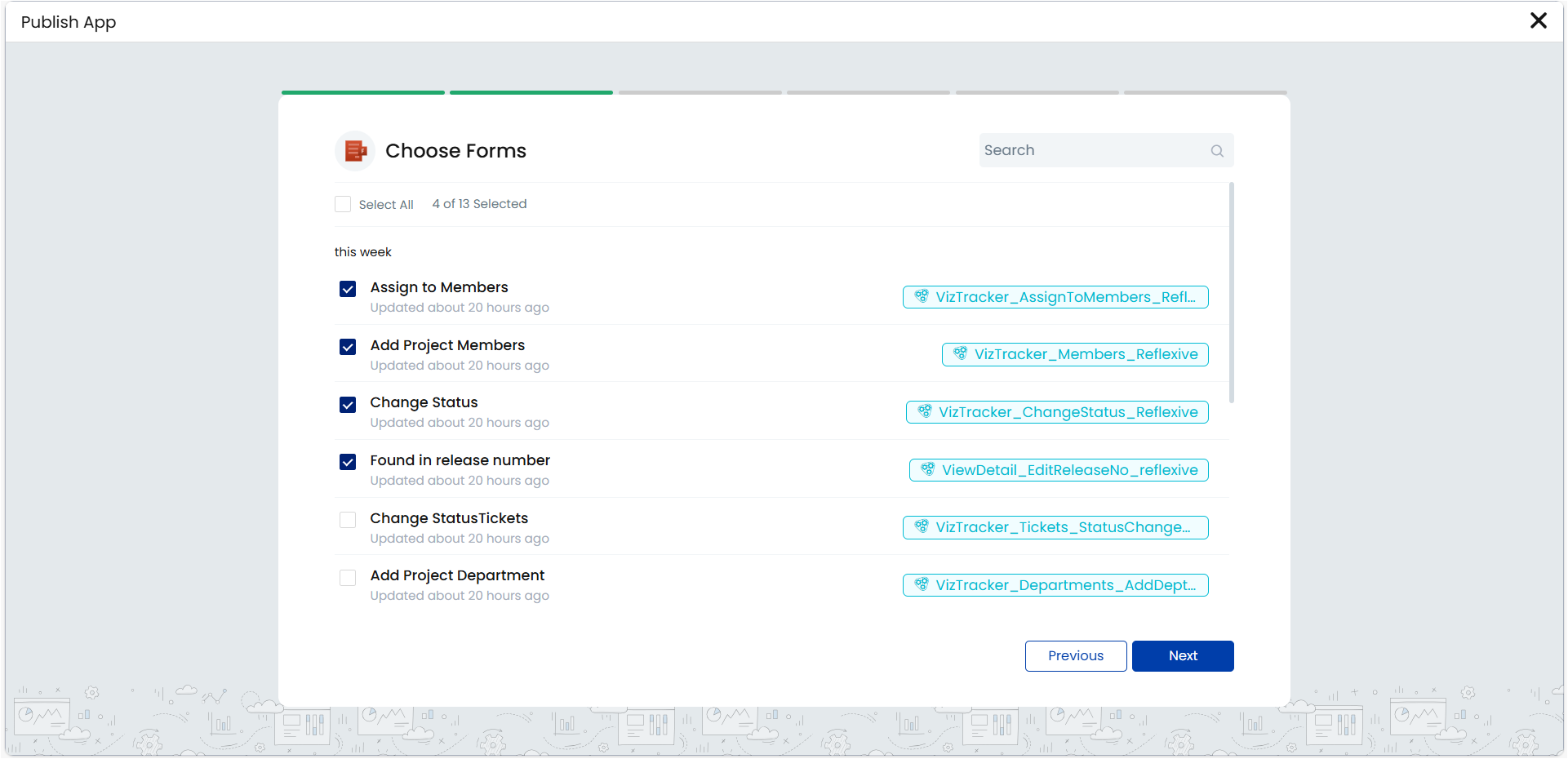
On clicking Next, the following page to select forms is displayed.
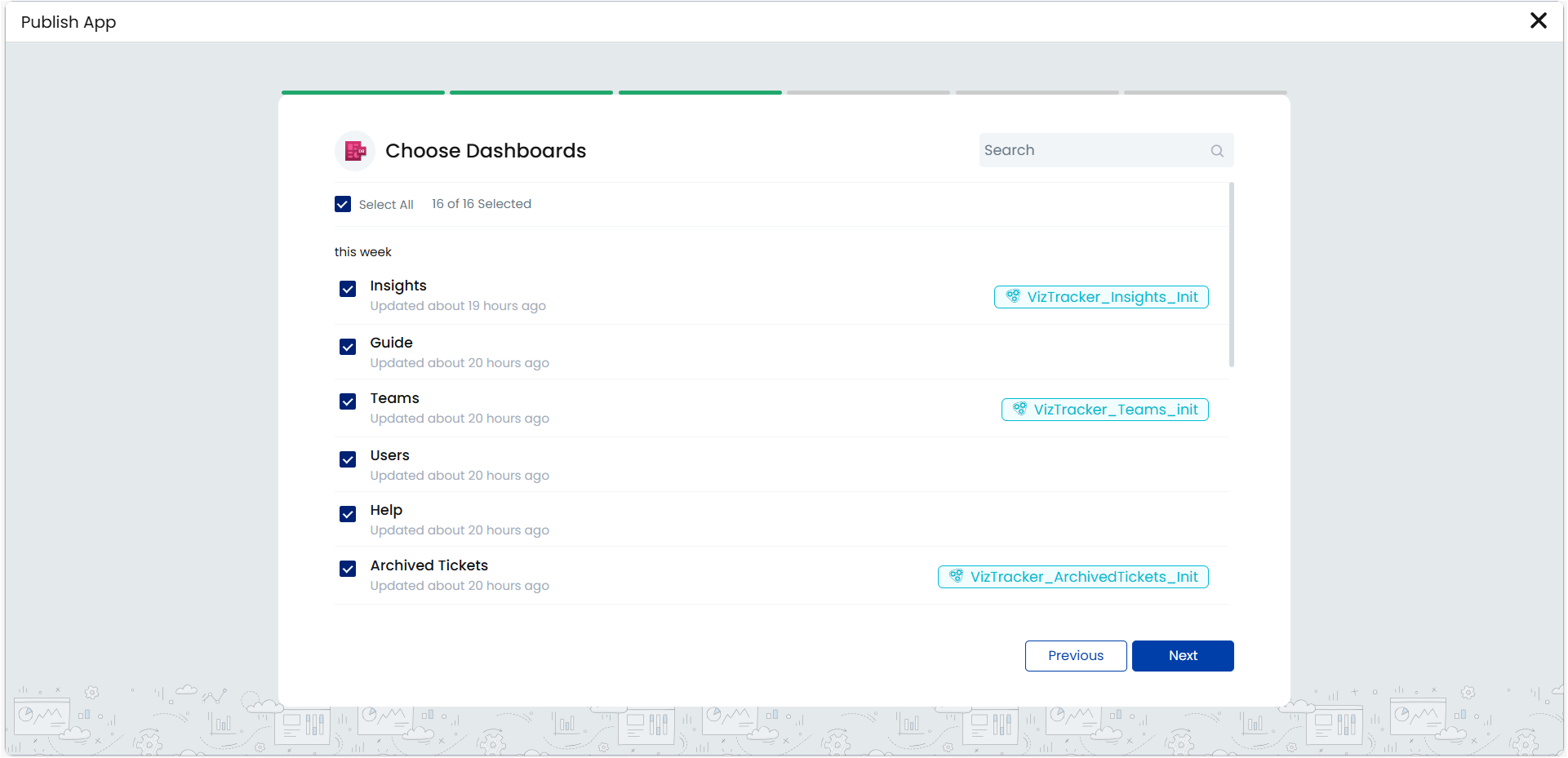
Next in the process, you can select the dashboards that need to be exported.
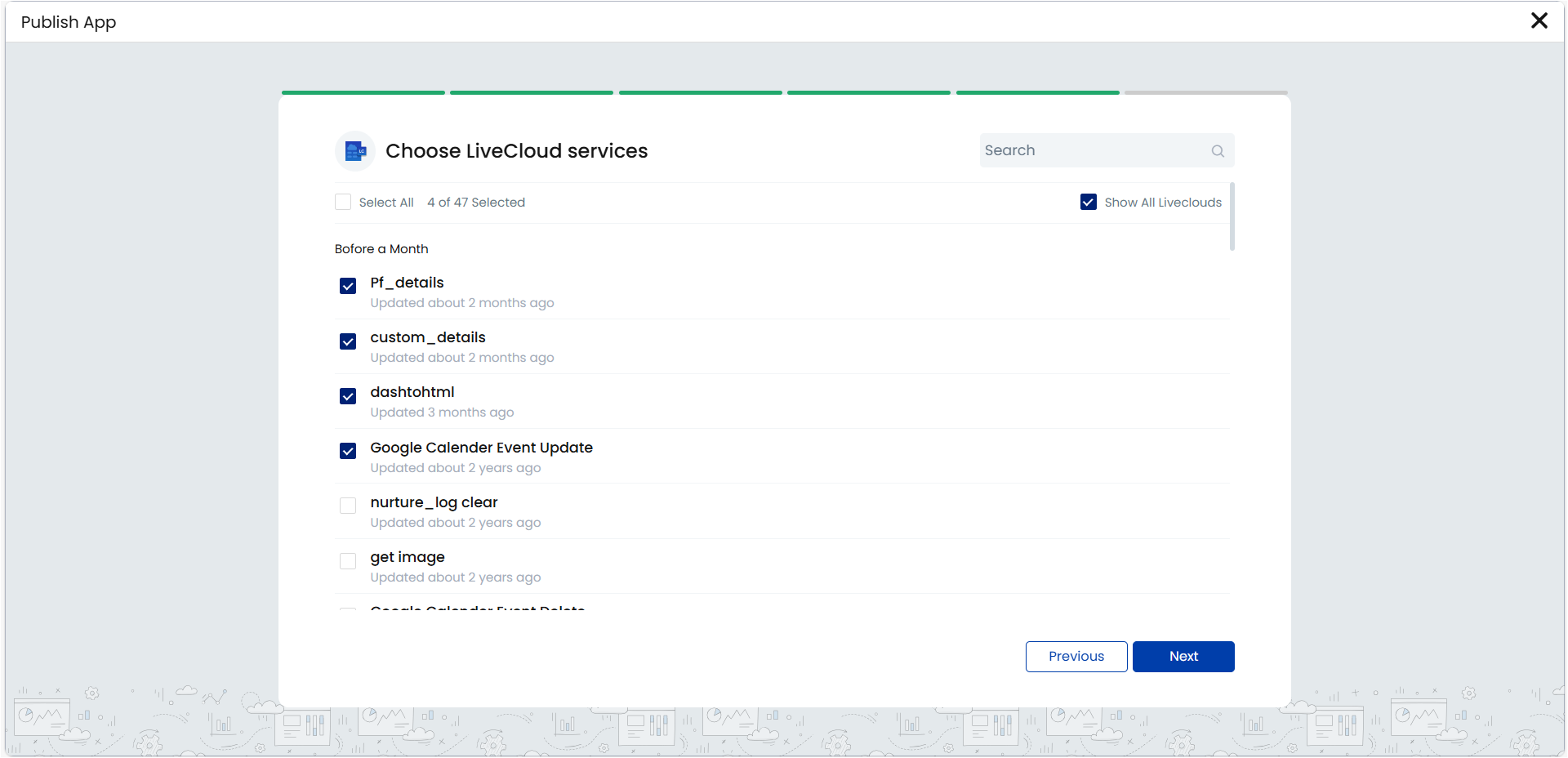
Next you can select the workflows and then the LiveCloud services connected to the app.

Finally you enter the Review & Publish page where you can review all the selections and proceed to publishing the app.


Click Publish. The app will be successfully published.
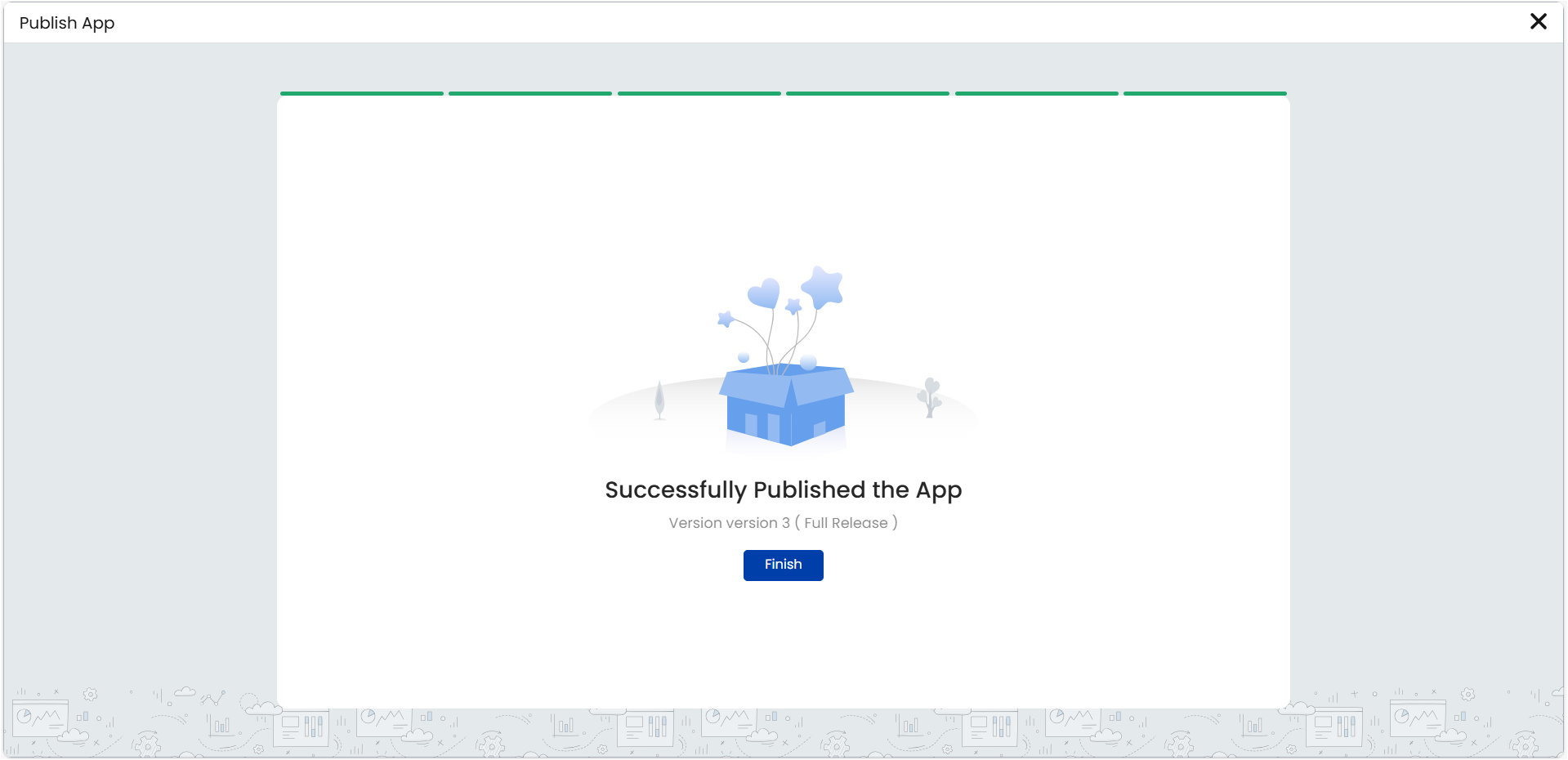
Click Finish to exit.
On selecting Rapid Release, the following page is displayed.
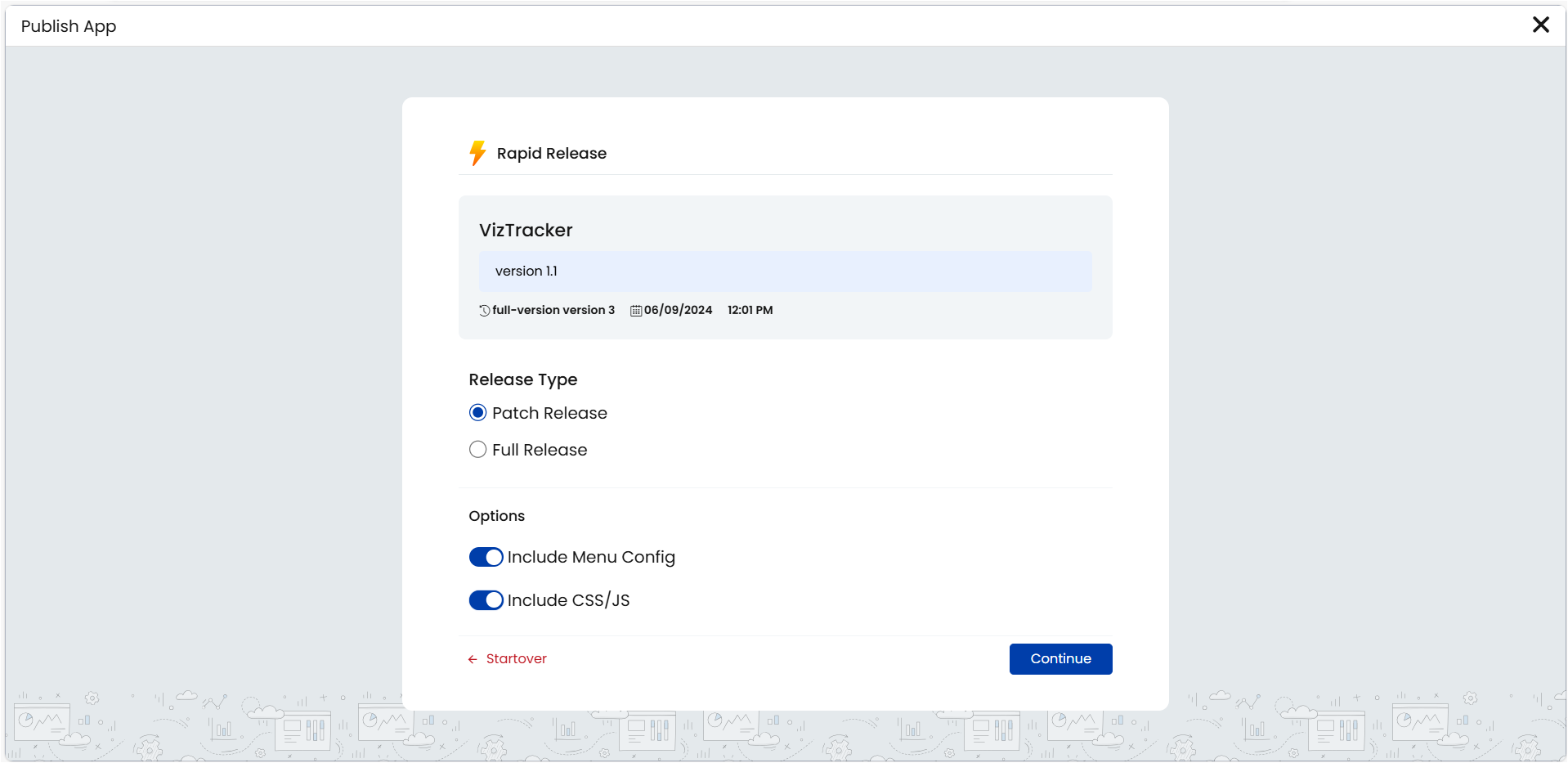
You can give the version number, select the release type as Full Release or Patch Release, select the options to include menus and CSS/JS if required, and click Continue. The following page is displayed that lists all the patches.
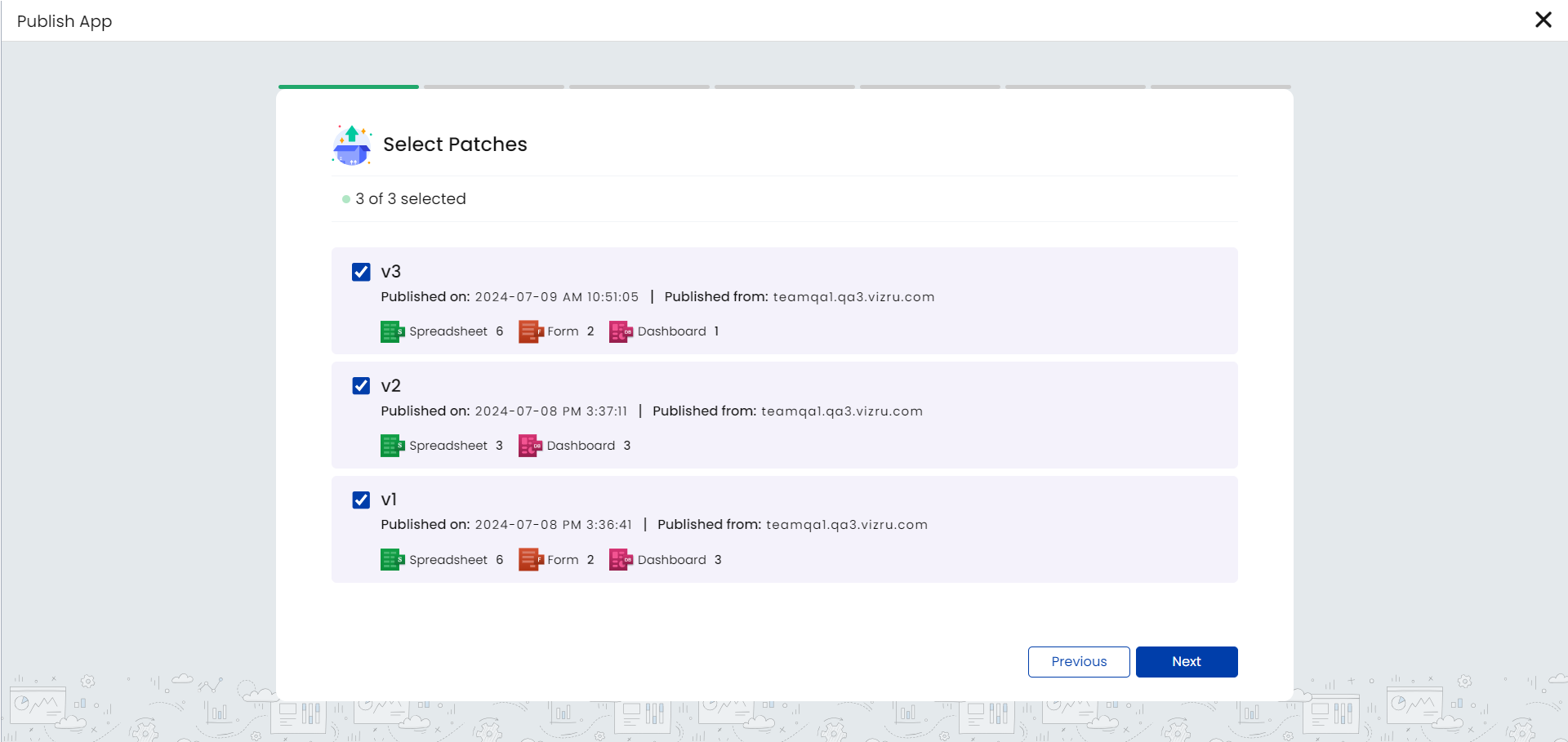
From here, you can select the required patches to move. On clicking Next, you are guided to review all the components in the selected patches and finally publish the app.
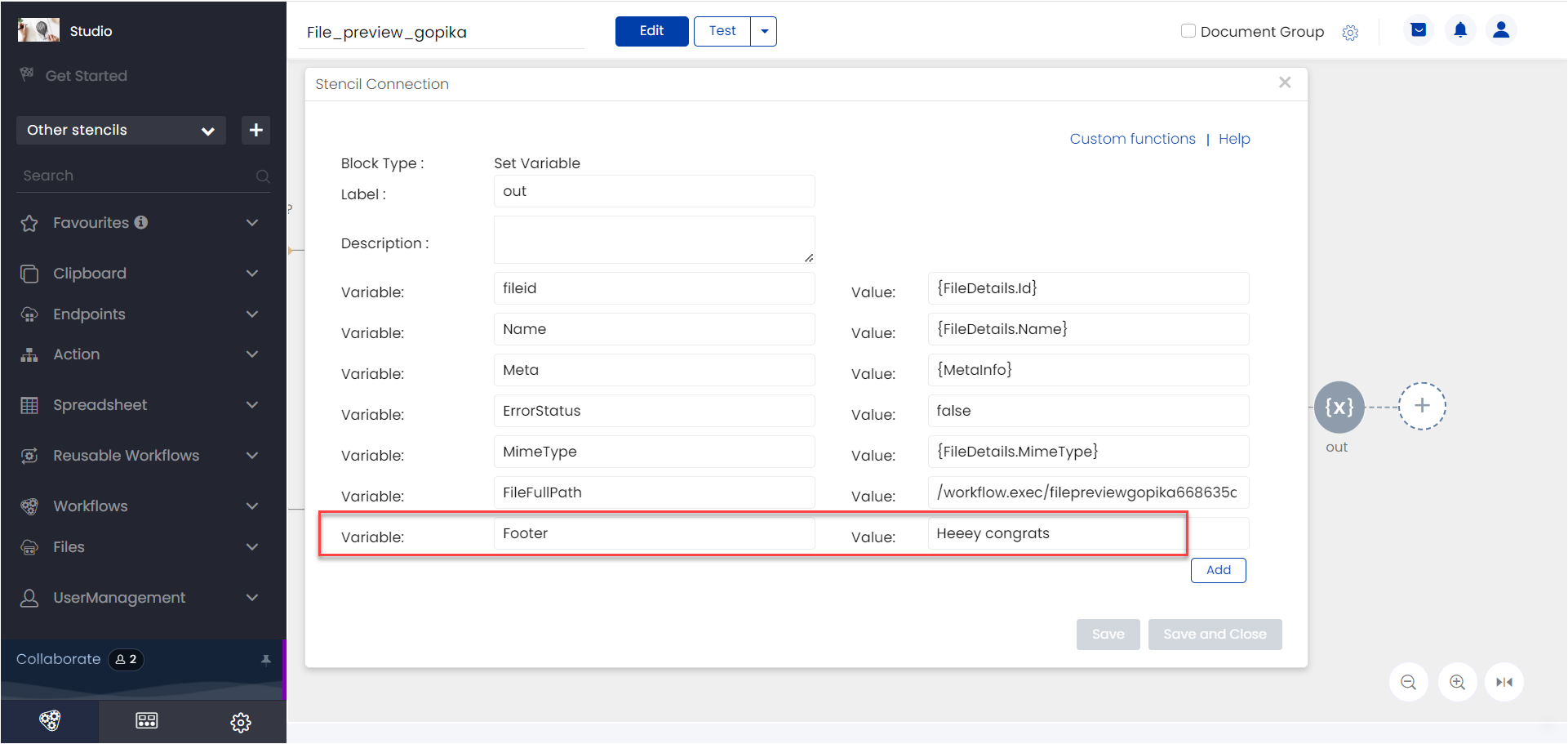
9. Footer section added to file preview: When file preview is done using workflow, you now have the option to add footer content to the file. The footer content can be passed through the set variable block in the file preview workflow.

Bug Fixes
- Issue related to file upload using drag and drop is fixed.
- On double-clicking the close button of a pop-up, it was being redirected to the landing page. This issue is fixed.
- Codes that include special characters such as “{“, “;”, “(“, “:”, and “#” were not working when added in the “Custom Rules” section in HTML cards. This issue is fixed.
- Scroll issue in Configure Policies dashboard and Theme Builder is fixed.
- User was not able to search the SS in SS select dropdown in Spreadsheet Filter Block once it was saved. This issue is fixed.
- While selecting Notification Type as “Info” the icon shown was incorrect. This issue is fixed.
- Line break issue when a workflow block label was updated by copy-pasting from Excel is fixed.
- When multiple where conditions were applied to datalist, the resulting output was incorrect. This is fixed.
- Issue related to multiple select in form dropdown is fixed.
- Sorting was not working in the spreadsheet when there were a large number of rows. This issue is fixed.
- Custom Rule edit form was getting closed while clicking outside of the form in HTML Card Builder. This issue is fixed.
- User was not able to upload images for logo from Tenant Settings. The images were not getting uploaded to S3. This issue is fixed and any PNG or JPG files can be uploaded.
- Bugs in the Files section such as issue with downloading large files and failure of file upload to Amazon S3 have been fixed. Also added security check to Amazon S3 upload callback.
- While using the options “Distinct Column” and “Sort By – Descending order” in a filter block, it resulted in the wrong output. This issue is fixed.
- While using the options “Distinct Column” and “Sort By – Descending order” in a filter block, along with different columns, it resulted in the wrong output. This issue is fixed.
- An app could not be created in a new tenant without adding storage location. This issue is fixed.
- When the search item included brackets in datalist and grid, it was not showing the corresponding records. This issue is fixed.