Category
- Release Notes
ZEOS, Version 31.0.0
Release Date: 28/02/2024
About This Release
Release 31.0.0 brings new functionalities and improvements to HTML cards, dashboards, workflows, and publishing of patch releases. It also fixes bugs related to spreadsheet import, file upload, action buttons, dashboard widgets, and more.
New Features
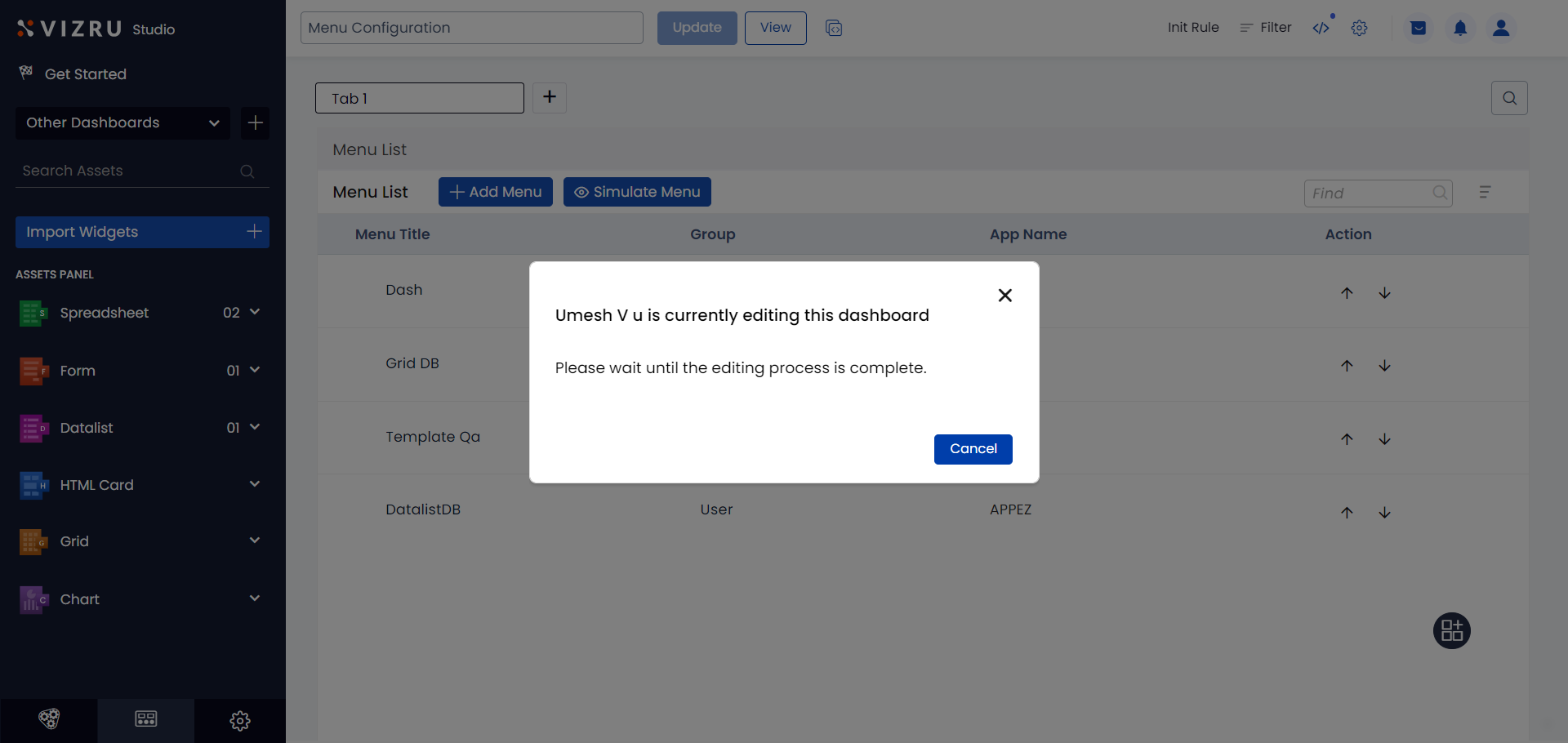
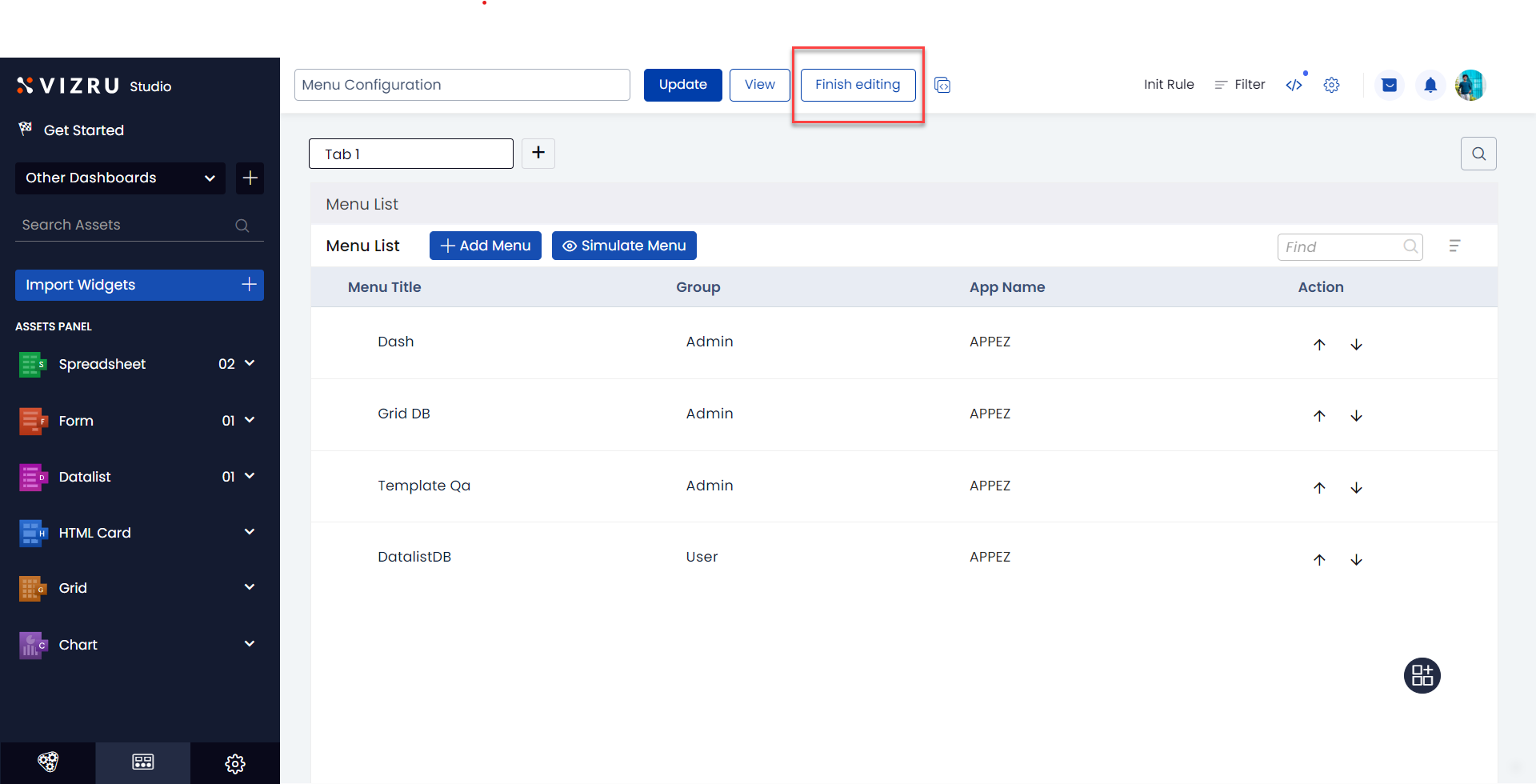
1. Edit access to the dashboard limited to one user at a time: When one user is editing a dashboard, another user cannot edit the same dashboard until the first user finishes editing and clicks the button Finish editing on the dashboard. While the first user is editing the dashboard, the second user gets a pop-up message that the first user is editing the dashboard.
2. New attribute “viz-dom” to manage buttons in HTML cards and datalists: You can use the attribute “viz-dom” to display or hide buttons based on different conditions in HTML cards and datalists. The operators supported are “greater than”, “less than”, “equal”, “no equal”, and “contain”. The syntax is as follows:
<viz-dom data=”{field}” operator=”gt” value=”50″>
<button class=”uiAction ds-btn ds-btn-primary ds-btn-xl”>greaterThan</button>
</viz-dom>

3. Importing workflows with a common prefix while installing an app as framework: while installing an app as framework multiple times in the same tenant, the workflows were getting duplicated. With this feature, you can now import the workflows with a common user-defined prefix. When you download an app as a framework, you can choose to not import workflows or you can choose to import workflows with a prefix so that you can differentiate the workflows that get imported.
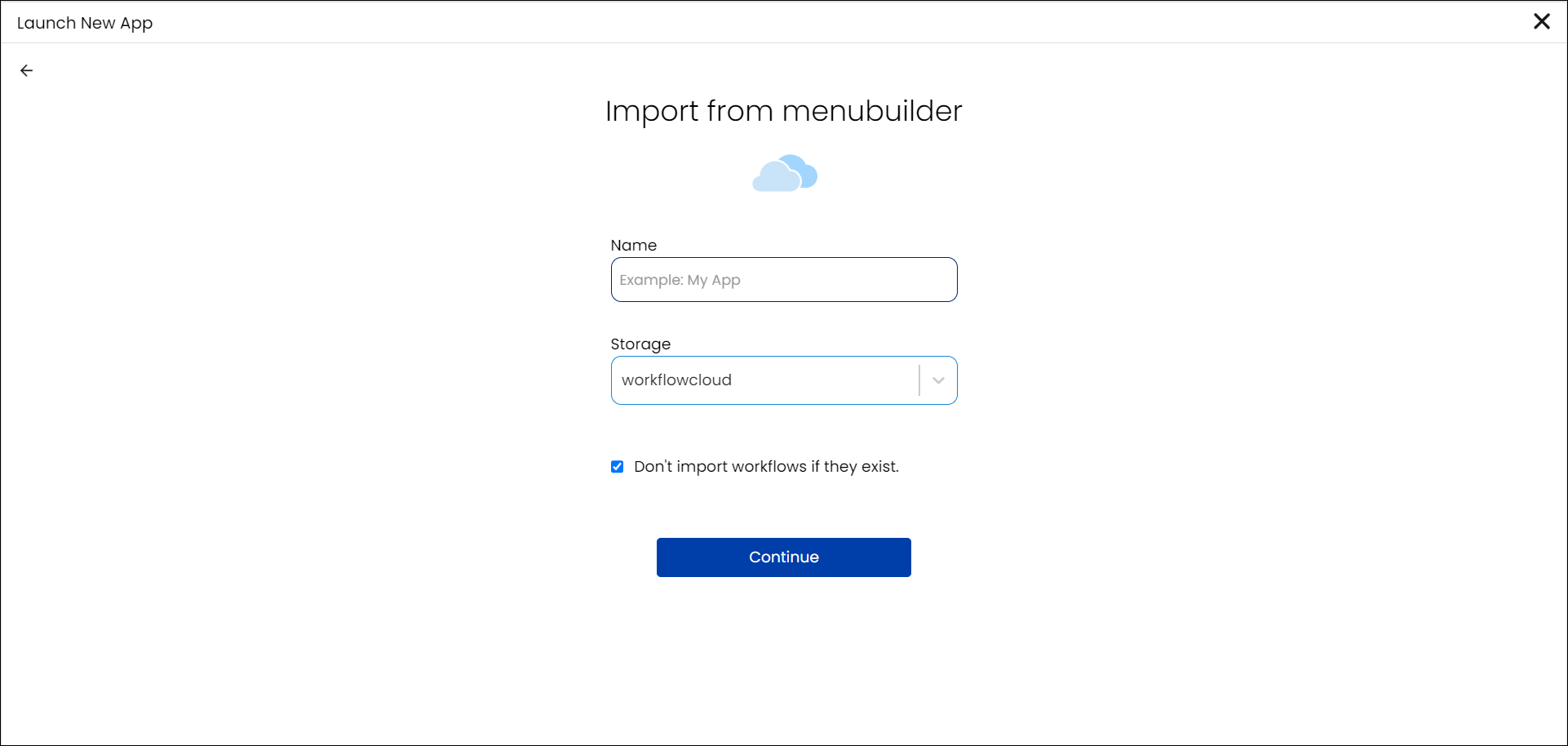
If you uncheck the checkbox, you get the option to add a prefix to the workflows, and then continue.

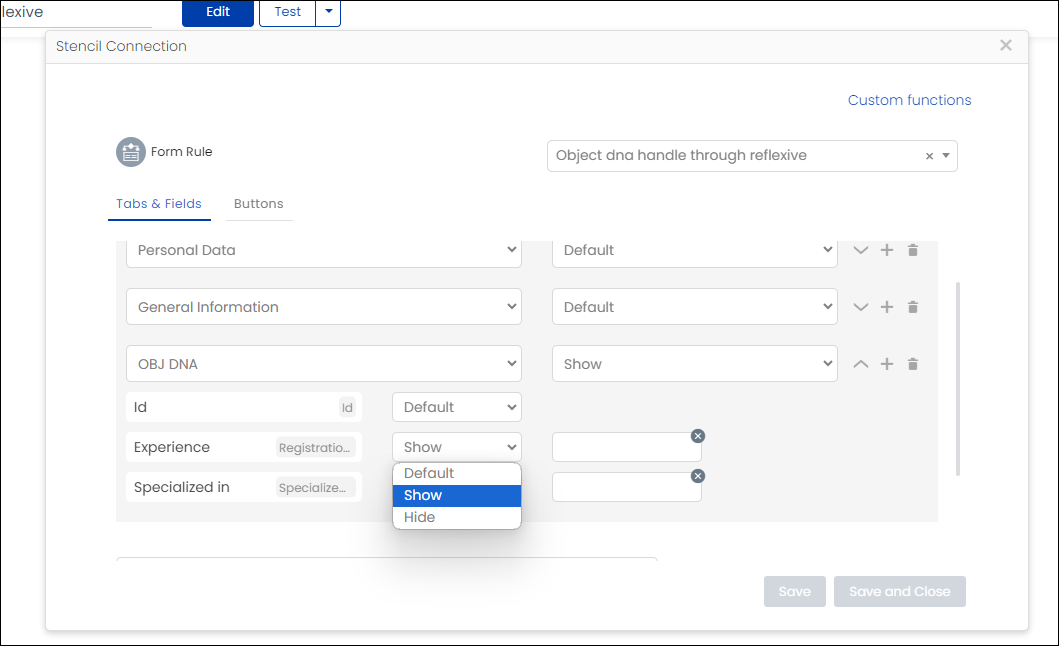
4. Managing Object DNA in reflexive workflow: In the Form Rule Block, you now have the option to manage child grid fields. You can select the child grid and show or hide the child grid fields using the Form Rule Block.
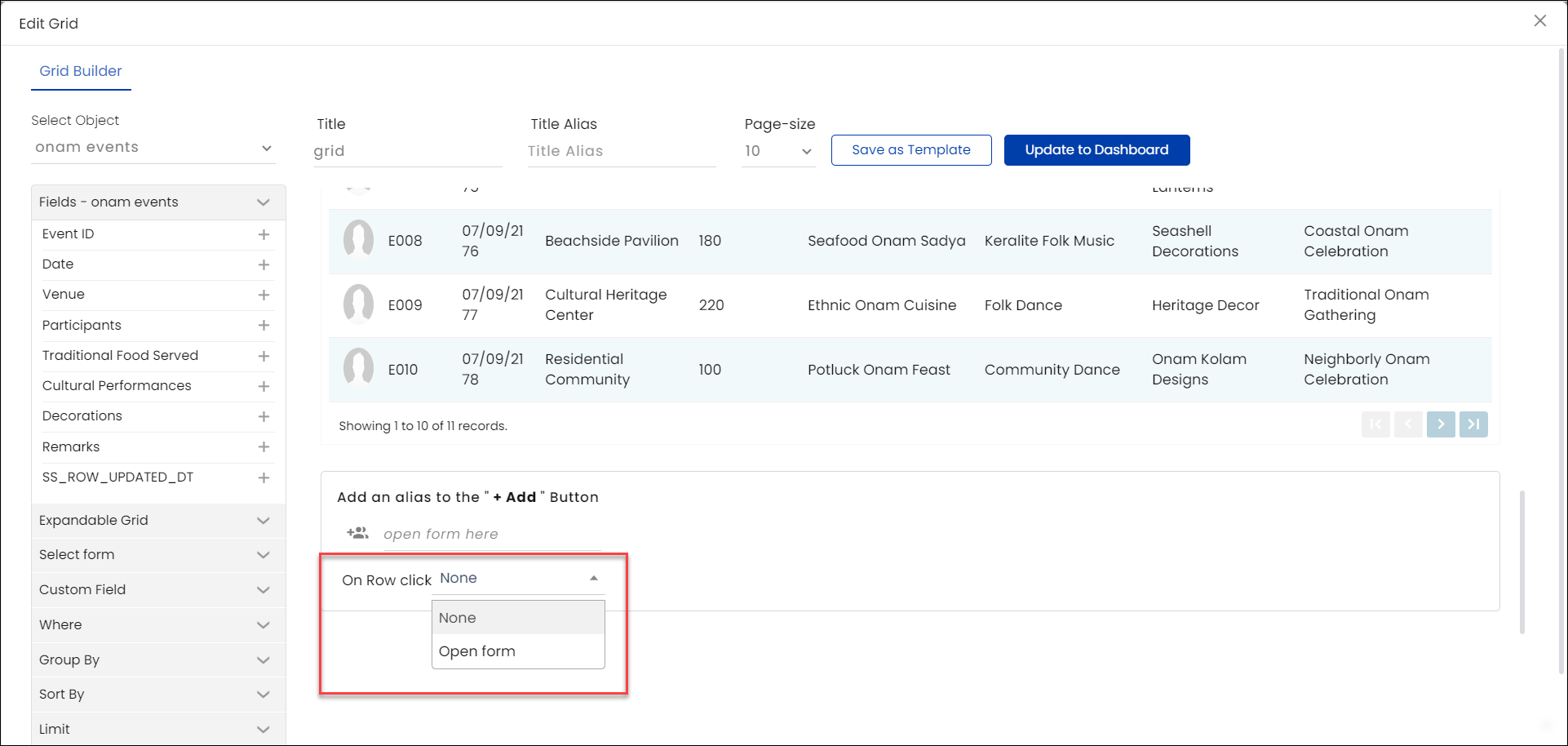
5. Option to manage forms connected to grid and datalist: Normally when you click a row in a grid or a datalist, a form in edit mode will be displayed. Now you can choose to display or not display the form on row click. You have a new option “On row click” in grid builder and datalist builder for which if you choose “Open form”, you get an editable form opened with all the data corresponding to the selected row. If you choose “None”, no form is displayed on row click. The form gets opened only on clicking the Add button to add a new record.

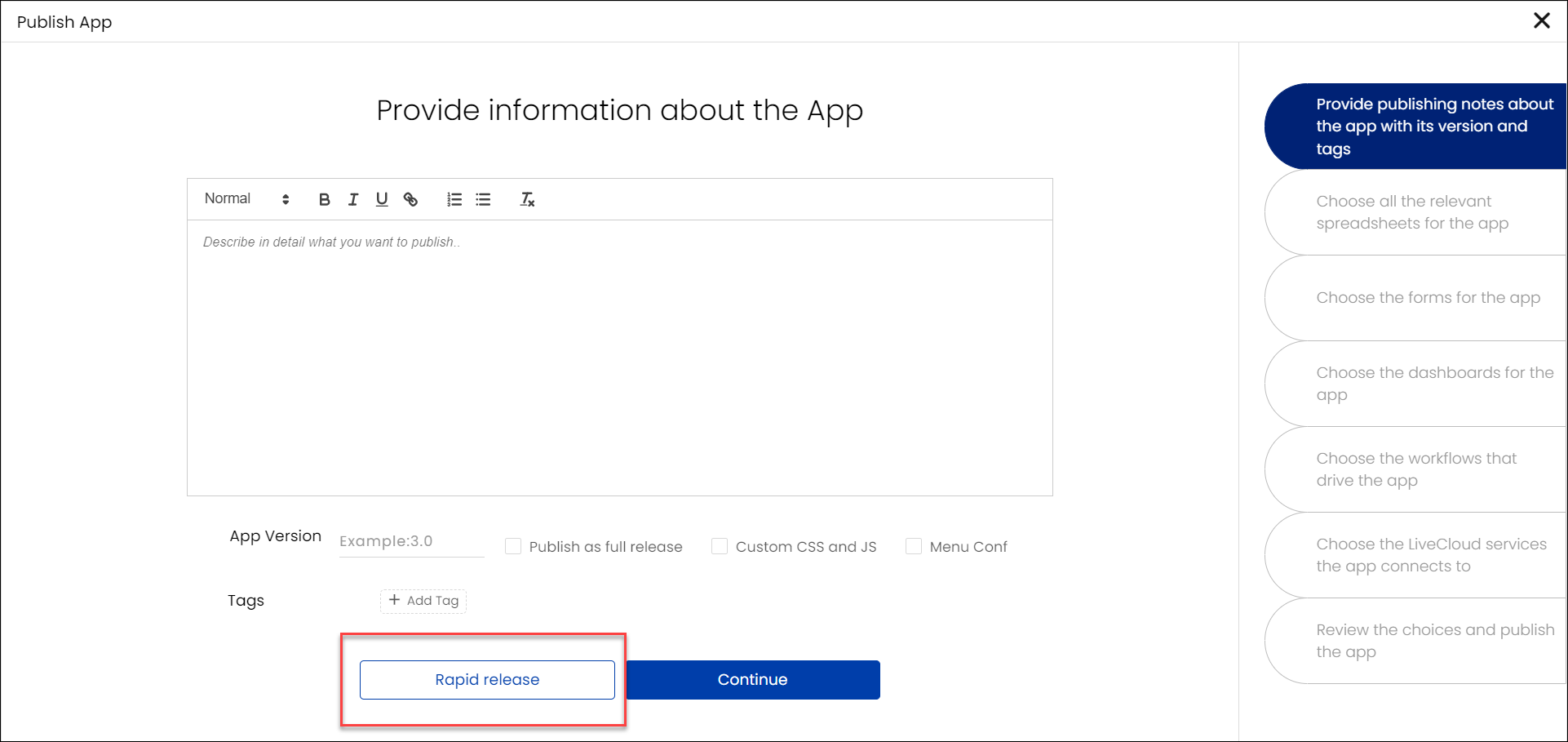
6. Option to select patches while publishing an app: to move patches from testing instance to production instance, you had to manually select the components while guardrailing. Now, while publishing an app, you have the option to select the required patches to be published. The components of the selected patches will be automatically selected while guardrailing. This simplifies the process of release from testing to production instances. You can find the list of patches on clicking the button Rapid Release.
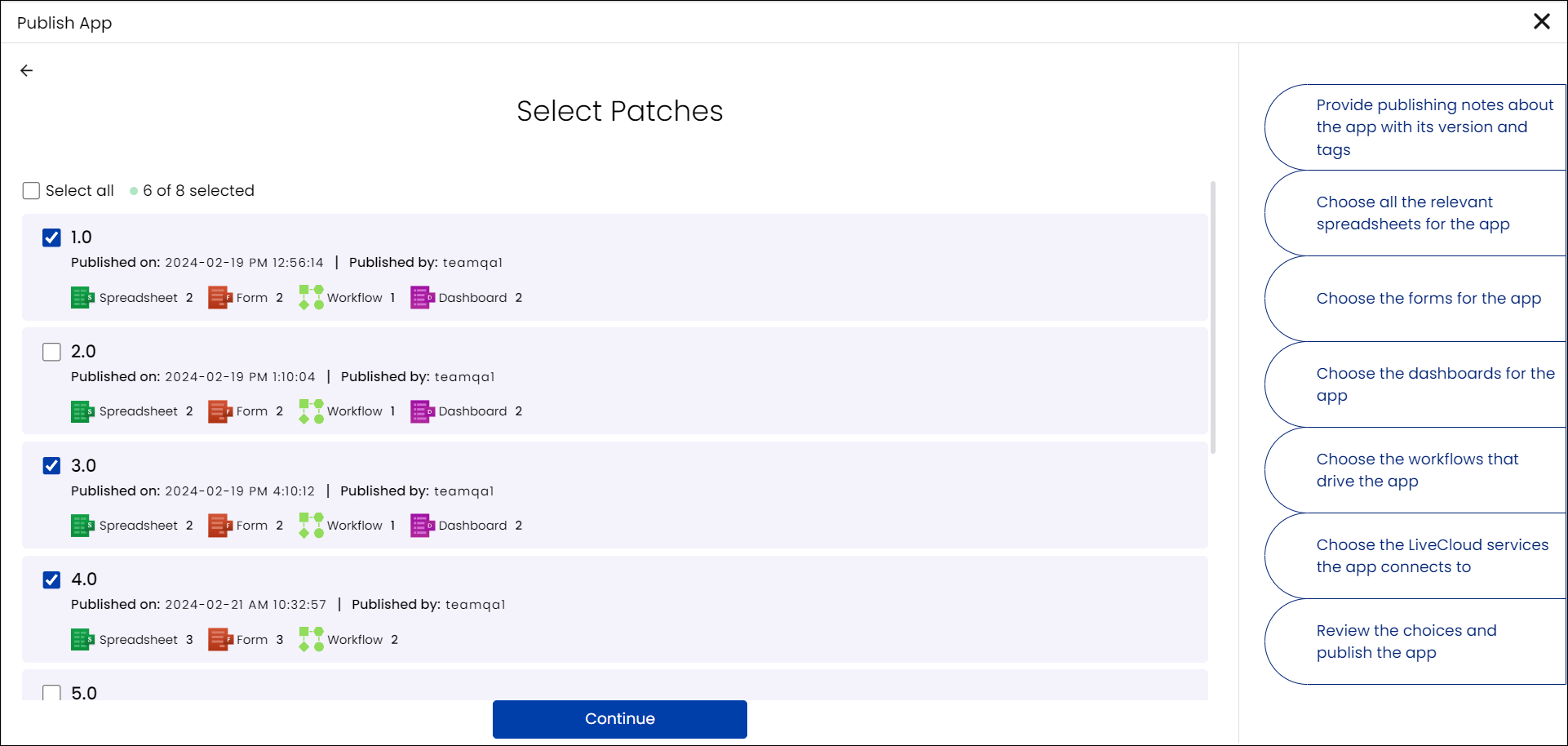
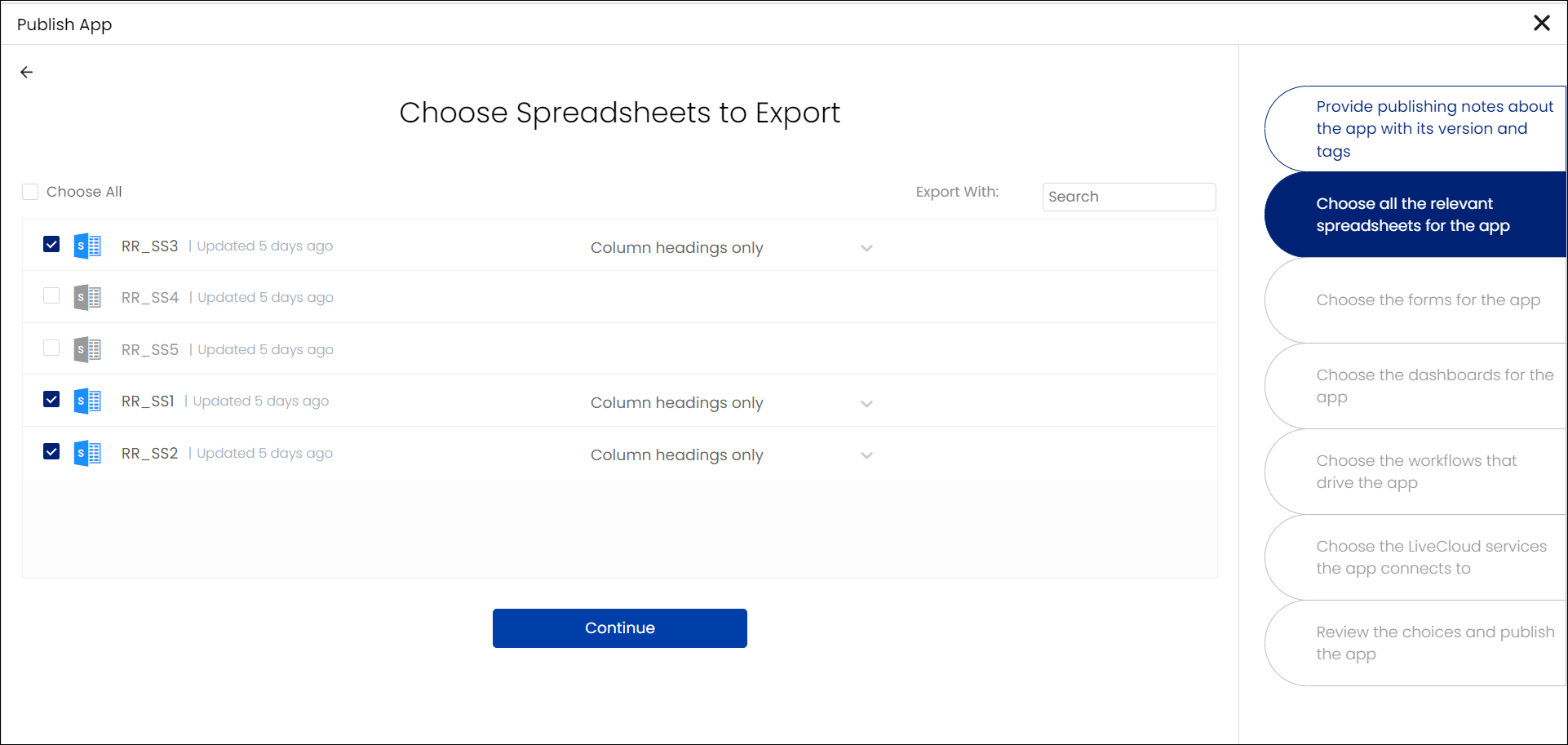
You can see that when the required patches are selected, the corresponding components of the patches are automatically selected while guardrailing.
7. New and improved HTML card builder: You now have an improved version of the HTML Card Builder built using React. There is a change in the look and feel of the HTML card builder with improved functionalities. There is a coding panel and a preview panel and two kinds of layouts for these panels.
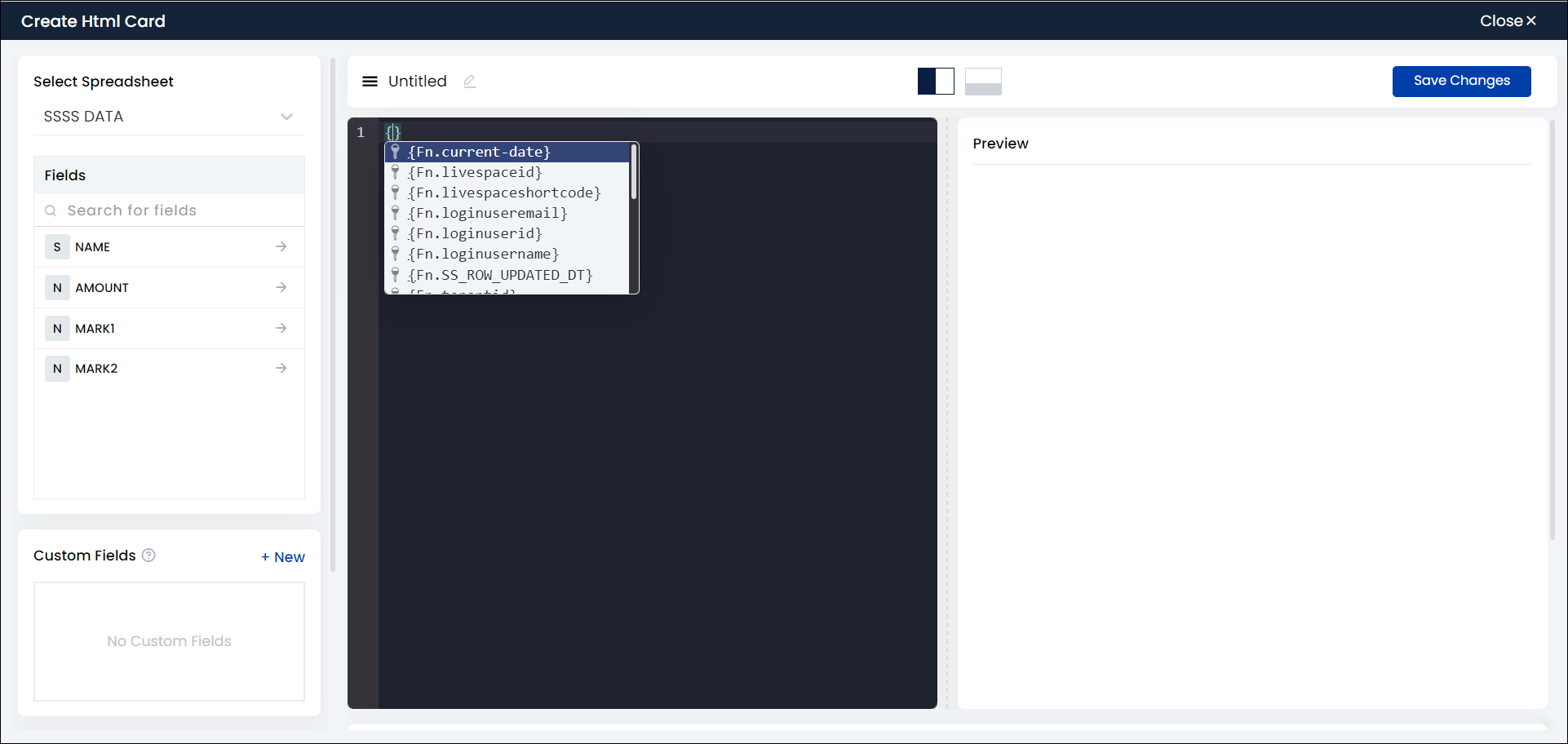
You can write the code and call the variables or fields from the coding panel itself. You can search for internal variables and use them directly in the source code.

As you scroll down, you can find the Settings option. Under Settings you can find the Where, Group by, Order by, and Limit by options.
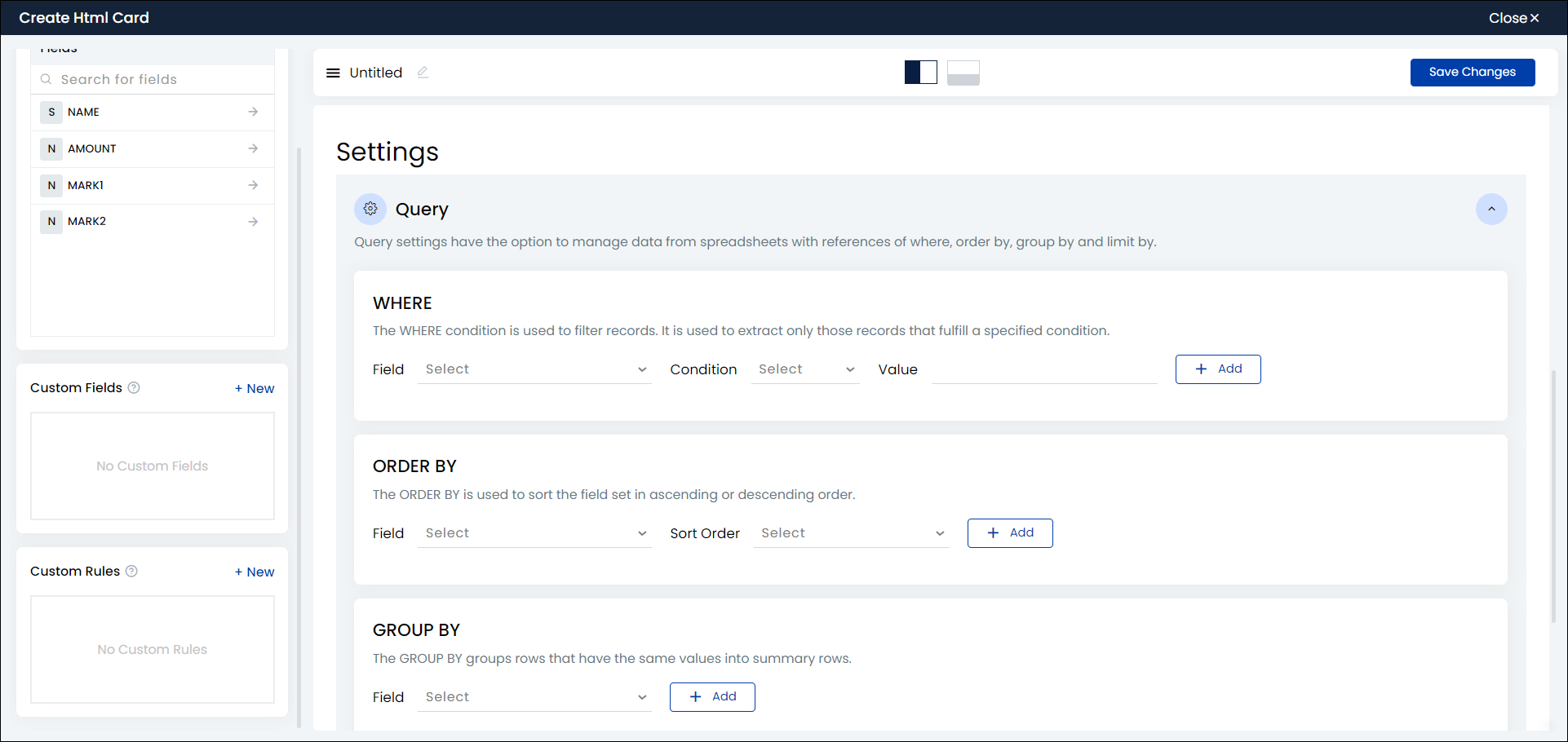
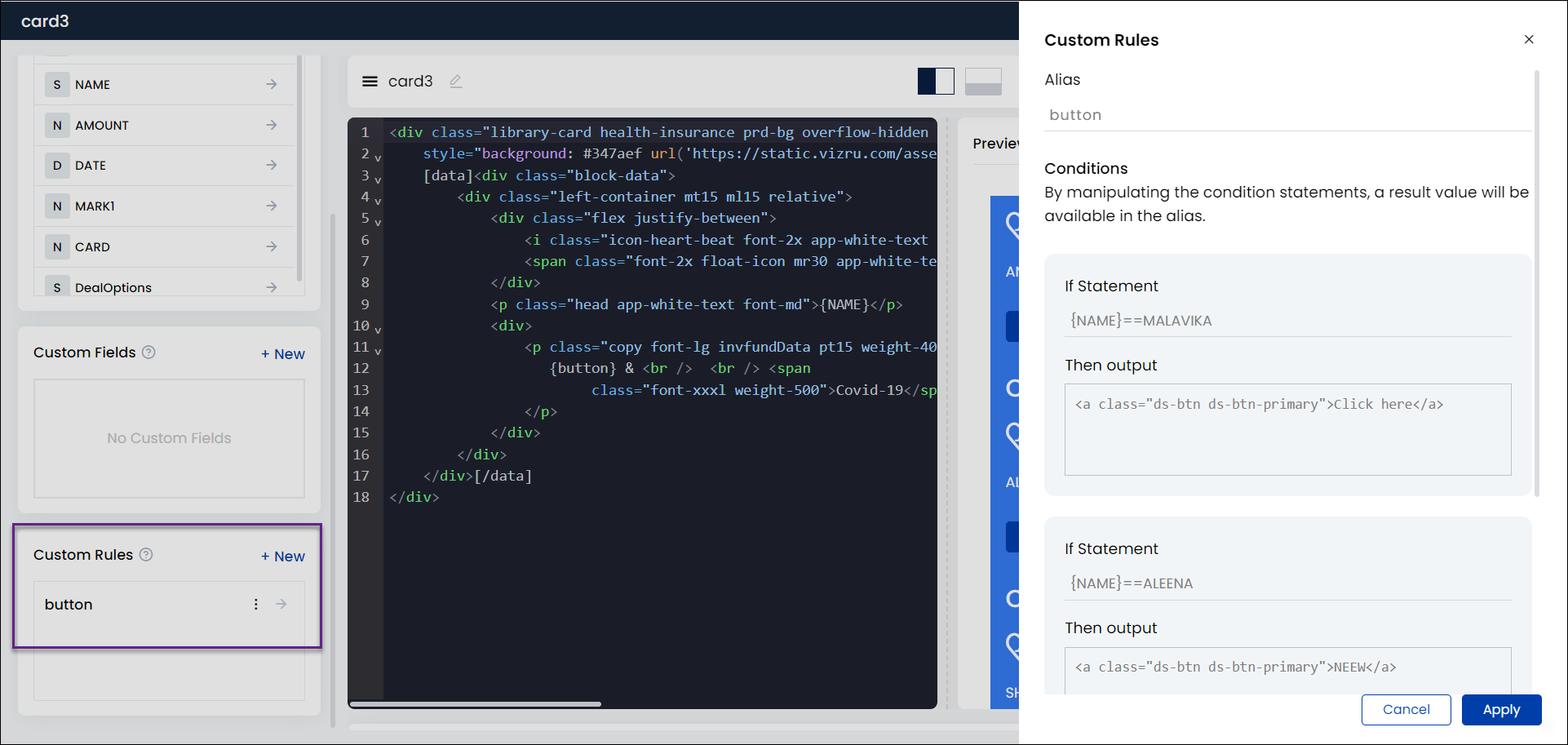
You have a new option Custom Rules that enable you to get an output based on conditions. That is, it enables you to execute a certain code if a condition is true and execute a different code if the condition is false.
Click + New to add a custom rule. A sliding panel is displayed on the right where you can give alias names and conditions.
8. Session fixes: When a user logs in, a session id is generated in the backend. This id rekeys every 5 minutes. This prevents the possible misuse of session id and platform access by unauthorized users because the key that is generated expires after 7 minutes.
Bug Fixes
- In ss view from assets, the download ss option not working and getting redirected to an undefined path is fixed.
- While installing a dashboard template to a tenant, the source URL will be automatically set in the backend. The user does not have to manually add the source URL.
- User was not able to create new datalists due to increase in the load of workflows. This is fixed.
- File upload in HTML card not working when uploader is set to a workflow is fixed.
- Widget delete not working in the left side panel is fixed.
- Action button added from datalist could not be hidden through init. This is fixed. The action button will be visible only when it is selected from dashboard init.
- The issue with inviting users using the option Invite People > Import from Spreadsheet is fixed.
- Alignment issues in prefix value column in form and in the dropdown in workflow test pop-up (Get Parameters) are fixed.
- When adding a datalist, card, chart, or grid to a widget with an alias name, and subsequently adding a spreadsheet to the same tab or the next tab, the title of the spreadsheet was displaying the alias name of the previous widget. This is fixed.
- Button text not being visible in clone workflow popup is fixed. Also, widget delete not working in the left side panel is fixed.
- Dashboard widgets can be hidden using the init rule. But when the dashboard was refreshed, the hidden widgets were shown up with a white backdrop. This is fixed.
- On clicking “load more” option, the same dashboards being displayed multiple times is fixed.
- Subfilter, Show and Read-Only fields not working as expected when changing the field type to text area in form is fixed.
- Button alignment issue with file preview using class “uiAction” is fixed.
- Alias name of a form is automatically capitalized. This is fixed.
- Workflow card not working in tabbed card is fixed.
- Under Configure Policies > Apps, only the details of app users/members were displayed; owner details were not displayed. This is fixed. Owner details are now displayed with a lock symbol.
- While selecting Fit Screen from widget settings, alignment issue with the record count display is fixed. Also, the scroll bar width issue is fixed.
- Validation issue in form title is fixed. Now it is not possible to give same title for different forms. Also now the modified form titles will be displayed in the left panel of the Dashboard Studio.
- Chart loading issue when tooltip is added to the chart is fixed.
- When publishing, then unpublishing, and subsequently republishing a widget, all data was lost and had to be re-entered. This is fixed. The data and images are now saved and retained.
- Restricting multiple file upload was not working when file was uploaded using workflow. This issue is fixed by setting a variable “multiple” as “false” in the workflow and another variable “tag” also as “false” to hide the option to tag the files during file upload.
- Bugs related to multi-user dashboard lock are fixed.
- Dashboard and widget titles missing when published without giving alias names is fixed.
- When a user group was made inactive from Configure Policies, it was still available for selection in user management scenarios. This is fixed.
- Scrolling not working under Apps > Set Landing > Dashboards is fixed.
- While creating a pie chart with x values, y values, series values, and tooltip values, and adding it to the dashboard, the dashboard went blank. This is fixed.
- Alignment issue with the set landing icon in dashboards is fixed.
- In Dashboard Widget Appearance pop-up, the issue with transparent widget background checkbox UI is fixed.
- Validation missing while creating an HTML card without adding code is fixed.
- Chart and grid not displaying title alias name in a tabbed card is fixed.
- While creating a new tab, editing its name and updating it, the widget title was displaying the alias name of the previous element. This is also fixed.