Category
- Release Notes
ZEOS, Version 32.0.0
Release Date: 05/06/2024
About This Release
Release 32.0.0 brings functionality enhancements to dashboards and workflow blocks. It introduces a new and advanced PDF generation tool. It also fixes bugs related to forms, datalists, cards, and workflow mapping.
Features/Enhancements
1. Publishing locally created dashboard to dashboard library: You can now publish a dashboard from any tenant and reuse the dashboard style in any app within the same tenant. In scenarios where you need to create dashboards with similar design patterns, you can publish the locally created dashboard to the dashboard library, which will be available only in the same tenant, and import the dashboard within the same app or any other app within the same tenant.
- To publish a dashboard, go to Dashboard Edit > Settings. The following panel will be displayed.

- Under Publish to Library, click Dashboard. The following pop-up is displayed.

- In this pop-up, provide the necessary details. Give an Alias name to differentiate the dashboard when you import it later.
- Upload a screenshot of the dashboard and click Save.
The dashboard gets published to the Dashboard Library of the same tenant.
- To import this dashboard within the same app or any other app, go to Dashboards > Create a Dashboard.
- Search for the dashboard you just published.

- Click on the dashboard and click Create. The dashboard will be imported to your app.
If the dashboard you published has an init workflow connected, you can differentiate the dashboards by giving a prefix to the init workflow when you import the dashboard. This is shown in the below screenshot.
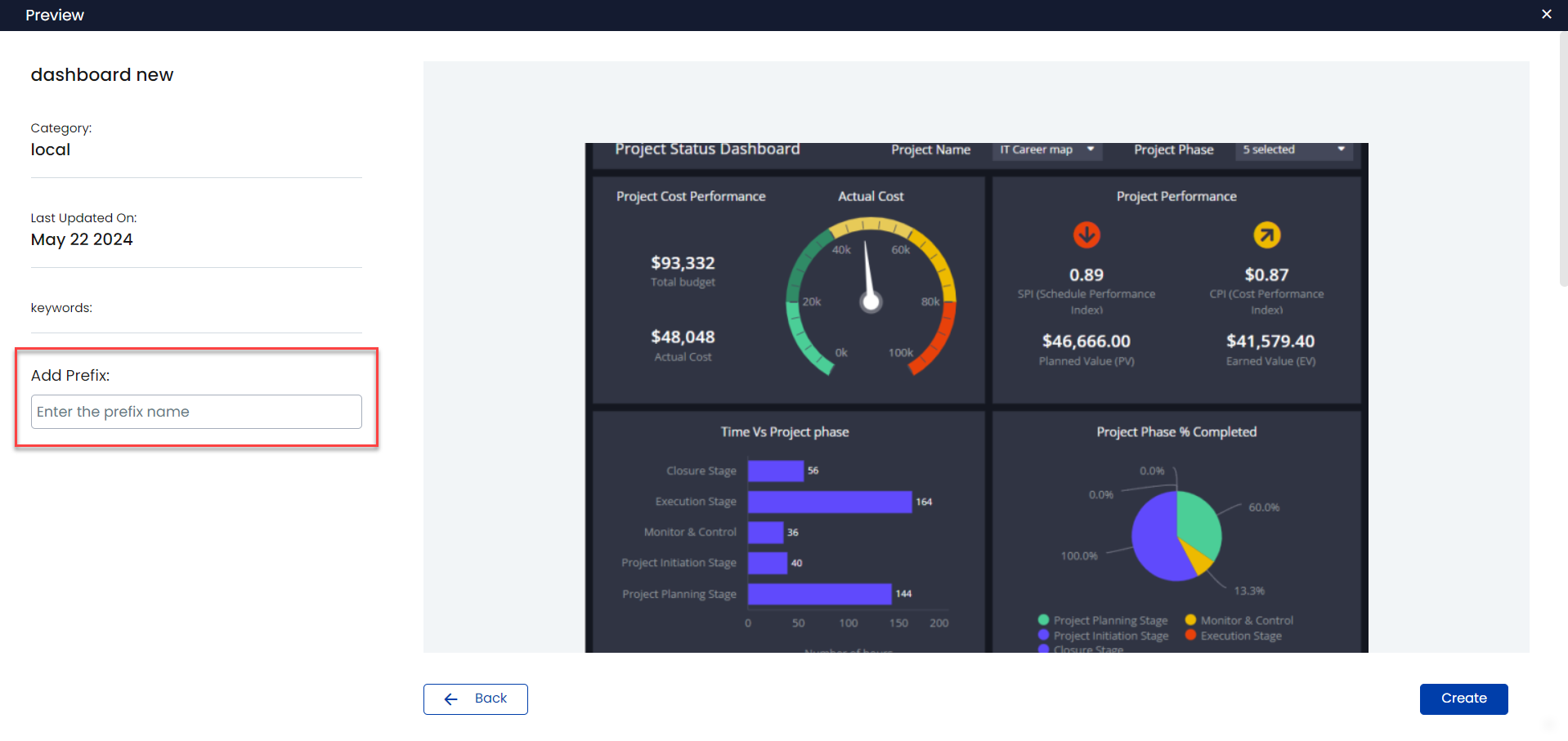
2. Active tab selection in a tabbed card through URL: In certain use cases, in a tabbed card, a particular tab needs to be made active and it need not necessarily be the first tab. Also there can be multiple tabbed cards as child and for each of the tabbed cards, specific tabs need to be made active at a time. Consider the use case where you want to redirect to a particular tab in a dashboard on button click. For this, in the workflow, give the dashboard URL along with the tab id of the tab to be redirected to in the following format:
#tiny.url/ls/liveapps.view/reachtb6630b74623943/vizTab/card-tab333__VIZ__
Here, “vizTab” is the key and “card-tab333” is the tab id of the tab to be made active.
This is shown in the screenshot below.

When there are multiple tabbed cards as child you can pass the tab ids through the dashboard URL in the following format:
#tiny.url/ls/liveapps.view/tabbedcardtest615aee94578d0/vizTab/card-tab3__VIZ__card-tab22__VIZ__card-tab222
Here again “vizTab” is the key, “card-tab3” is the primary tab, “card-tab22” is the child of “card-tab3”, and “card-tab222” is the child of “card-tab22” all of which need to be made active simultaneously on the same dashboard.
As in this example, this workflow needs to be executed on a button click. So give the shortcode of this workflow within the template for the button in the datalist.
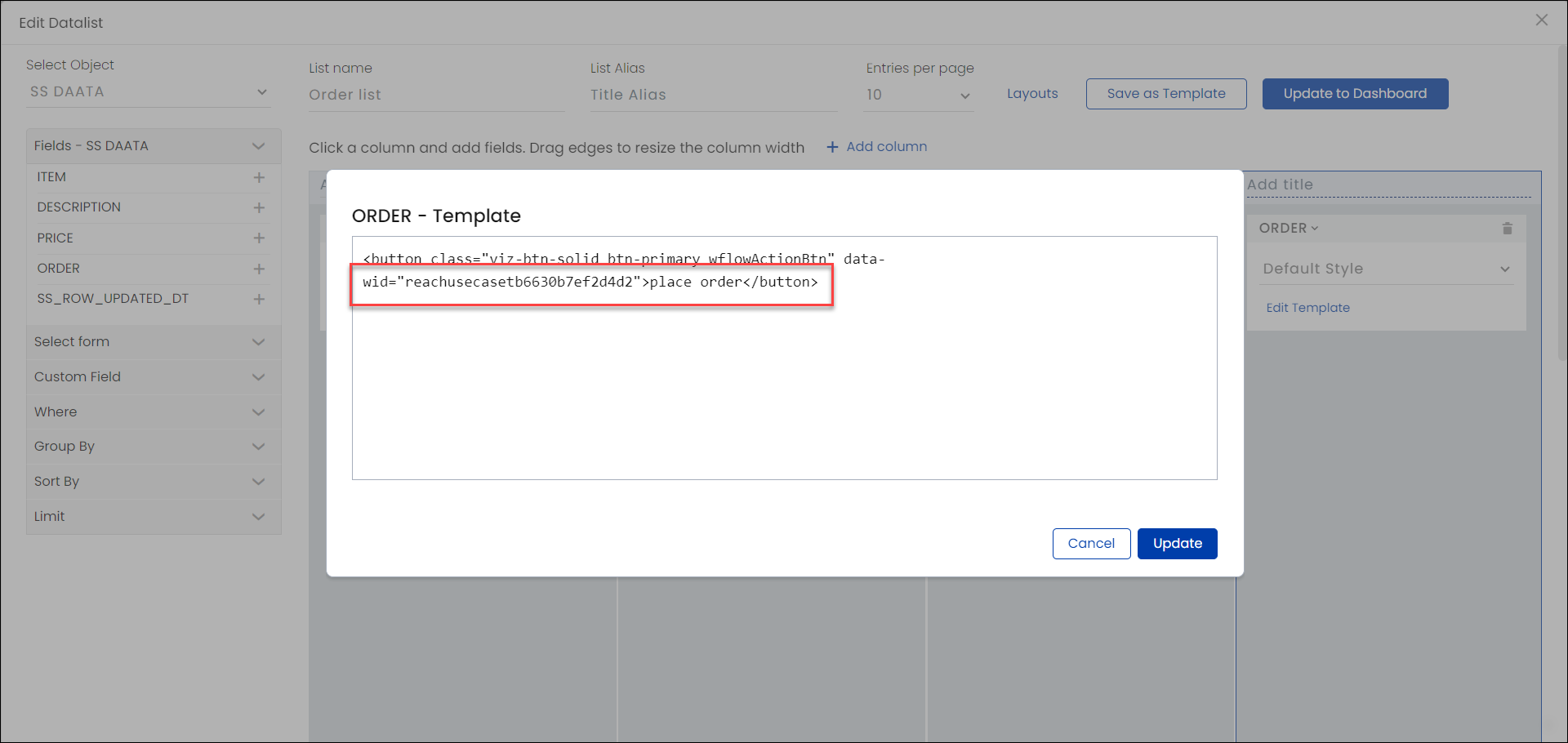
3. Dynamic livespace shortcode in File Upload Block: In the earlier version, it was not possible to provide a dynamic livespace id in the File Upload block. Now you can give a dynamic shortcode to choose a livespace. You can pass a value in the format {entry.ls_shortcode} to choose a livespace.
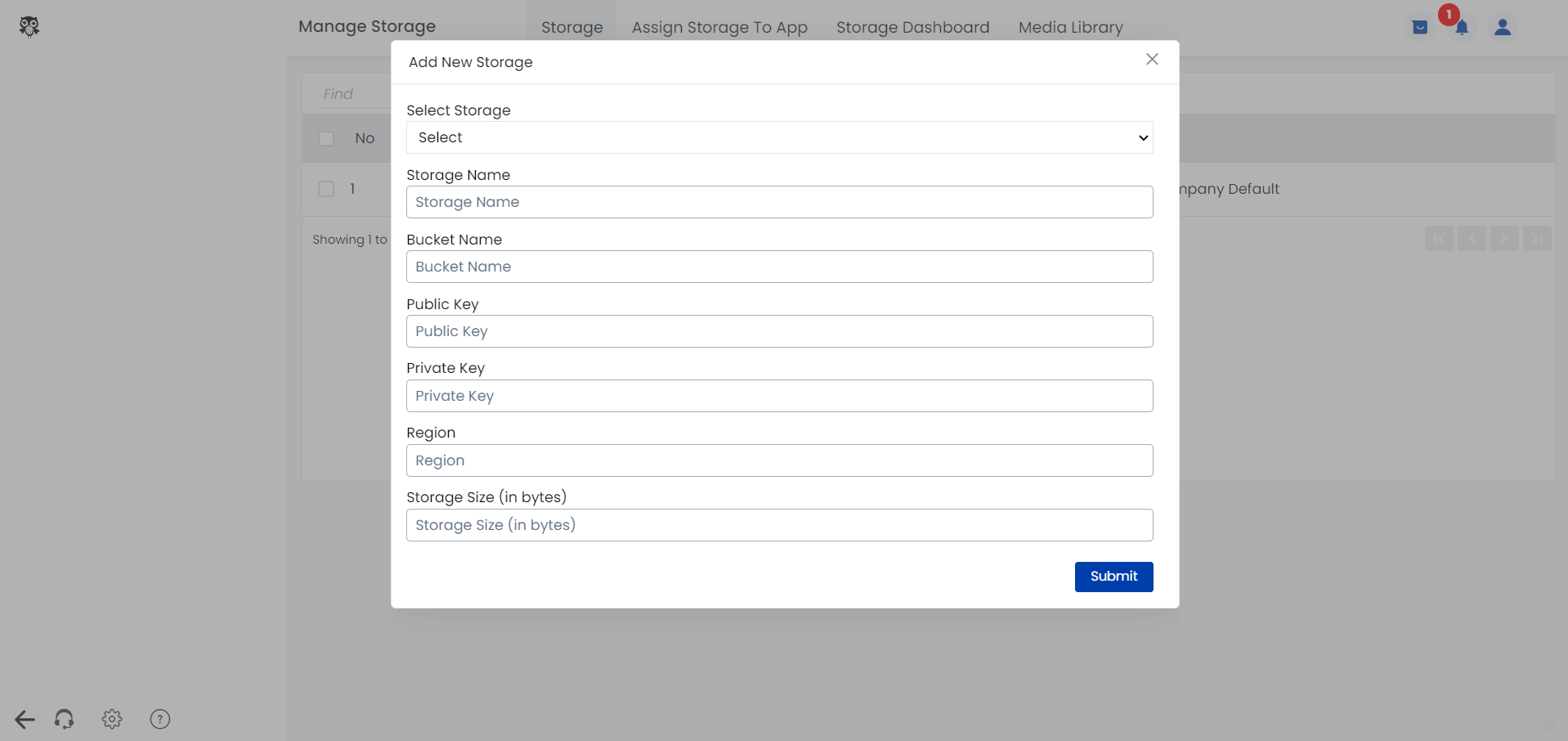
4. Amazon S3 storage region-wise: Latest Amazon S3 storage locations have been set for apps on the client side. This prevents any errors while installing apps on the client side. New storage locations can be added from Settings > Manage Storage > Add New Storage.
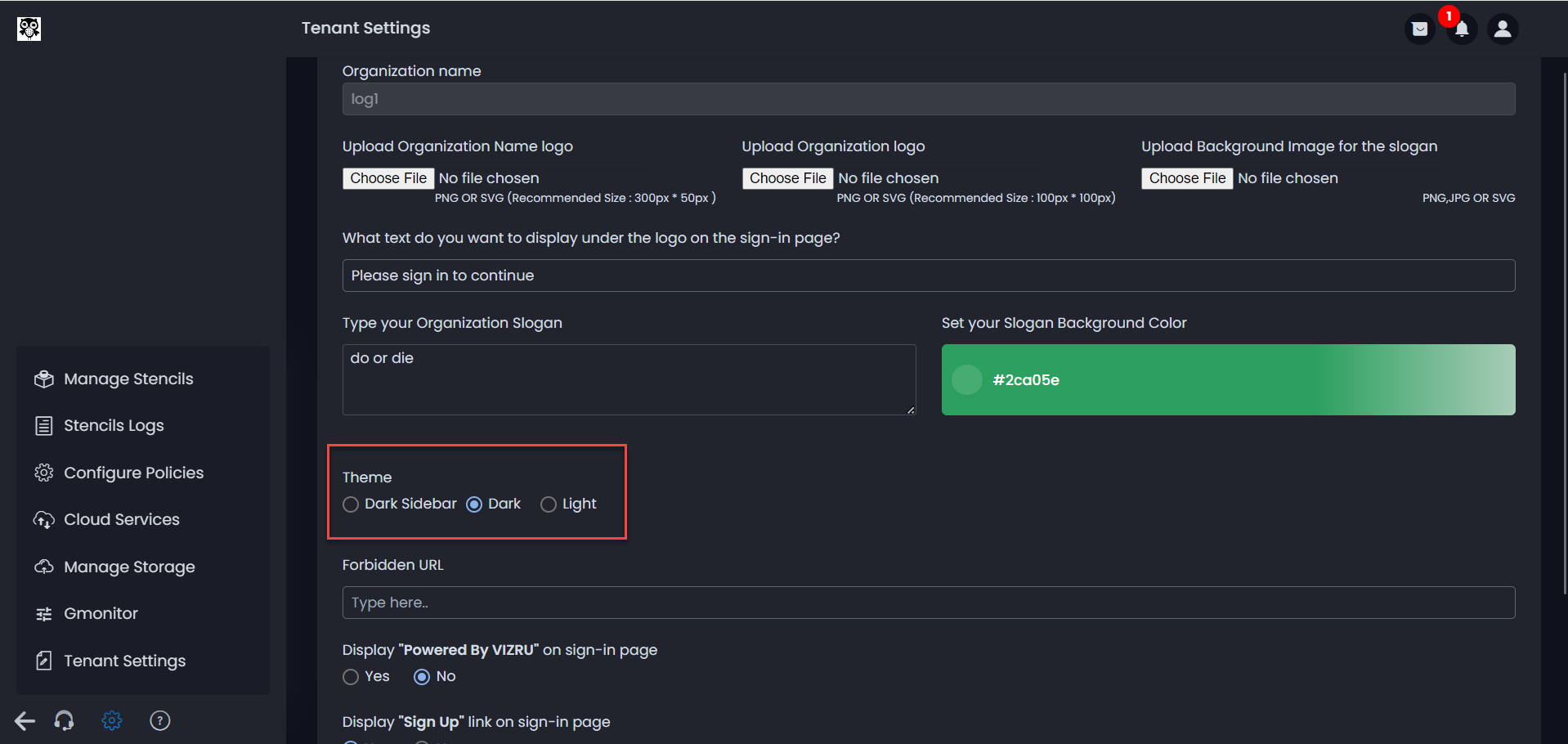
5. Default dark mode support for platform: Now you can set the theme for a tenant as “Dark” in addition to the existing themes Dark Sidebar and Light. The Dark theme will be reflected on the UI except on the Editor side, for example, Form Builder, Datalist Builder, Workflow Edit, etc. You can set the theme from Settings > Tenant Settings > Theme.
6. App, dashboard, and workflow names in the URL: Now you can find the name of the selected app, dashboard, or workflow in the URL tab.
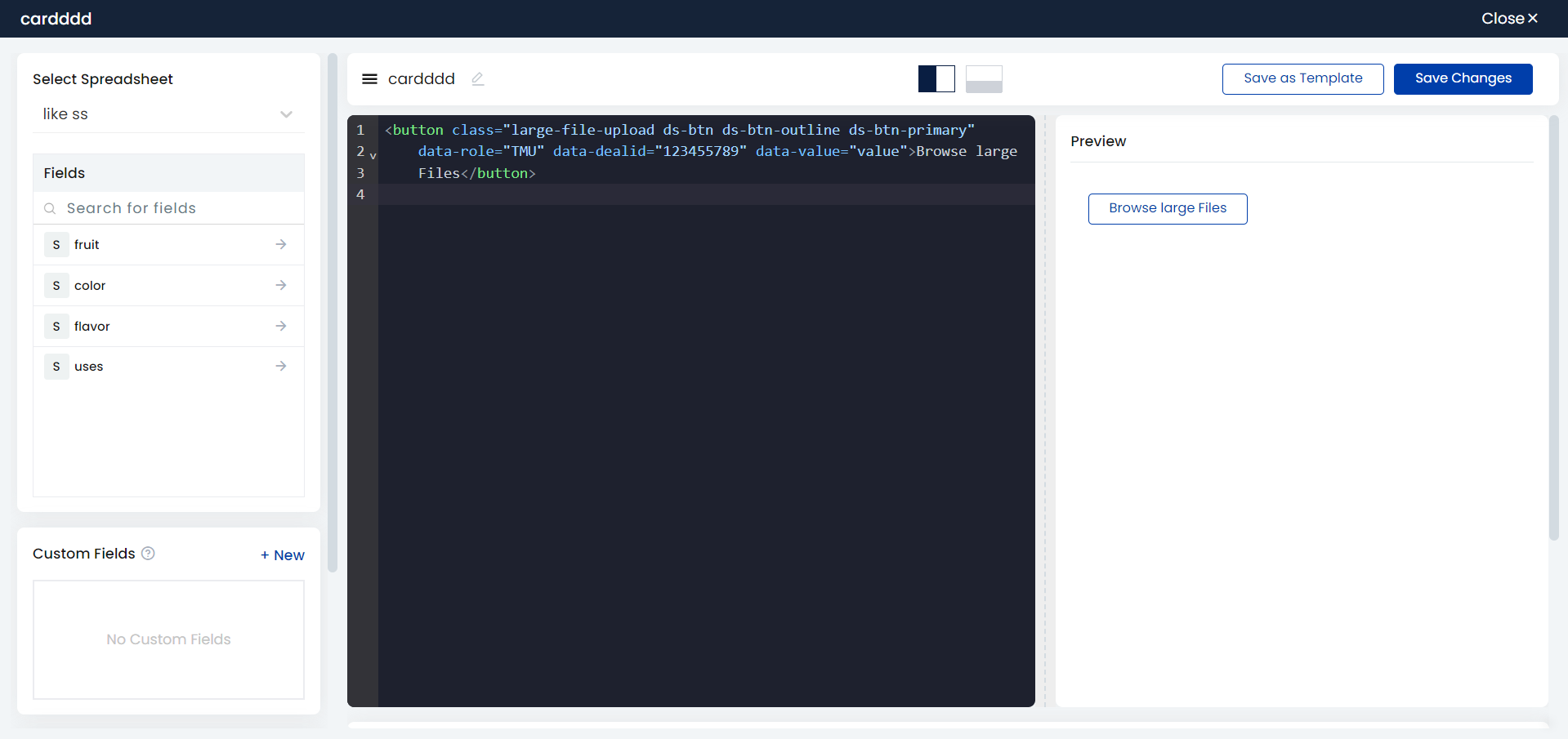
7. Uploading large files through card: Large files of size greater than 1 GB could not be uploaded through form. In order to overcome this difficulty, uploading large files has now been enabled through card.
A new class “large-file-upload” is added to the code of a button. This button is displayed on the card and on clicking the button, you can upload large files of size greater than 1 GB. Other parameters can also be passed in the following format:
<button class=”large-file-upload ds-btn ds-btn-outline ds-btn-primary” data-role=”TMU” data-dealid=”123455789″ data-value=”value”>Browse large Files</button>
8. PDF Generation Tool: In scenarios where a valid file id does not exist, dashboard content can be generated as a file and previewed as PDF. This is done by using cloud services and workflow. In order to generate the PDF of a dashboard, firstly the dashboard content is converted to HTML using a cloud function. The HTML content is then arranged in order using JSON. The output is then passed to an advanced PDF generating function.
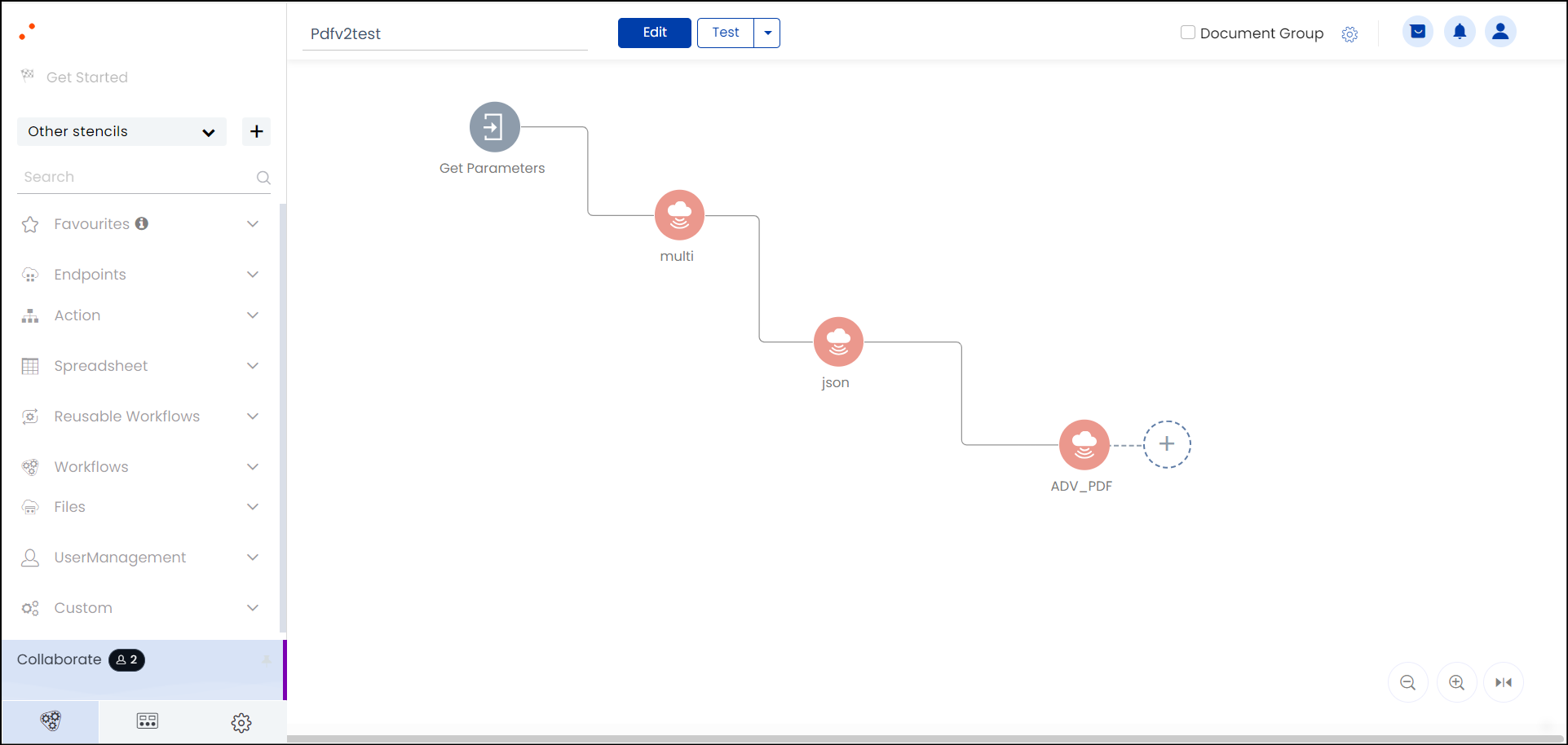
To convert dashboard content into HTML, dashboard shortcode is passed to the “Body” parameter in the cloud function. Header and Footer can be built as cards and their corresponding shortcodes can also be passed in the cloud function.

The parameters can be dynamically passed through workflow.

You get the dashboard content as HTML in the output of the cloud function.
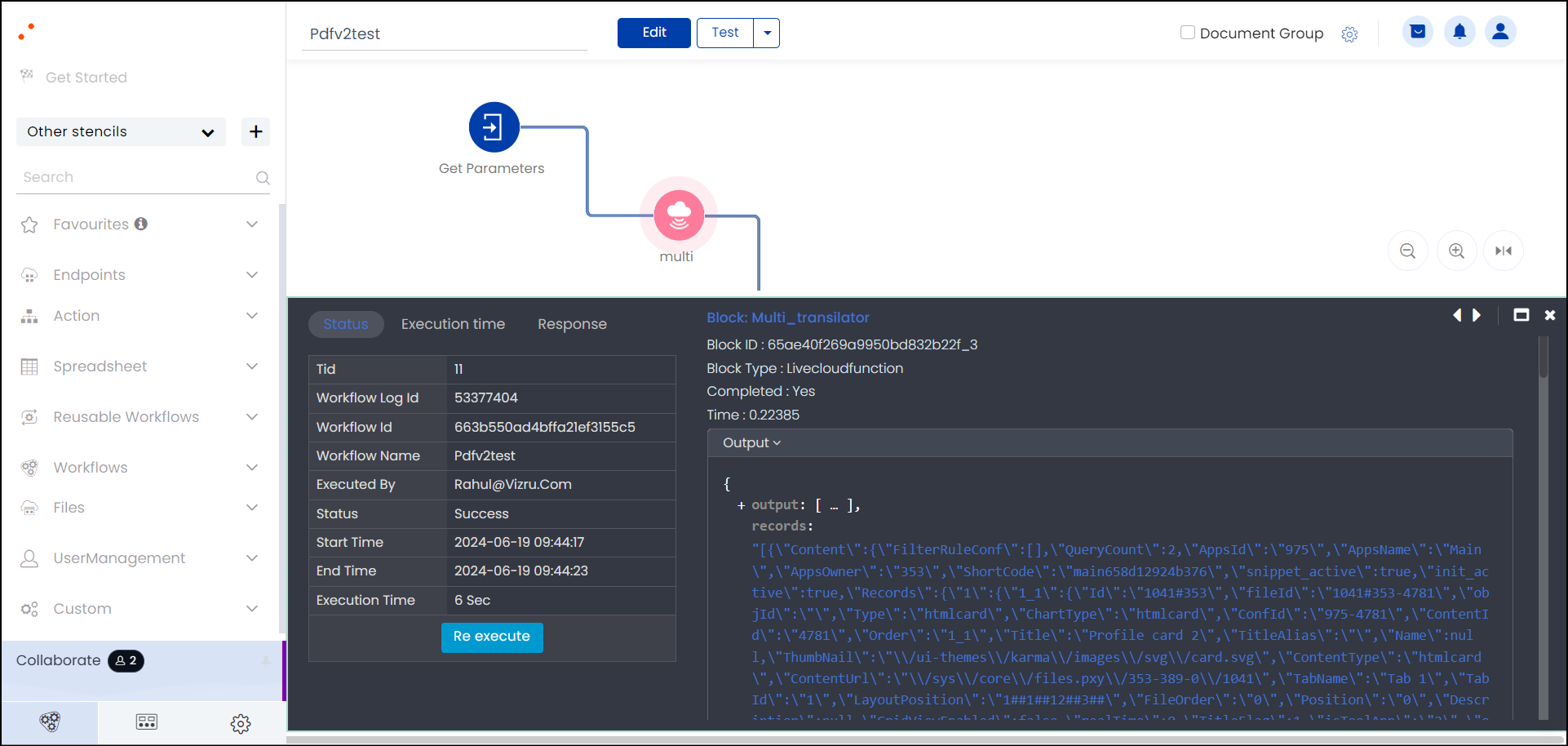
This HTML content will be disordered and is put in order using JSON.

The content is then passed to the Advanced PDF generating function, along with the File name and URL of the workflow that is triggered for file upload.

When the workflow is triggered, the file is generated under the “Files” section and can be previewed as a PDF.
Bug Fixes
- Once the datalist height is set to “Fit Content”, upon editing the datalist and updating the dashboard, the height was reverted to “Fit Screen”. This is fixed.
- HTML cards could not be added to the widget list and were returning undefined. This is fixed.
- When a “Text Area” field having multiple lines of text is set in disabled mode or read-only mode, the text within could not be read completely and scrolling was also disabled. This is fixed. You can now scroll and view multiple lines of text within the field.
- When object filter code was inserted in card, and filter column and filter value set, it was not working and did not generate the expected output. This issue is fixed.
- Strip function was not working in HTML card. This is fixed.
- When creating a new dashboard, URL of the newly created dashboard carried an undefined keyword. This is fixed.
- Ascending sort order not working in filter block when filtered using distinct columns is fixed.
- When a user was given App Admin permission and when the user used the inline edit feature in datalist, on refresh, the permission to access the page was lost. This is fixed.
- While mapping workflows to datalist action buttons, when the workflow was removed from the parent action button, the workflows mapped to child action buttons got disconnected. This is fixed.
- Source name icon on widgets displaying the source name of the most recently added widget is fixed: on hovering the mouse over a widget, you can find an icon on the top right that shows the name of the source spreadsheet. This icon, for all the widgets on the dashboard, displayed the source spreadsheet name of the most recently added widget. This issue is fixed.
- Dropdown field breaking when a long text is entered into form is fixed.
- When an HTML content was added to spreadsheet, datatype set as HTML, it was not reflected in form, that is, the font and color designed for the content was not reflected in form. This issue is fixed.
- When a date-time field was set as read-only using a reflexive workflow, there was an error, and the value was not shown as read-only when the form was opened. This issue is fixed.
- On clicking the Save button multiple times while creating a new form, a message was displayed that the form name exists. This is fixed.
- A validation message that form name exists was shown every time a form was updated. This is fixed.
- “Add Parameter” option was missing for “Show” and “Hide” options in a reflexive workflow. This is fixed.
- In a spreadsheet having a date-time field and a set of values, if a new column is added and its datatype is updated, the values of the date-time field go missing. This issue is fixed.
- When an output format is applied to a date field in form and when the form was opened in edit mode, the date was not displayed in the set format. This issue is fixed.
- When viz components were added to an HTML card, using the option Copy Object, custom field functionality was not working in the HTML card. This issue is fixed.
- When a confirmation pop-up was created using JSON, it was not triggering the expected output. This is fixed.
- When a filter was created for a date field in card and input type was selected as Date Range, when this filter was called from Dashboard Rule Block > Set Filter, the date field was shown as read-only and could not be edited. This issue is fixed.
- When creating a dashboard filter, the ss fields of cards, supposed to be shown in the dropdown list, were missing. This is fixed.
- On clicking the home icon or the landing page icon, it was redirected to the livespace list instead of the landing dashboard. This is fixed.
- When the left menu was collapsed, it was not possible to select the sub-menus for a menu. This issue is fixed.
- While publishing a patch release, when selecting “include data” for spreadsheets, it was not shown in the Rapid Release list while patching. This is fixed.
- When a file was uploaded using uploader, the file size was shown as zero in the Get File Details block. This issue is fixed.
- When a user is invited to the platform and added to an app through workflow using the user management blocks, the user could edit the dashboard but could not assign init workflow to the dashboard. Also the user could not do file preview using the workflow. This issue is fixed.
- Dashboard name missing while importing a locally published dashboard from a tenant is fixed.
- Month, week, and year options missing in the Group By field in HTML card is fixed.
- When importing a dashboard to an app, the source spreadsheet was getting duplicated. Also while publishing the app, the spreadsheet selection page went blank. This issue is fixed.
- From the dashboard widget appearance option, while setting Border Radius as Extra Large, Border Color as Extra Dark, and on enabling Widget Shadow, the corresponding change was not shown. This issue is fixed.
- When clicking on a widget from Widget Marketplace in order to import it, a blank page was shown. This is fixed.
- While opening a form, some hidden fields were being displayed during the loading process. This issue is fixed.
- Read-only fields not getting cleared and updated on changing the conditions in the reflexive workflow is fixed.