Category
- Building Smart Apps
Configuring Form Settings
You can configure form settings for appearance and layouts.
- Open the Form Builder page from Dashboard Studio.

- Click + New Tab to add additional tabs to the form.
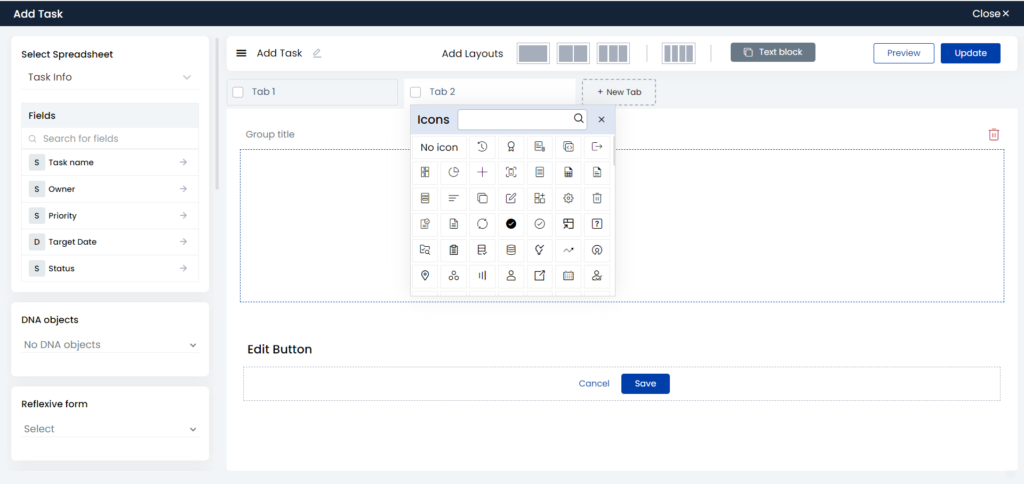
- Give suitable tab names and choose relevant tab icons. Select the fields for each tab.
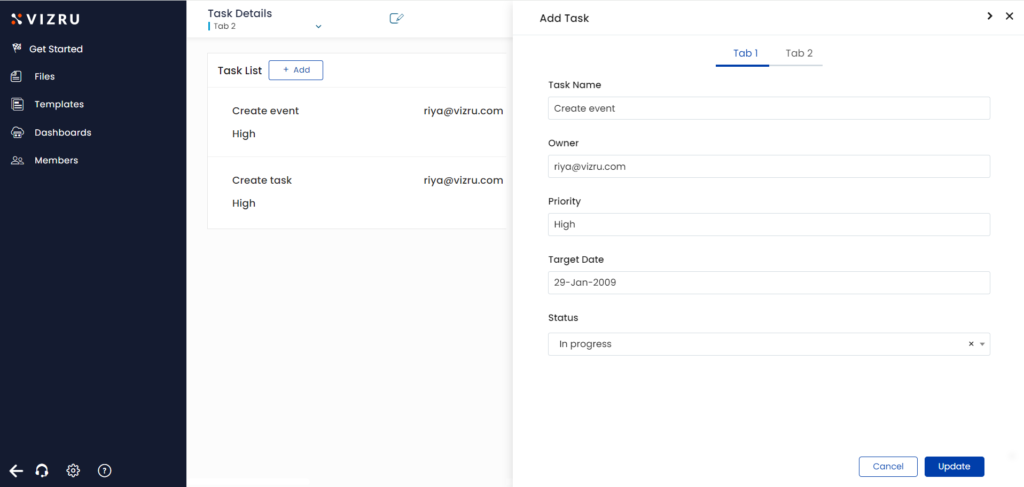
- Select Appearance as Slide and Type as Tab to display the form as an additional pane on the current page.
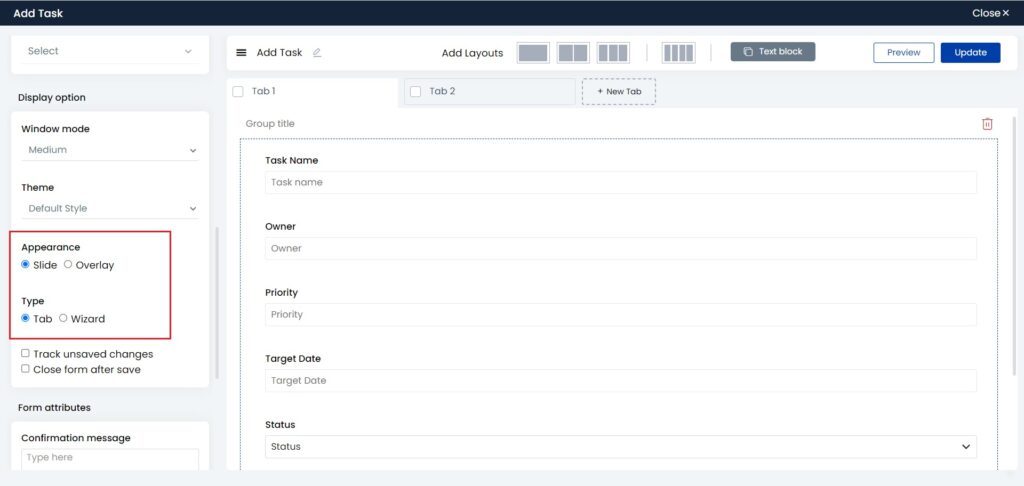
- You can choose the Window mode as Small, Medium, or Full Screen as required.
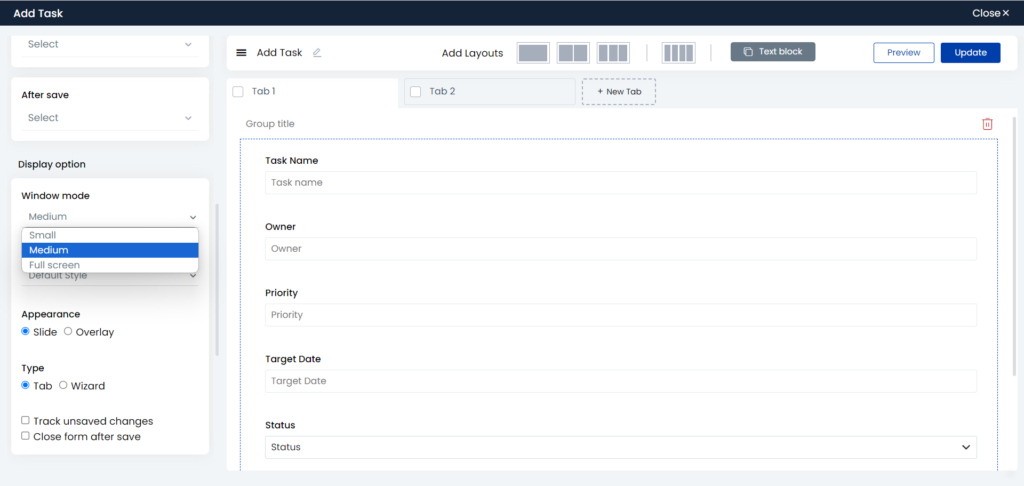
- The following example shows the form with a slide appearance in the Small window mode.

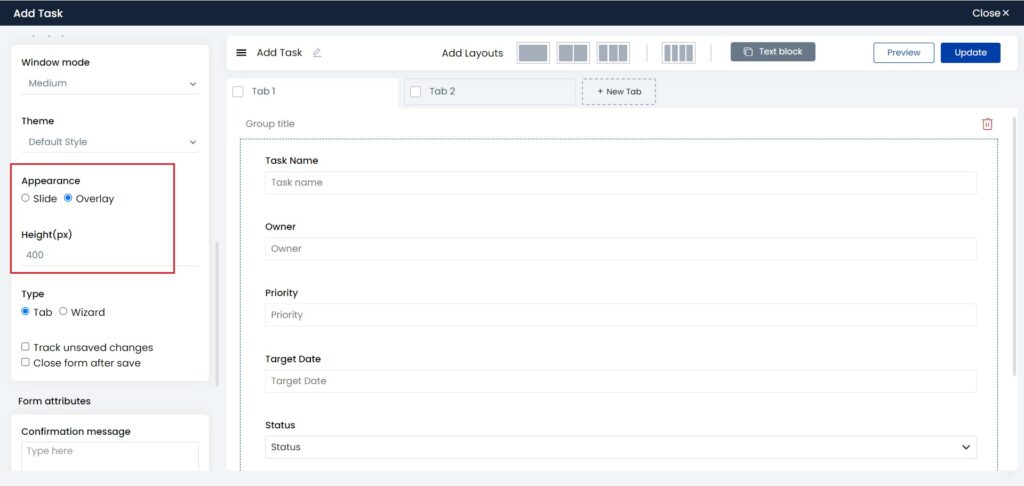
- If you go back and choose Appearance as Overlay, you can view the form as a pop-up. You can also specify the height and customize the size of the form overlay.

- If you select Type as Wizard, you will have interconnected tabs in the form. The following example shows a form with two interconnected tabs in the overlay layout.
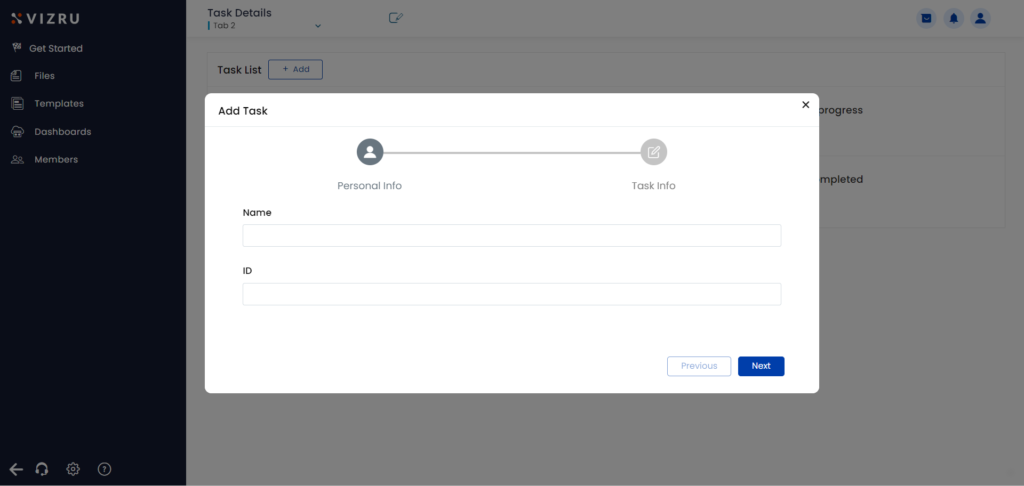
- Click Next or Previous to complete the wizard, and click Save.

You can choose Layout as 1-column, 2-column, or 3-column as required. As an example, click  for a 2-column layout for the fields under a tab.
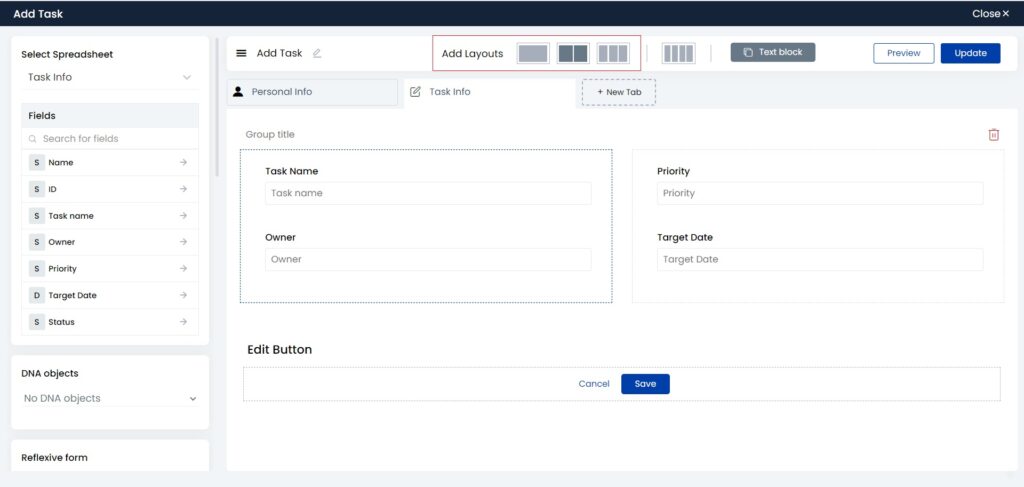
Select the fields for the corresponding columns and click Save. The following form is displayed.

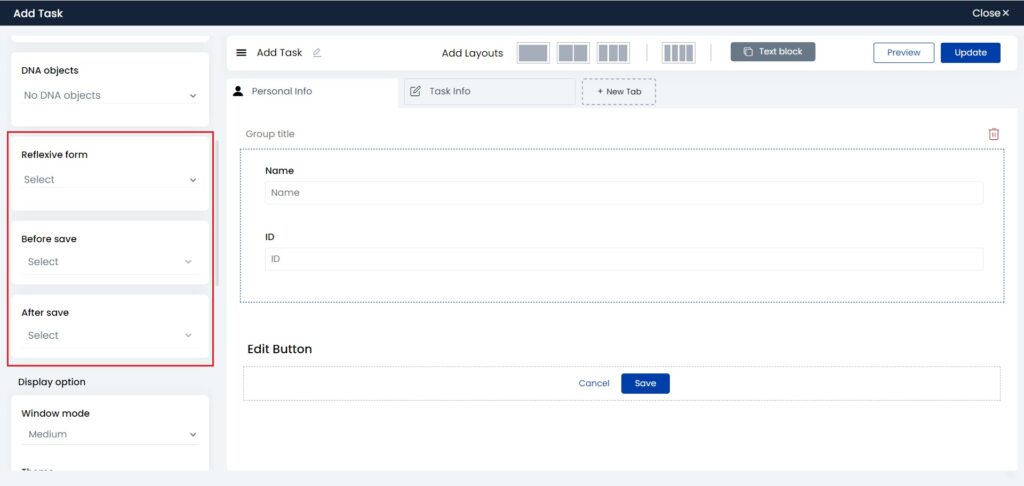
You can connect reflexive, before save, and after save workflows to the form. To know more about these workflows, click here.
Before save workflow is connected to validate the input coming from the field of the form. Select the required workflow from the dropdown list under Before save.
After save workflow is connected to initiate an action, for example, send email or update a status, when you click the Save button. Select the required workflow from the dropdown list under After Save.
Form Unsave Check
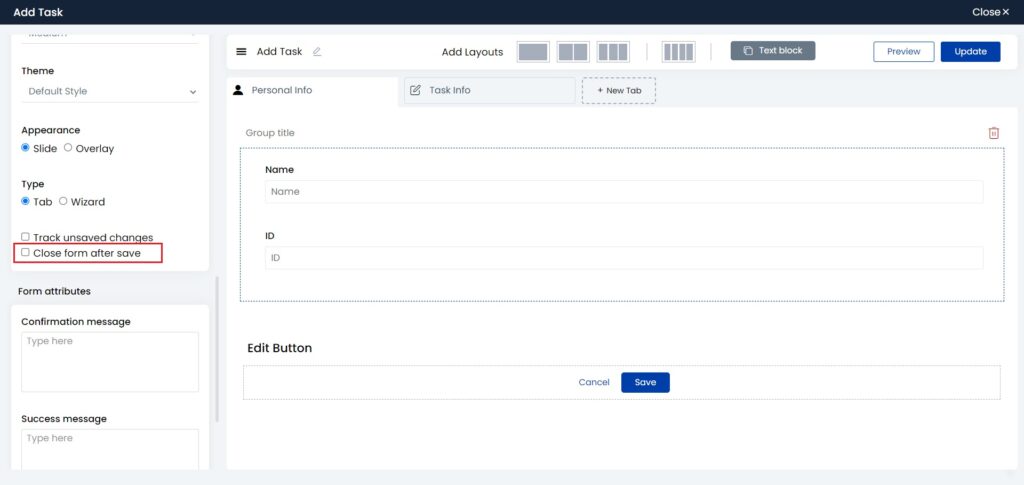
If you select the checkbox for Track unsaved changes, and if you edit a form and try to close it without saving, you get a warning message asking whether you want to exit without saving or continue editing.


Form auto close
You can set auto close for your forms, which means on the click of the Save button, your form gets closed and you are back to your dashboard. Auto save and close is executed only if the output of the Before Save workflow is True. To set auto close for the form select the checkbox for Close form after save.