Category
- Building Smart Apps
Spreadsheet Column Settings
You can use the options under spreadsheet column settings for advanced functionalities.
1. Column Datatype: you can set the datatype for a particular column.

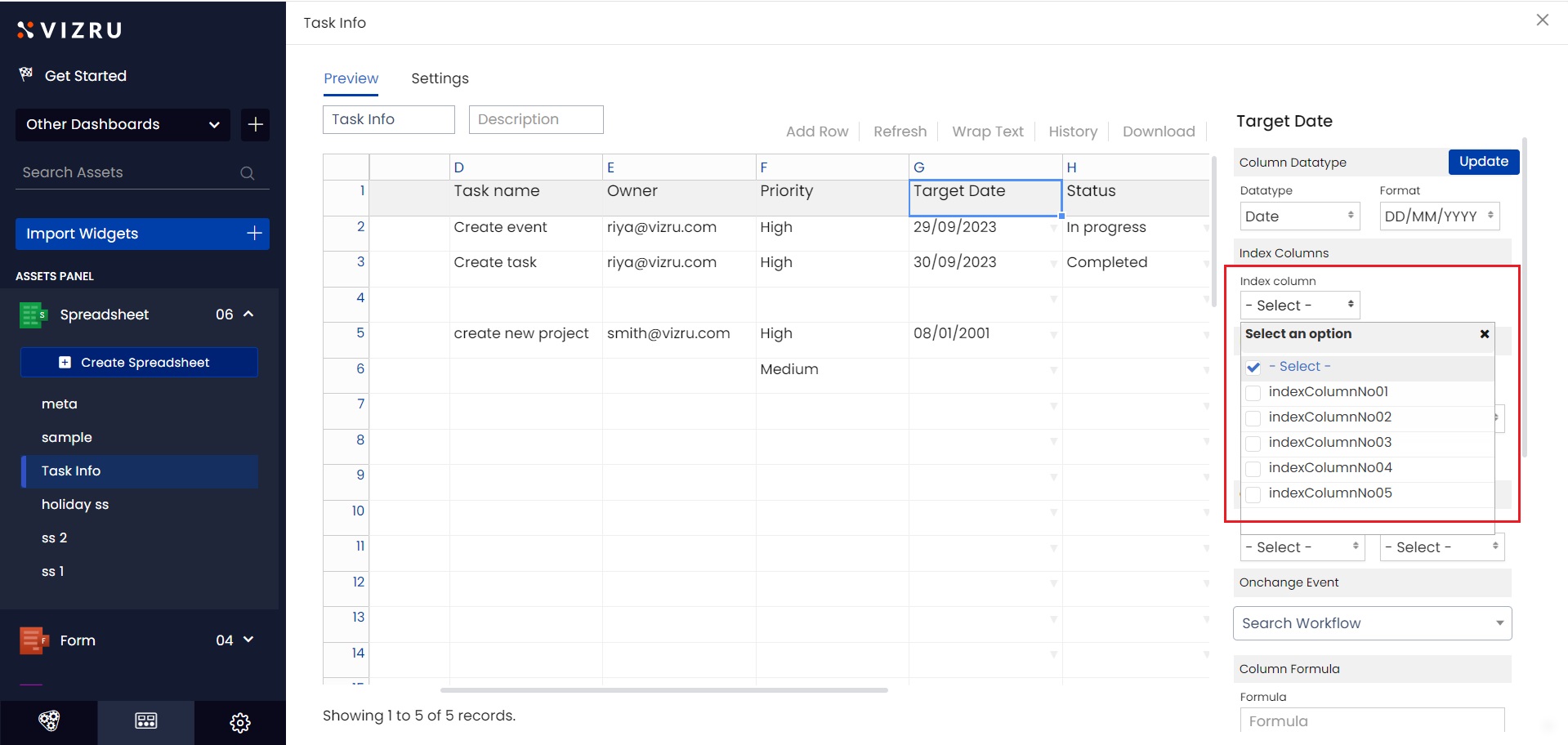
2. Index Column: if you have several spreadsheets and these spreadsheets have a common column, you can use the Index Column option to tag the specific column. This enhances the speed of search and filter block execution. However it reduces the speed of normal insert/update processes.
3. Dropdown Columns: from the option Dropdown Columns, you can set dropdowns for a field using spreadsheet (see “Adding Dropdown Lists in a Spreadsheet” in Creating and Managing Spreadsheets) or using workflow.

Using workflow you can interlink dropdown fields. To learn how, click here.
4. Multiple: if you select the checkbox for multiple, you can enable multiple selection for field dropdowns. You can set field dropdowns as checkboxes.
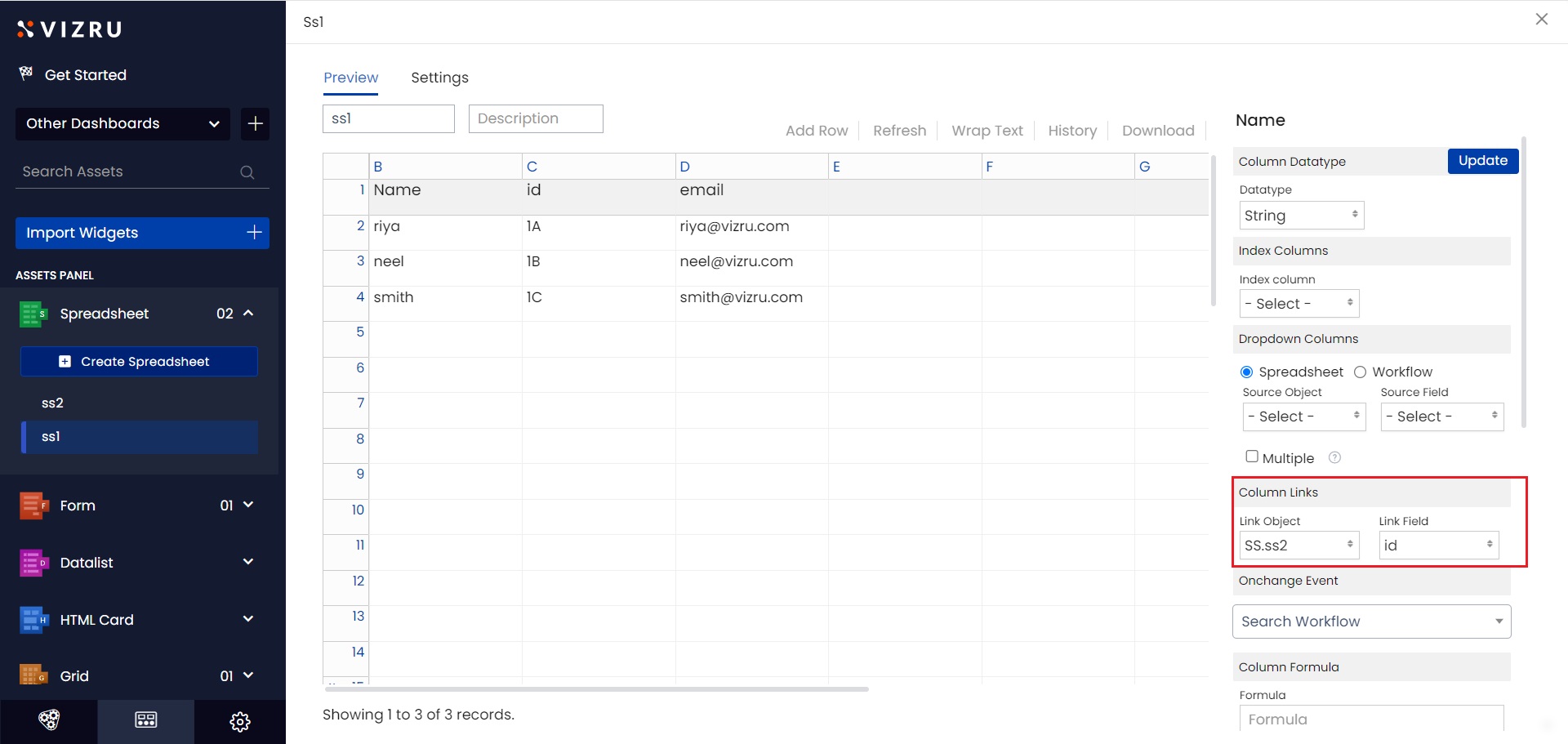
5. Column Links: Let’s say you have two spreadsheets ss1 and ss2 with a common column “id”. In ss1 column settings under the option Column Links, select the second spreadsheet ss2 and the common column “id”. On connecting the two spreadsheets this way, the values of the column “id” appear as links and on clicking them, the second spreadsheet ss2 with the corresponding entries is displayed as a pop-up.
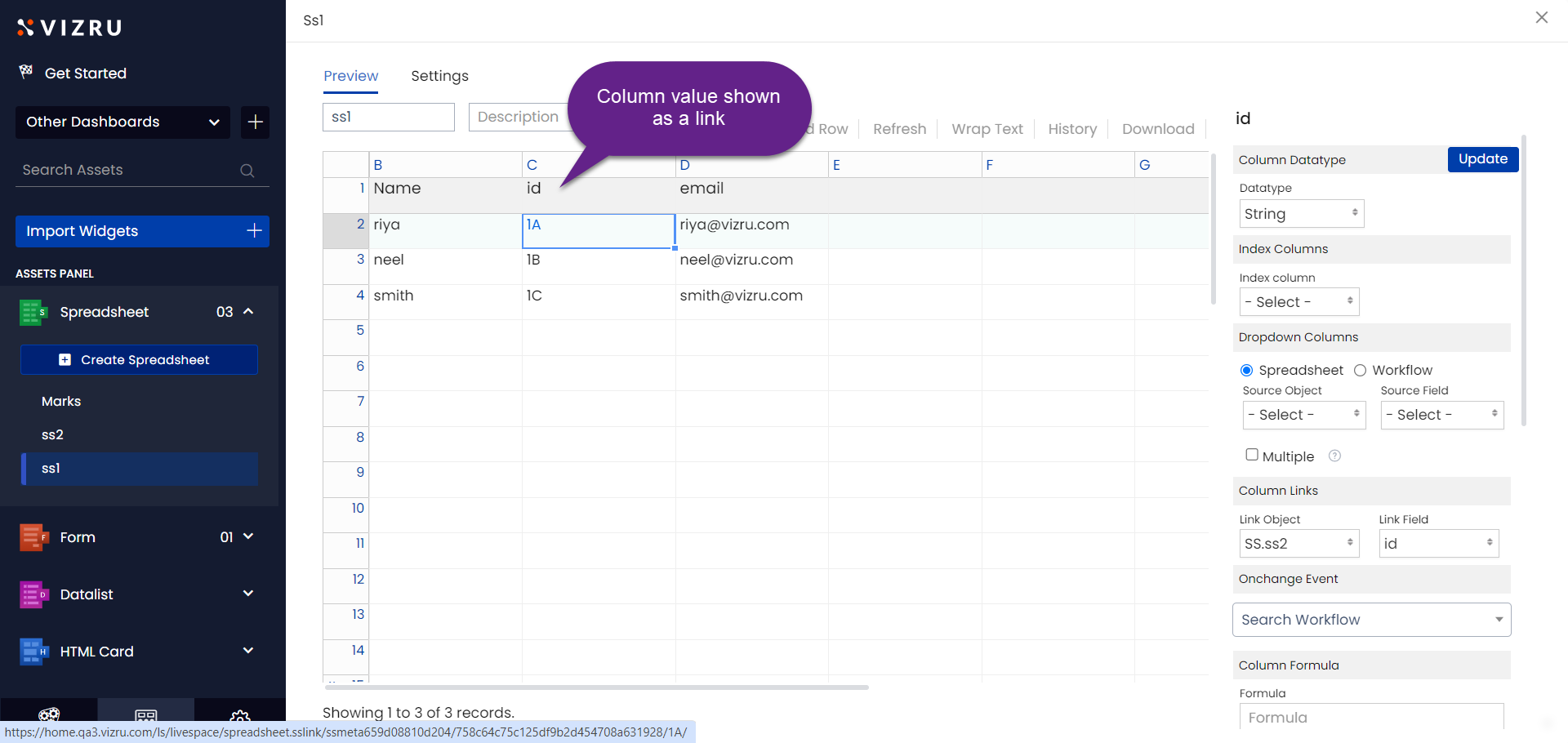
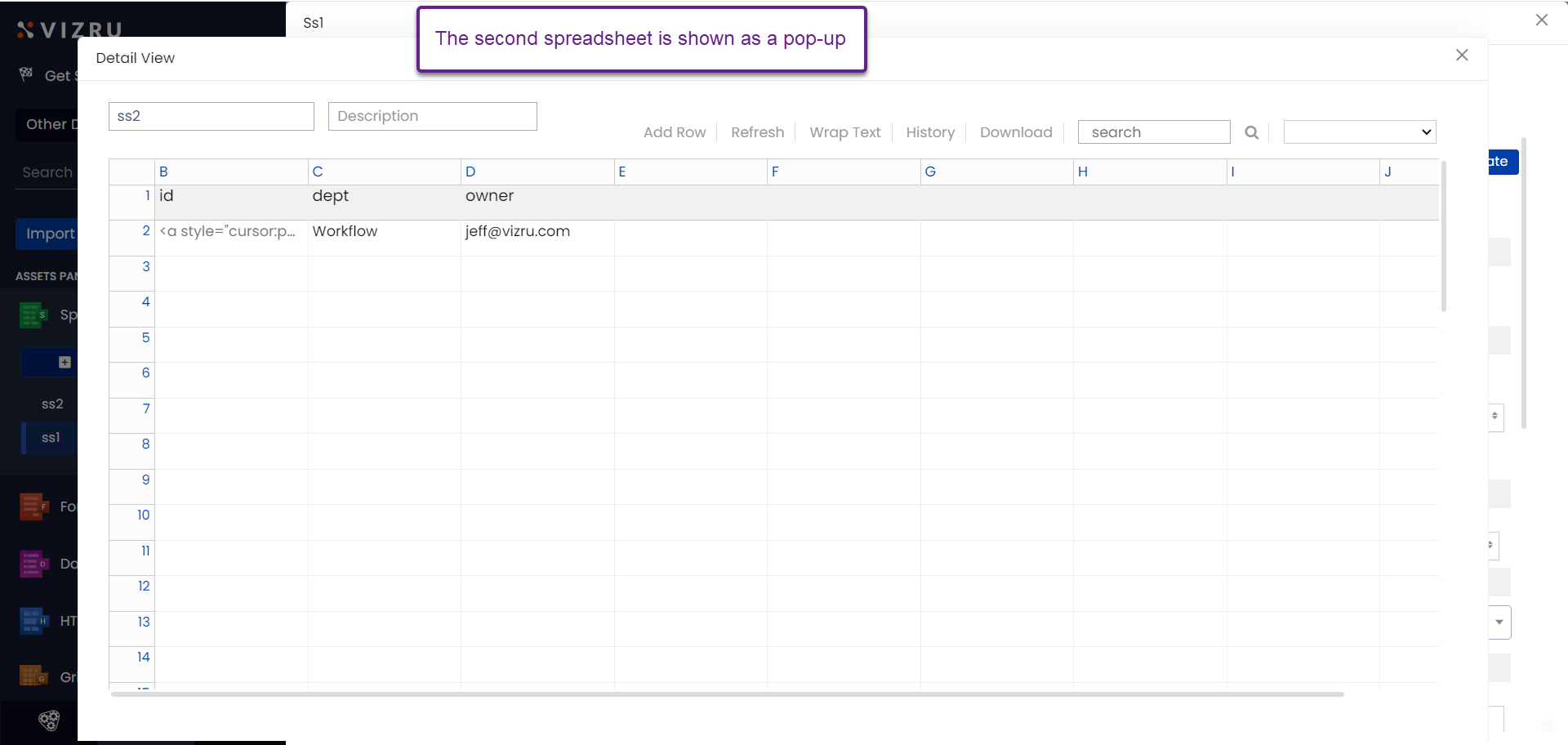
6. Onchange Event: using the option Onchange Event, you can connect a workflow to a particular field. When the value of the selected field changes, the workflow gets triggered and the corresponding action gets executed.

7. Column Formula: You can apply formulas in the following format to get the data for specific columns.
=(A$+B$)
=(A$-B$)
=(A$*2) or =(A$*B$)
=(A$/5) or =(A$/B$)
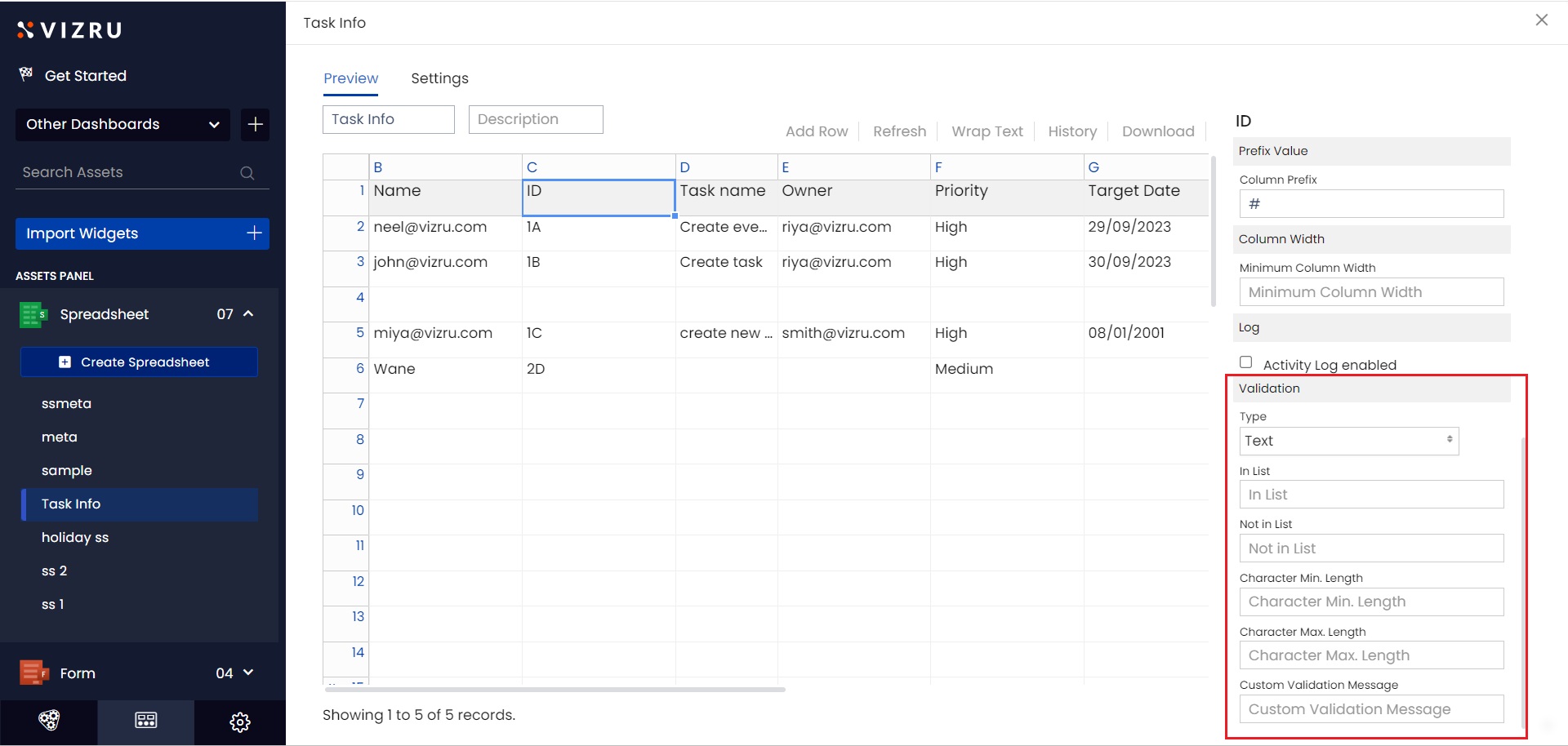
8. Column Prefix: you can set a prefix for a column value using the Column Prefix option. The following example shows the prefix “#” set for the column “id”.


9. Column Width: you can adjust the size of a specific column using the Column Width option.
10. Log: if you select the checkbox for Activity Log enabled, you can get the log of edits made to the spreadsheet on clicking History.
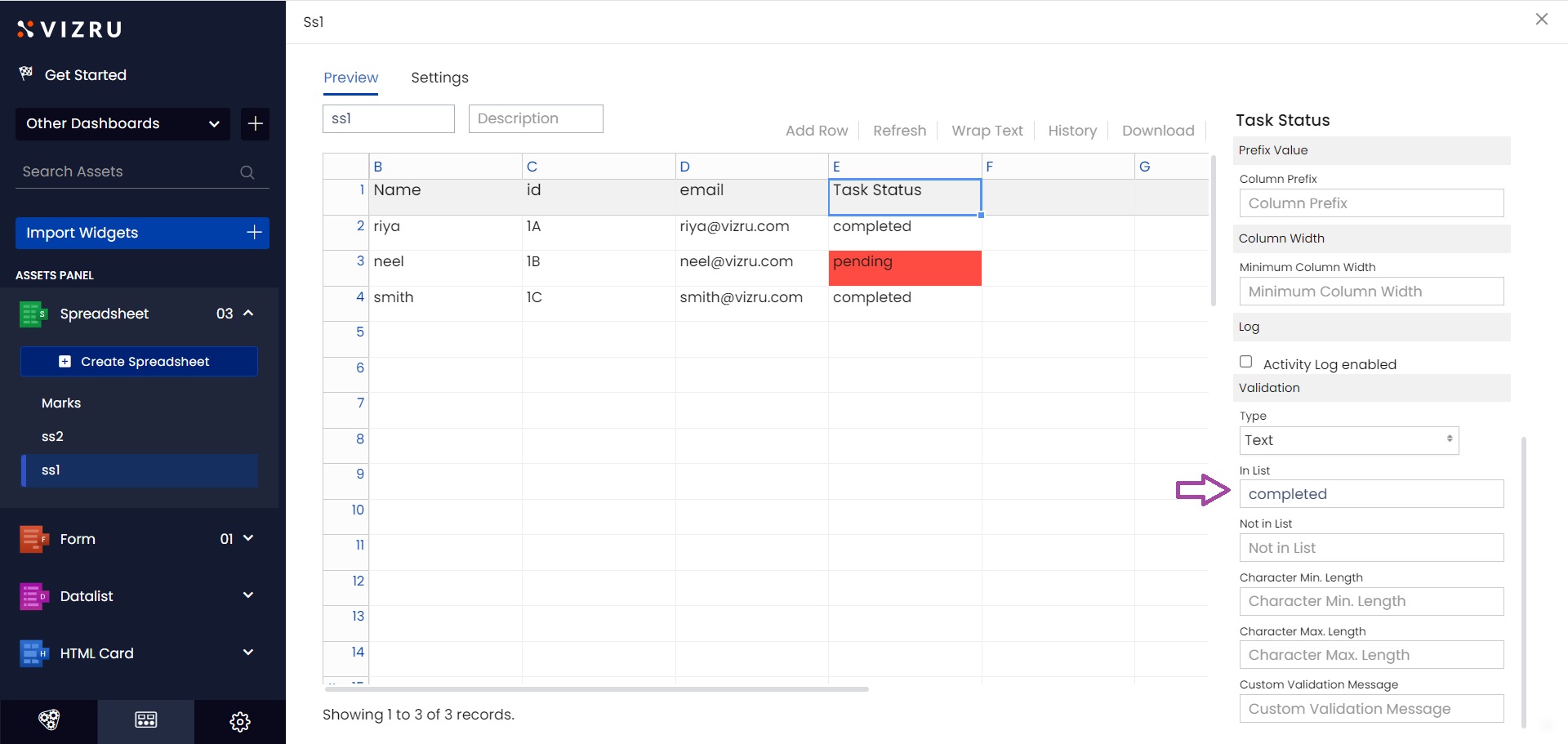
11. Validation: you can set certain rules for data in a specific column depending on the datatype of the column. For example, if string, text should be “yes/no”, should be of the form “a,b”, should not be of the form “a,b”, etc. If date, should be greater than or less than a specific date, etc. You can set character minimum and maximum length and also set a validation message.