Category
- Building Smart Apps
Dashboard Settings
You can change the dashboard appearance on the whole or you can change the appearance of a particular dashboard widget.
- To change the appearance of a dashboard, go to App Settings and click the tab Appearance. Choose from the available options.
.png)
2.To change the appearance of a widget, go to Dashboard Edit and click the Appearance icon for the widget.
.png)
The following pop-up is displayed.
.png)
Choose from the options and click Save.
Dashboard Snippet feature: You can add HTML codes, CSS scripts, and Java scripts for a specific dashboard in an app using the dashboard snippet feature.
.png)
.png)
Opening init workflow from dashboard: You can activate / deactivate and create init workflow from the dashboard itself.
.png)
Dashboard content height settings: You can adjust the height of dashboard elements. You have three options: Fit in Widget, Fit screen, and Fit Content.
.png)
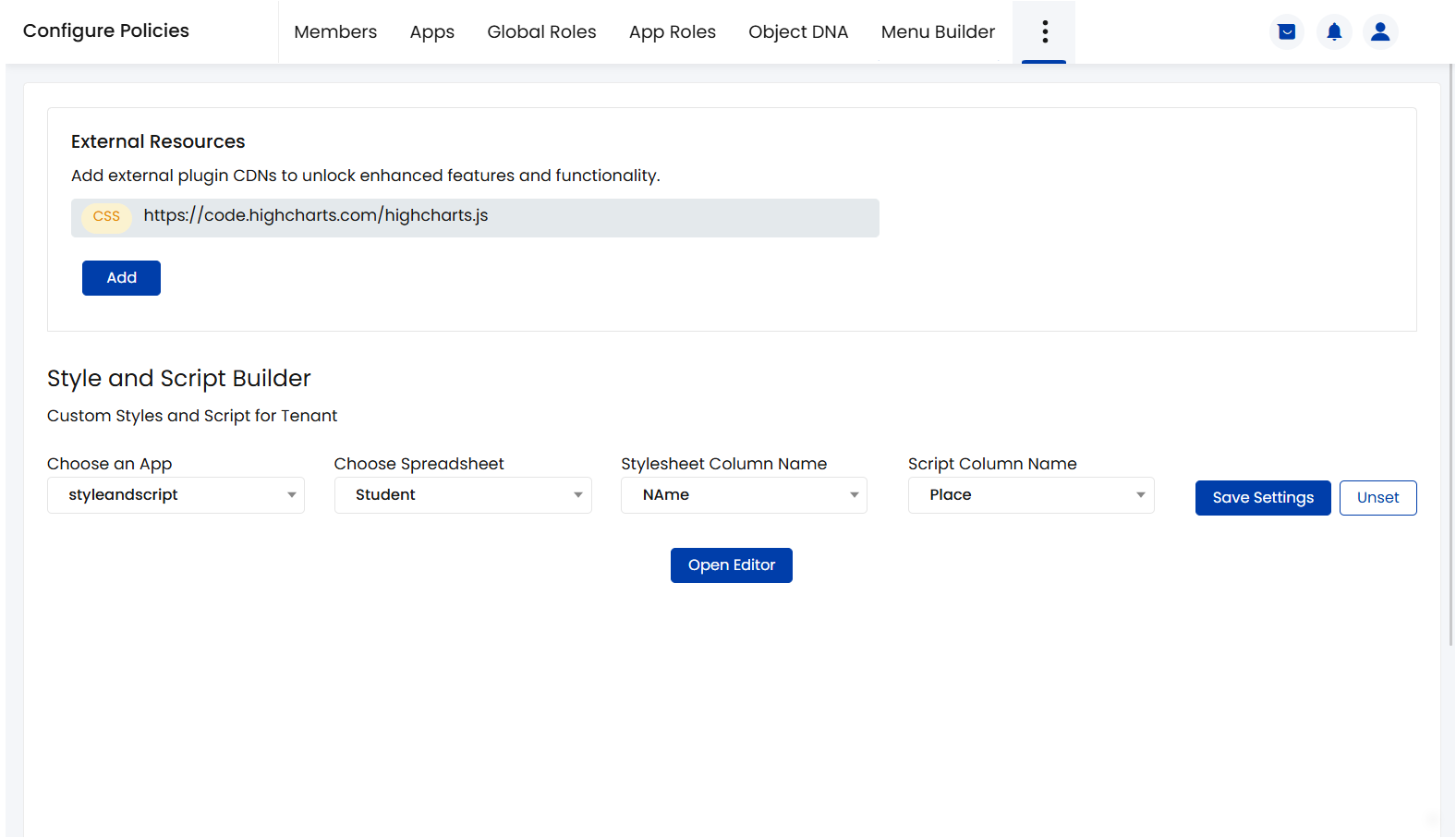
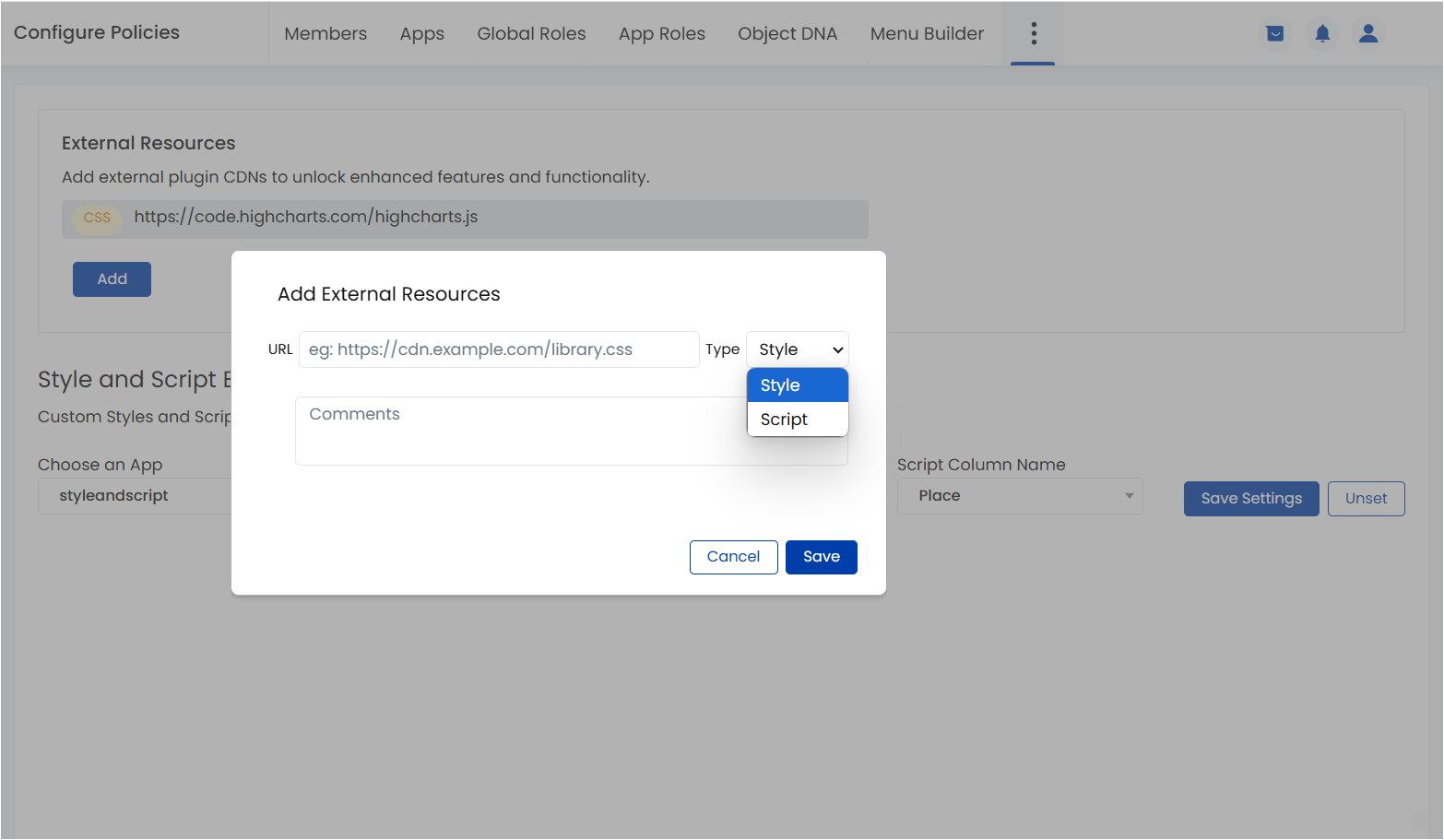
Integrating external plugins: You can add external plugins to enhance customization and functionalities inside the dashboard. External plugins can be added from Configure Policies > Style Sheets > External Resources > Add
- Click the bell icon on the top right of the page to view notifications. You can also view the count of notifications over the bell icon. This count is based on the number of unread notifications you have. If the count of notifications is more than 15, it is shown as 15+. You can click the option Load more to view the previous notifications.
.png)